Hosted Payment
The hosted payment page lets a cardholder pay on a PayLolly page, so card data never touches your servers. The page is mobile friendly, themeable (light, dark or automatic), and can offer new card entry, saved cards, or both, with optional or mandatory consent to save the card for later use (an agreement).
sequenceDiagram
    Browser->>+Website: Request to initiate payment
    Website->>+Api: Create Hosted Payment
    Api->>+Website: Response with url
    Website->>+Browser: Iframe or redirect to url
    Browser->>+PayLolly: Enter Card details and proceed to payment
    PayLolly->>+PayLolly: Process transaction
    PayLolly->>+Browser: Redirect to Website
    Browser->>+Website: Back from payment
    Api->>+Website: Webhook (optional)
Warning
Webhooks are strongly suggested as the Redirect to website and back from payment may not always work (due to network anomalies, cardholder abandonment, etc)
Note
If webhooks are not possible, one could use a polling mechanism to poll status of transaction using GetPaymentStatus
Important
If using polling, DO NOT enable retry, or else a transaction marked as Decline could be Approved as customer may be retrying it
On this page
- Request reference
- Modes
- What the cardholder sees (layouts, extra details, fixed details, Pay button, retries, saved cards, tabs, card list)
- Saving a card: agreements and consent
- Saved cards
- Themes: light, dark and automatic
- CSS Customisation
- Errors
- Use Cases
Request reference
Payment/CreateHostedPayment takes the fields below. Fields not listed (for example threeDSConfig, webHooks) behave as on the other payment calls.
| Field | Required | Description |
|---|---|---|
| merchantId | yes | Your merchant id |
| accountId | no | Force a particular merchant account |
| currency, amount | yes | For example EUR, 25.00 |
| merchantRef | yes | Your reference, must be unique - suggest a Guid |
| cardHolder | no | email, name (prefilled on the page), reference (your id for the customer, mandatory when agreement is sent, see below), phone, address |
| cardData | no | Prepopulate card details, only if you are PCI D |
| tokenData | with PresetToken |
token of the card to offer |
| tokens | with PresetTokens |
List of tokenData to offer for selection |
| authorisationType | yes | Auth (preauth) or AuthCapture |
| recurrence | yes | OneTime, or OneClick to save the card (see agreements) |
| initiation | no | Always CIT (the default) on hosted payments. MIT or MOTO is rejected with VAL13 |
| agreement | no | Register the card as an agreement, see below |
| mode | no | See Modes, defaults to Auto |
| cssSettings | no | theme (Light, Dark, Auto) and css (Bootstrap variable overrides), see Themes and CSS Customisation |
| returnUrl | yes | Where the cardholder returns to at the end of the payment |
| validUntil | yes | Until when the link is valid, suggest 20 minutes (a payment link to send by email may be valid for days) |
| webHooks | no | Server to server notifications, strongly suggested |
Note
A hosted payment with the agreement object offers at most 20 saved cards: the cards of your tokens list first, in your order, then the cards found by LookupTokensByReference, most recently used first. Requests without the agreement object are not limited by this cap.
LookupTokensByReference looks at the cardholder reference's approved payments and finds at most the 50 most recently used cards, for every request (an agreement object then narrows that to 20 as above).
The hosted page only accepts a saved card it offered (your
tokenData, yourtokens, or the cards found byLookupTokensByReference). A card id posted to the page that was not offered is refused withTOK07and the payment ends in error; the card is not read.A token must belong to your merchant. A
tokenDataor atokensentry that belongs to another merchant is refused when you create the hosted payment withTOK07, exactly as an unknown token is, and nothing of that card (masked number, name, email) is read or shown.
Modes
Hosted Payment system contains the mode string, which can be a combination of the following values to trigger particular features
| Mode | Description |
|---|---|
| New | Request new card - may be prepopulated in CardData section (if PCI D) |
| PresetToken | Present one existing card (specified in Token)- user needs only populate CVV2 |
| PresetTokens | Present multiple cards (specified in Tokens)- user needs to select card and only populate CVV2 |
| FixedCardHolderEmail | Fix cardholder email - ie make it read-only to user, see Fixed cardholder details |
| FixedCardHolderName | Fix cardholder name - ie make it read-only to user |
| Retry | Allow retries in case of Decline / Error |
| FriendlyErrors | Display user friendly errors instead of a simple Decline (only for Retry) |
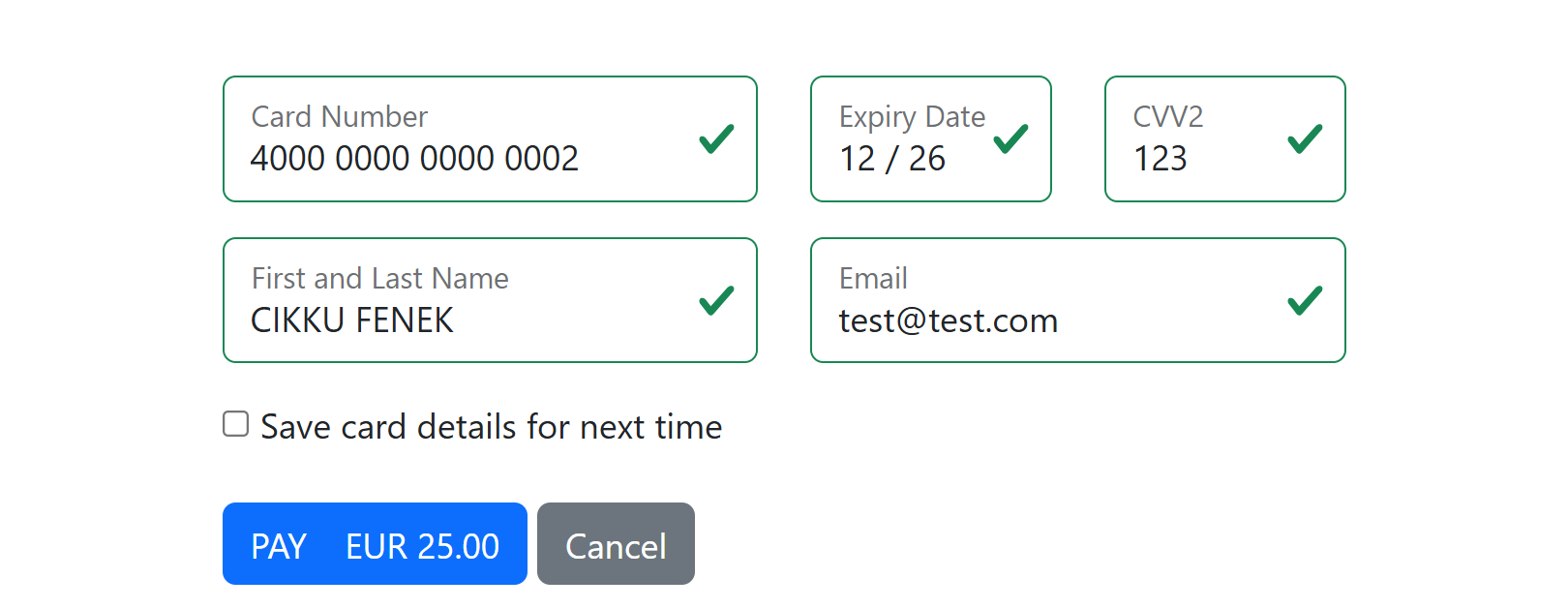
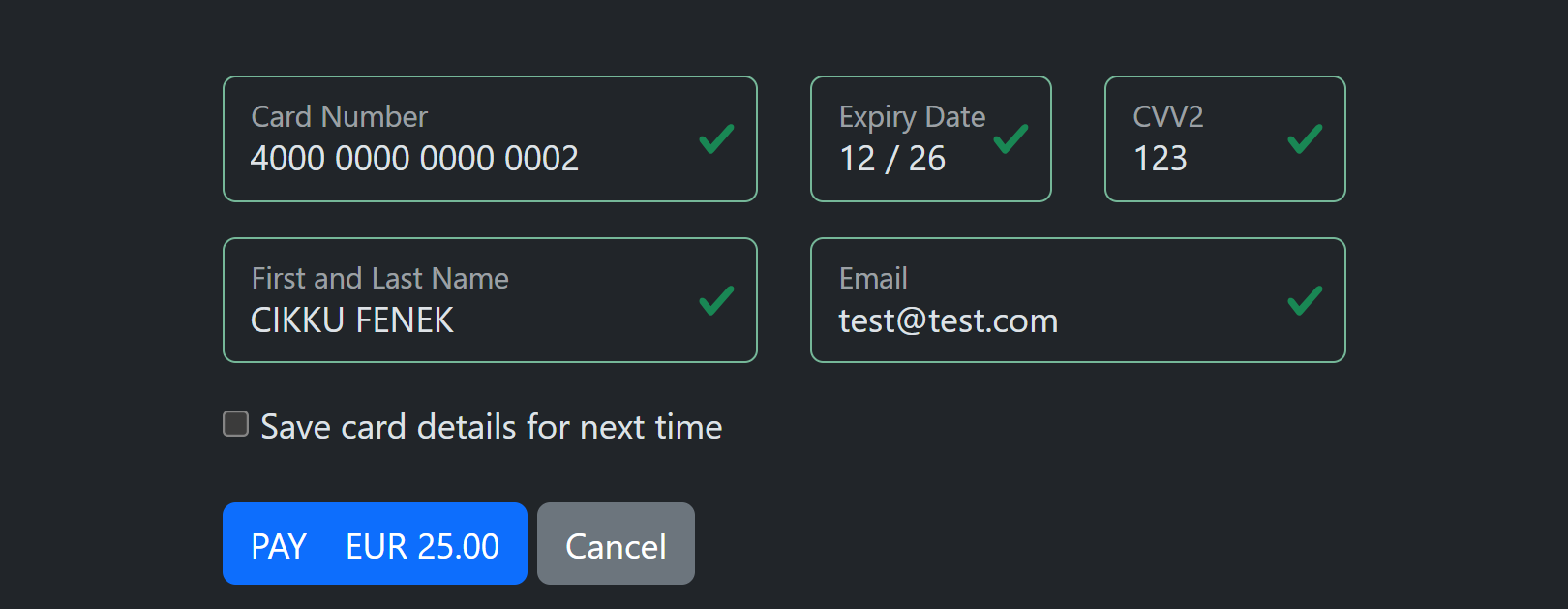
| AskTokenize | Ask the cardholder for permission to save the card. Without an agreement object: a "Save card details for next time" checkbox. With an agreement object: the consent checkbox becomes optional, see Saving a card |
| LookupTokensByEmail | No longer supported - rejected with VAL14 (matching on email allows impersonation). Use LookupTokensByReference |
| LookupTokensByName | No longer supported - rejected with VAL14 (matching on name allows impersonation). Use LookupTokensByReference |
| LookupTokensByReference | Offer the cardholder's previous cards (matched on cardholder reference) - only cards with recorded consent (an active agreement with consent recorded; with an agreement object only that agreement). Cancelled or expired agreements are not shown |
| Vertical | Use Vertical template instead of Horizontal template for the new card form |
| WithZip | Enforce collection of ZIP code, see More cardholder details |
| WithCountry | Enforce collection of Coutry code |
| DisablePay | Disable payment button, see The Pay button |
| WithAddress | Enforce collection of Address |
| WithPhone | Enforce collection of phone number |
Modes can be combined
| Mode | Desciption |
|---|---|
| New, PresetTokens | allow cardholder to enter new card, and select an existing card |
| New, PresetToken | allow cardholder to enter new card, or select existing card |
| New, FixedCardHolderEmail, FixedCardHolderName | allow cardhodler to enter new card but email and name details are read-only |
| New, PresetToken, PresetTokens | allow cardholder to enter new card, or select from a single card or multiple cards depending on cards provided |
| New, AskTokenize | new card, and the cardholder chooses whether to save it |
Tip
Auto is equivalent to New, PresetToken, PresetTokens
Warning
Lookups require to have Auto or PresetTokens, and to specify the cardholder reference with the CreateHostedPayment request. Only LookupTokensByReference is supported, and it shows only cards with recorded consent (see Agreement/RecordConsent for existing cards)
Note
A merchant level default mode (set up by PayLolly) is combined with the mode you send. If a mode added at merchant level contains LookupTokensByEmail or LookupTokensByName every hosted payment of that merchant is rejected with VAL14.
What the cardholder sees
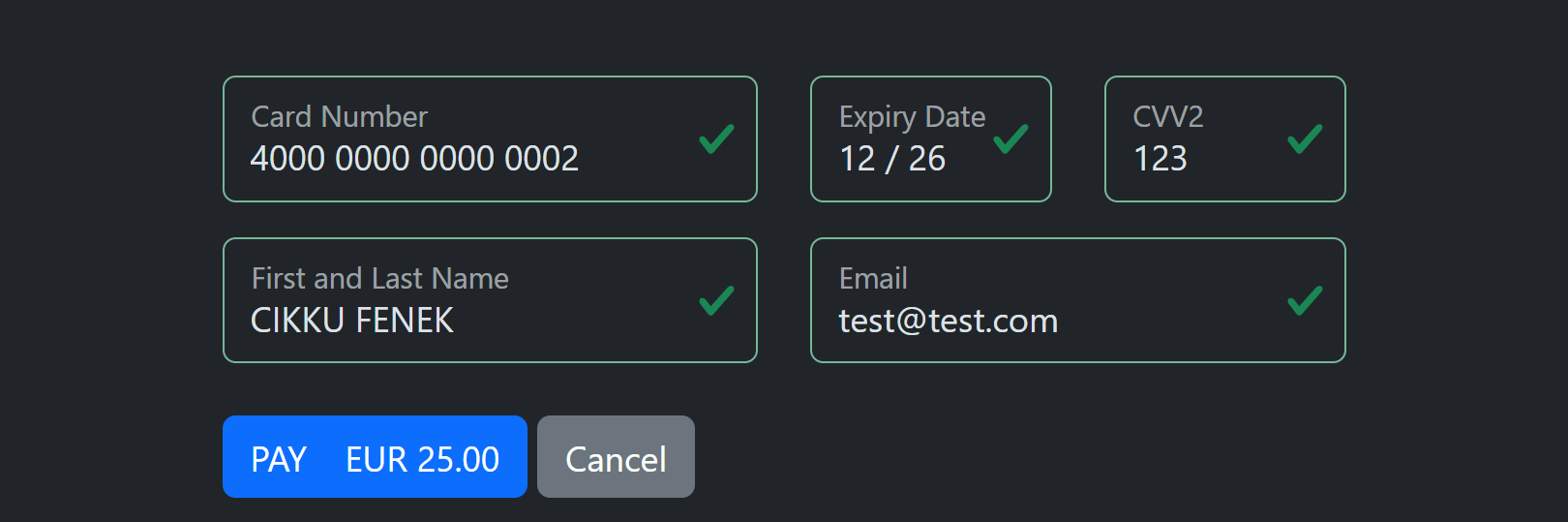
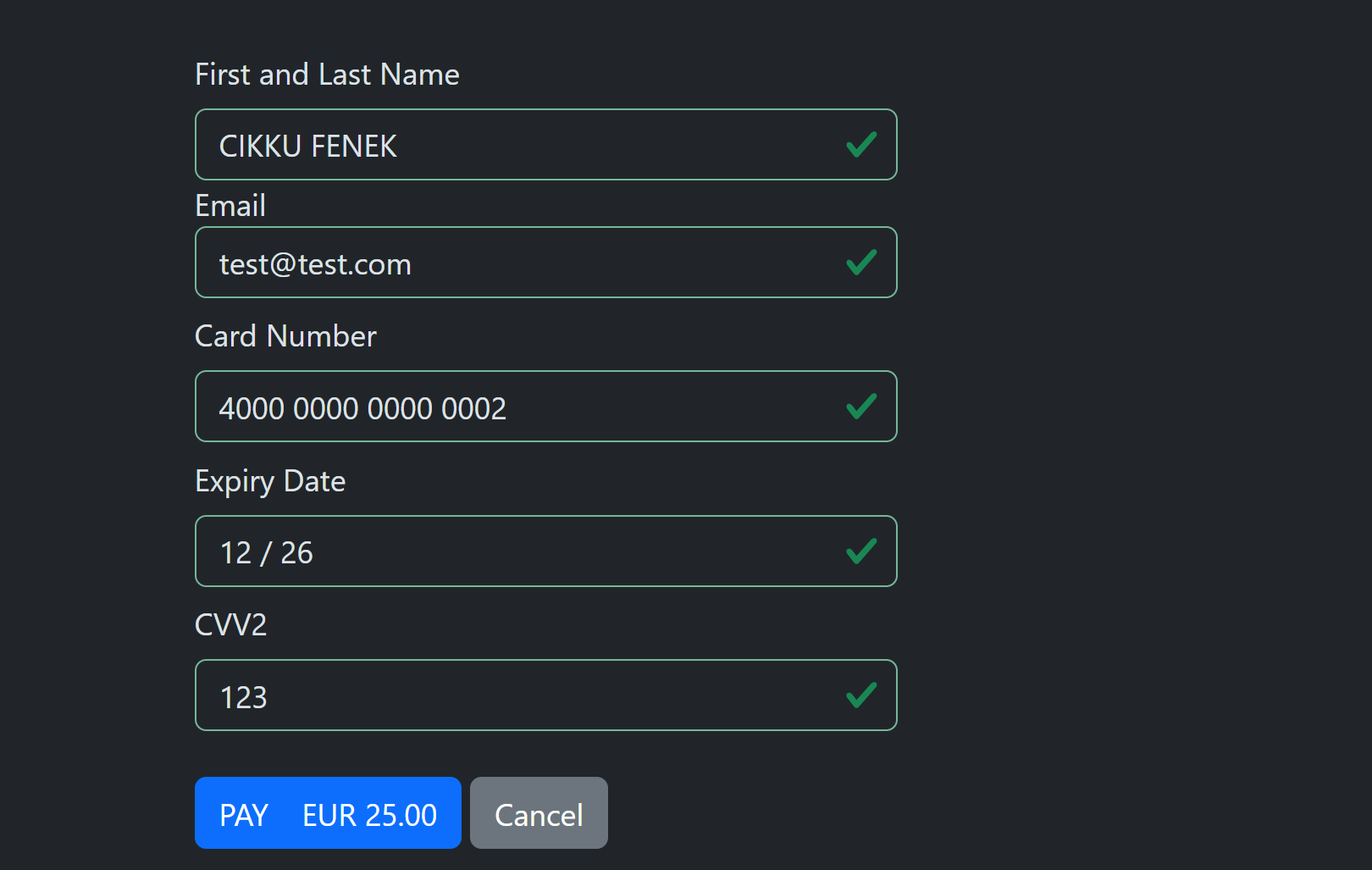
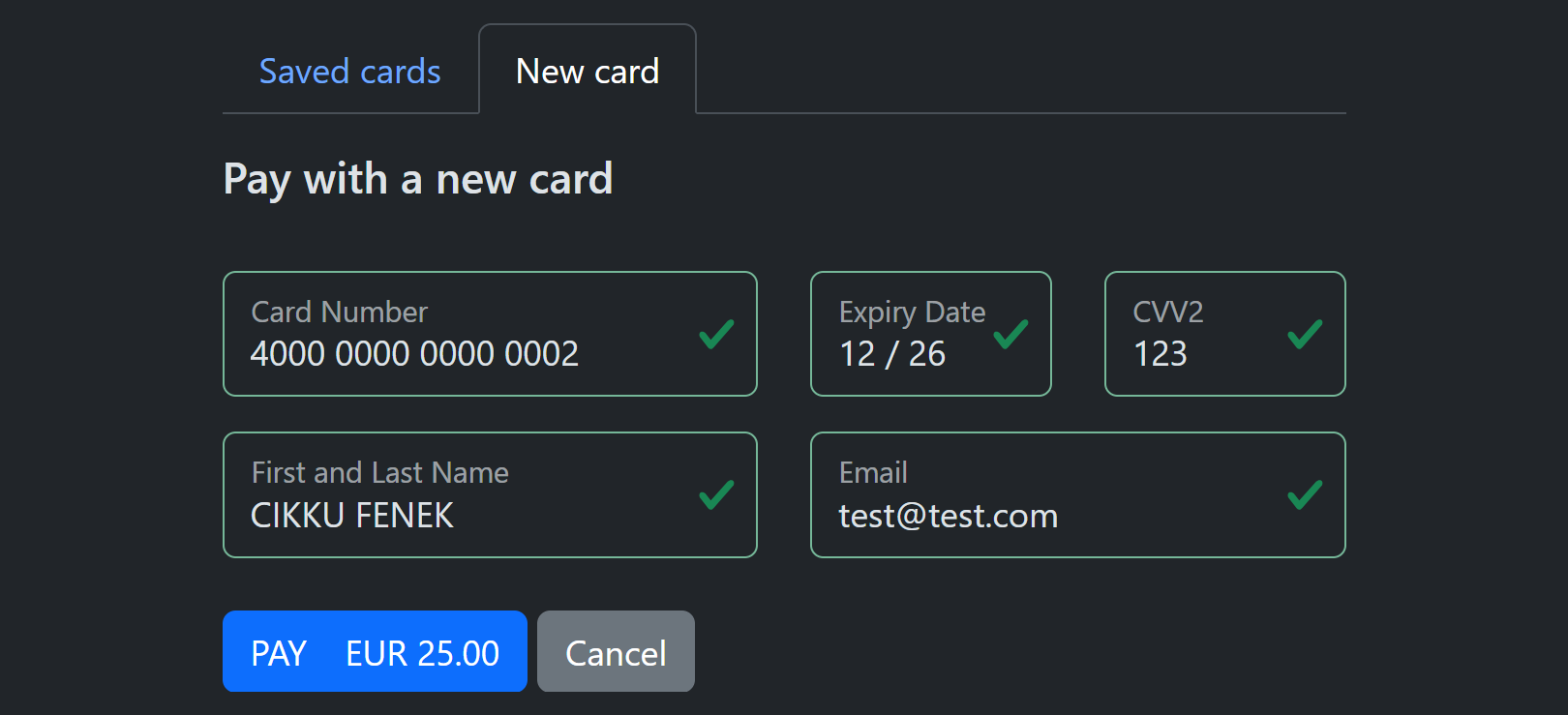
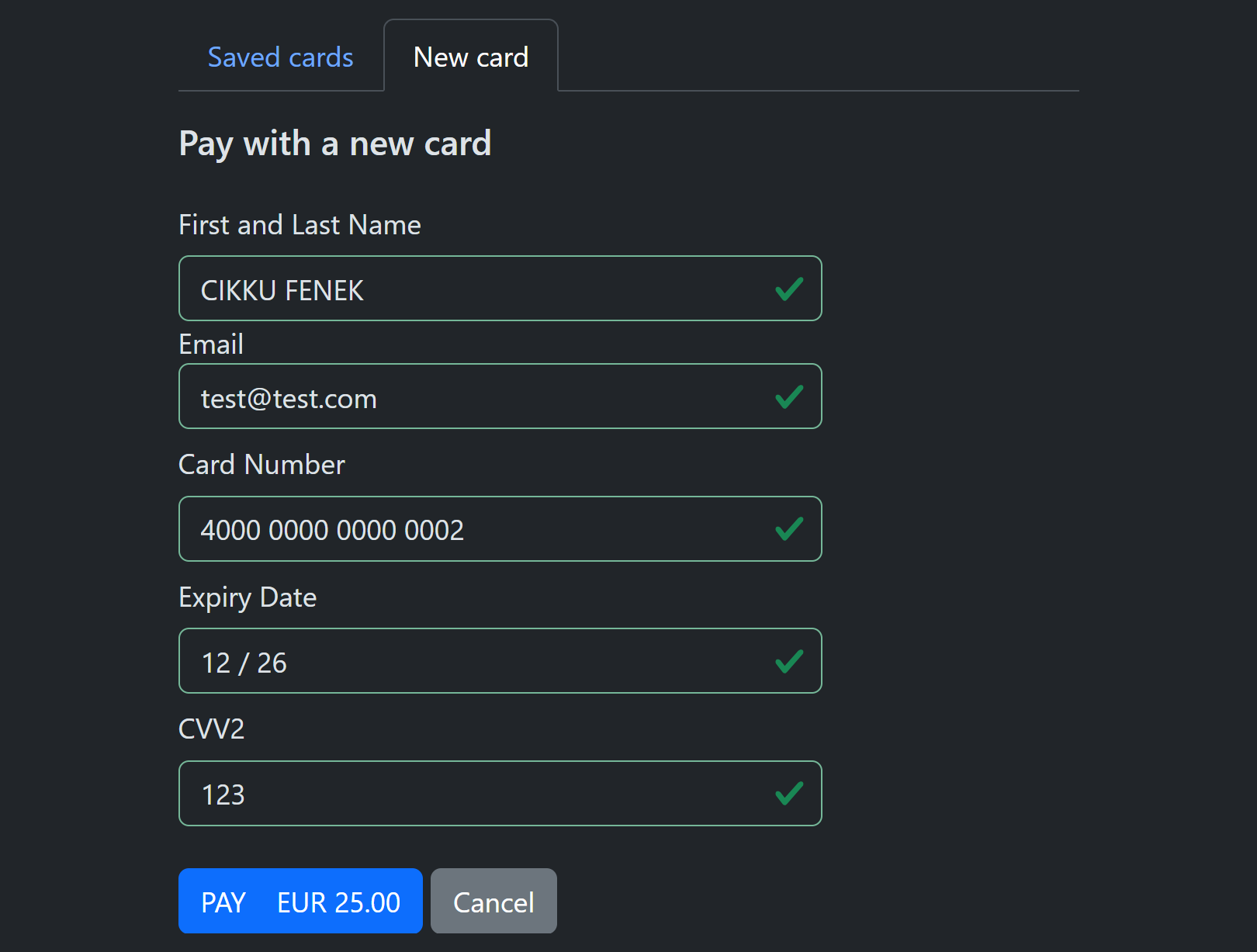
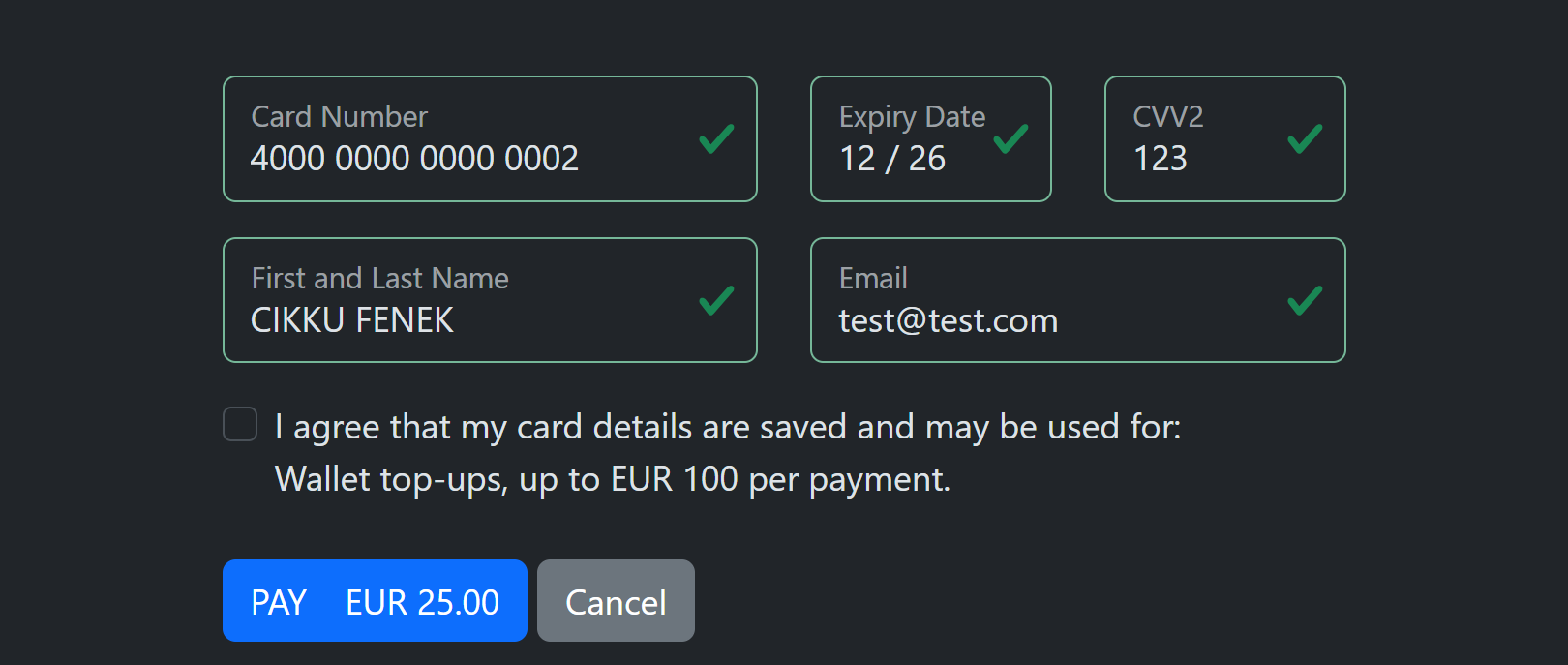
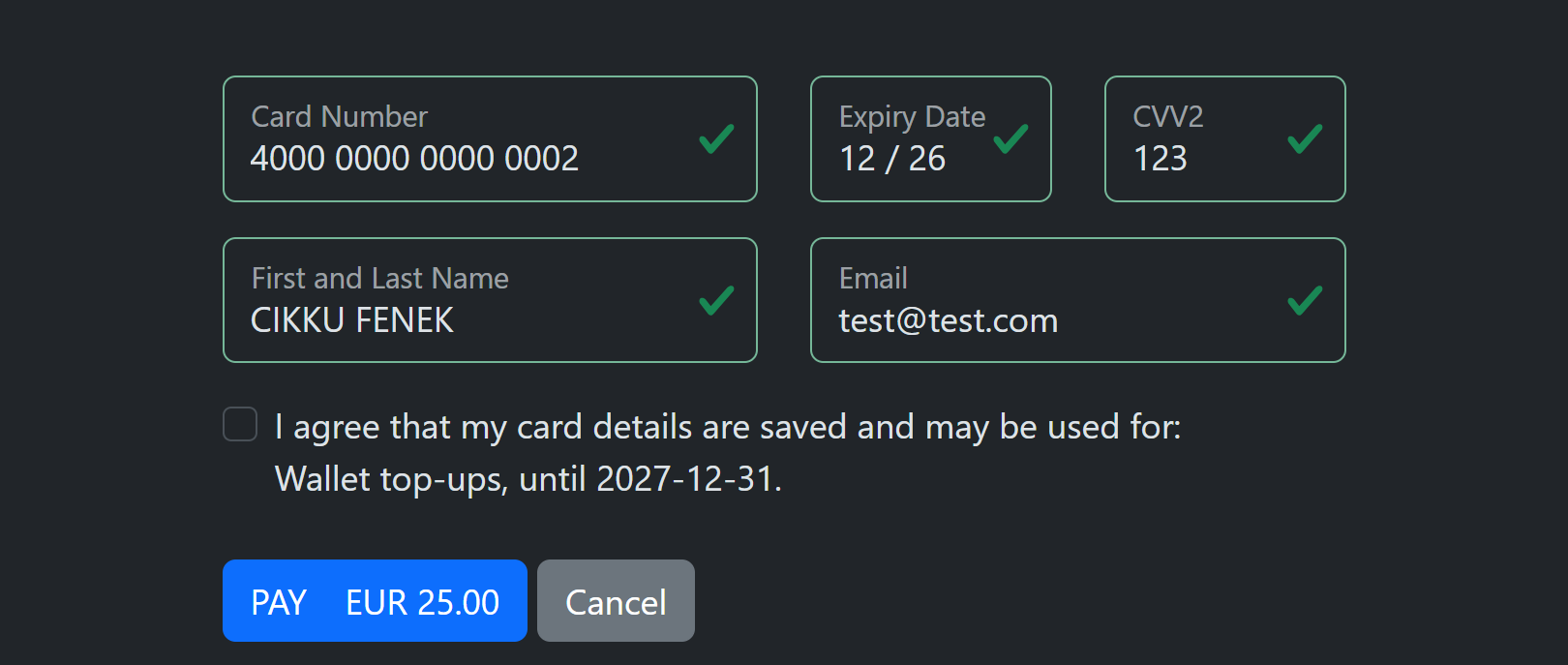
Every picture below is shown in the light and in the dark theme (see Themes). The page is the same in both themes, only the colours differ.
New card form: horizontal and vertical
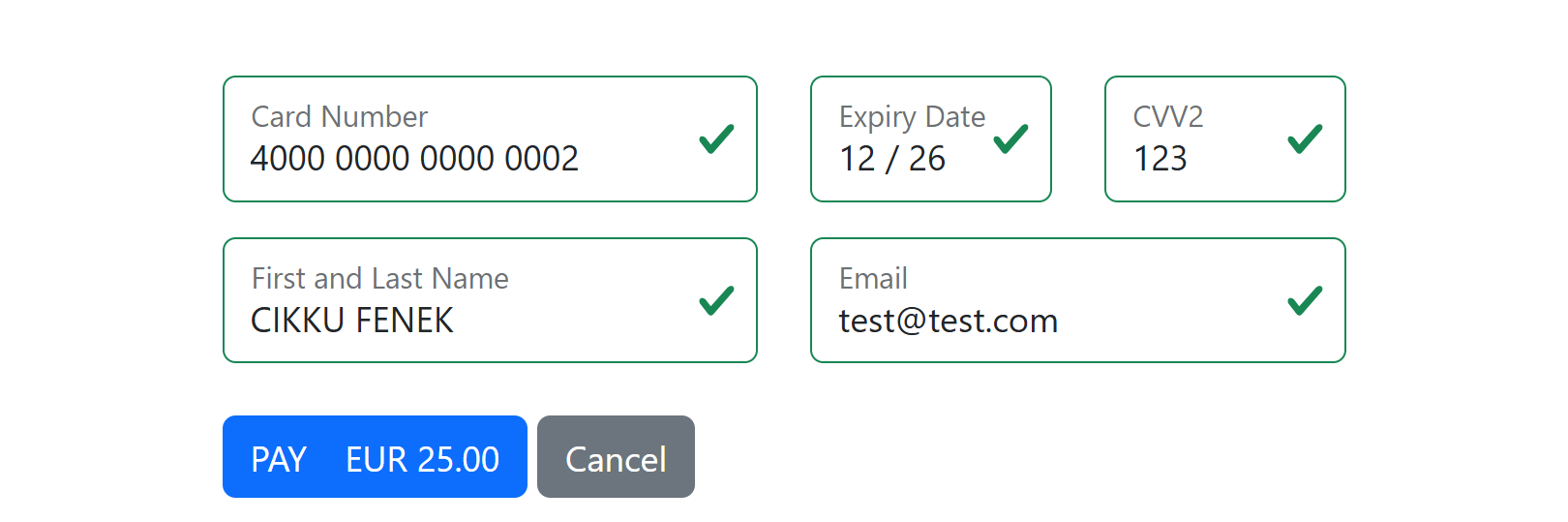
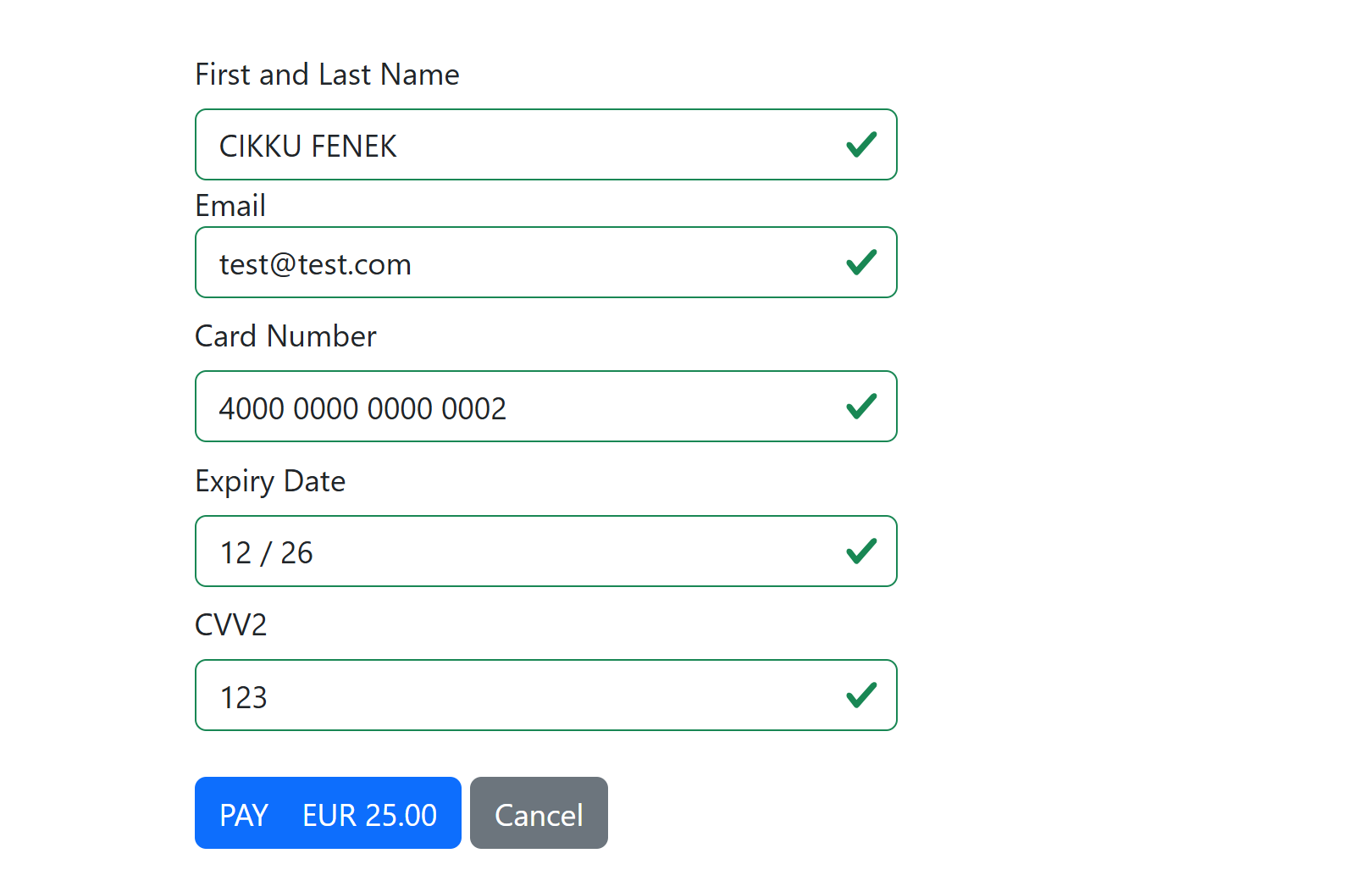
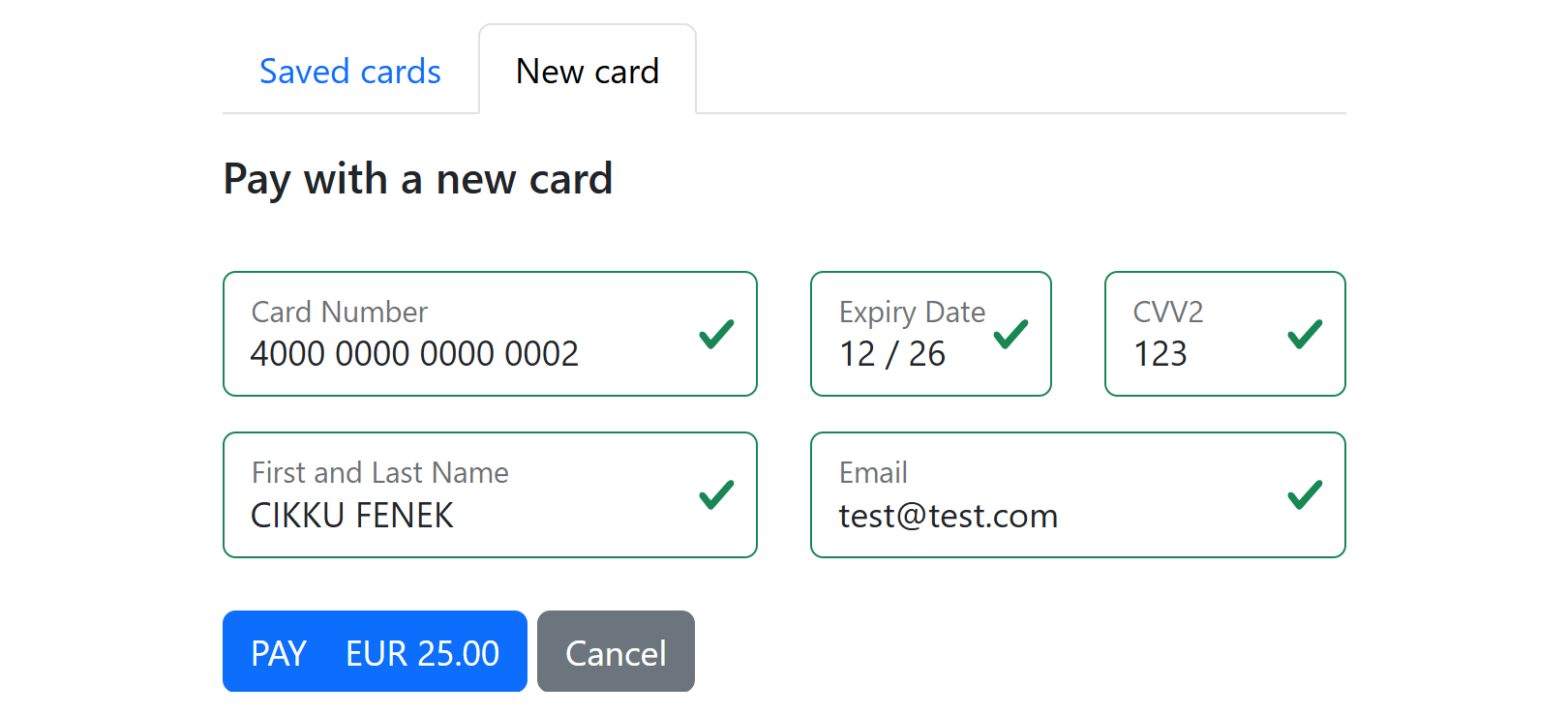
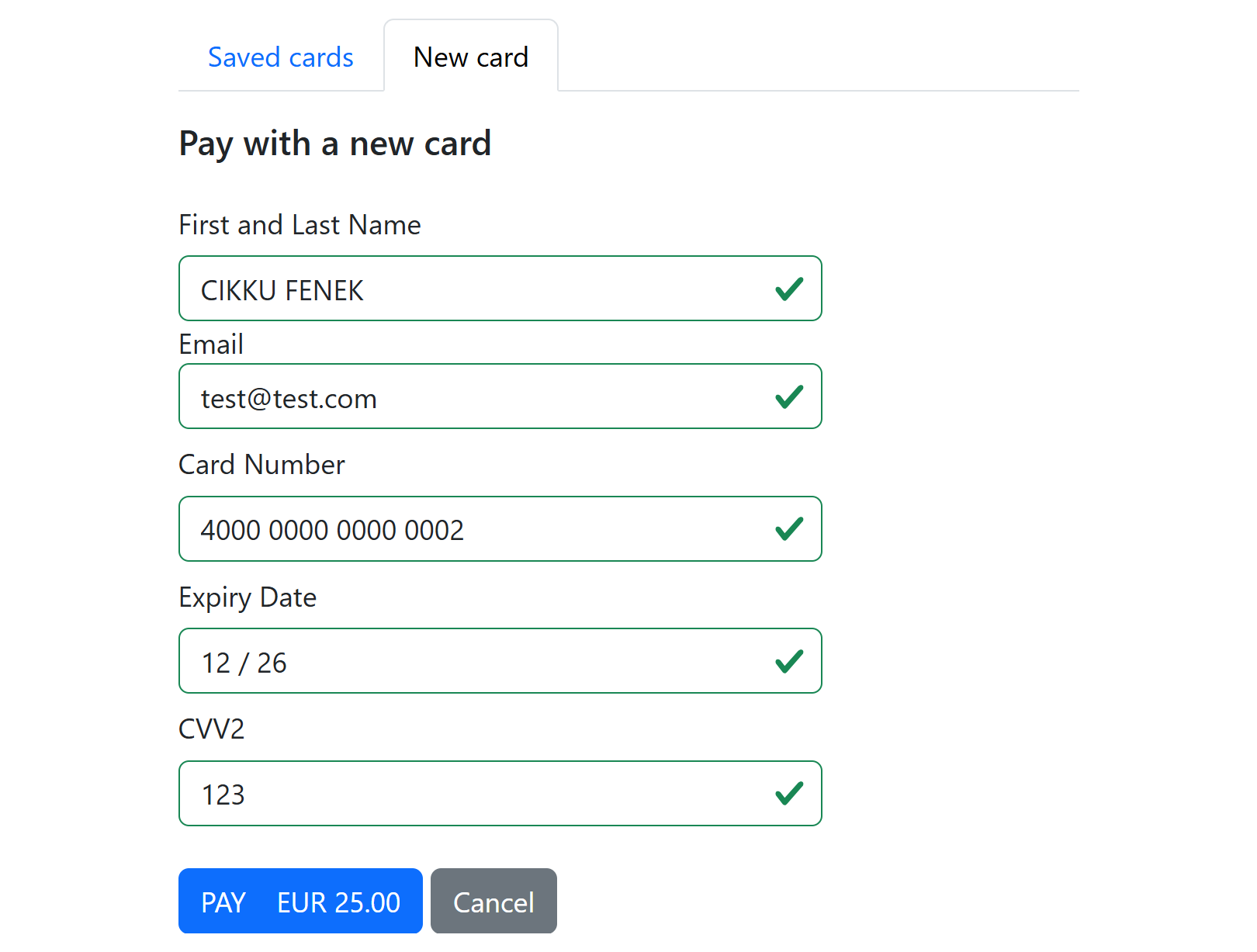
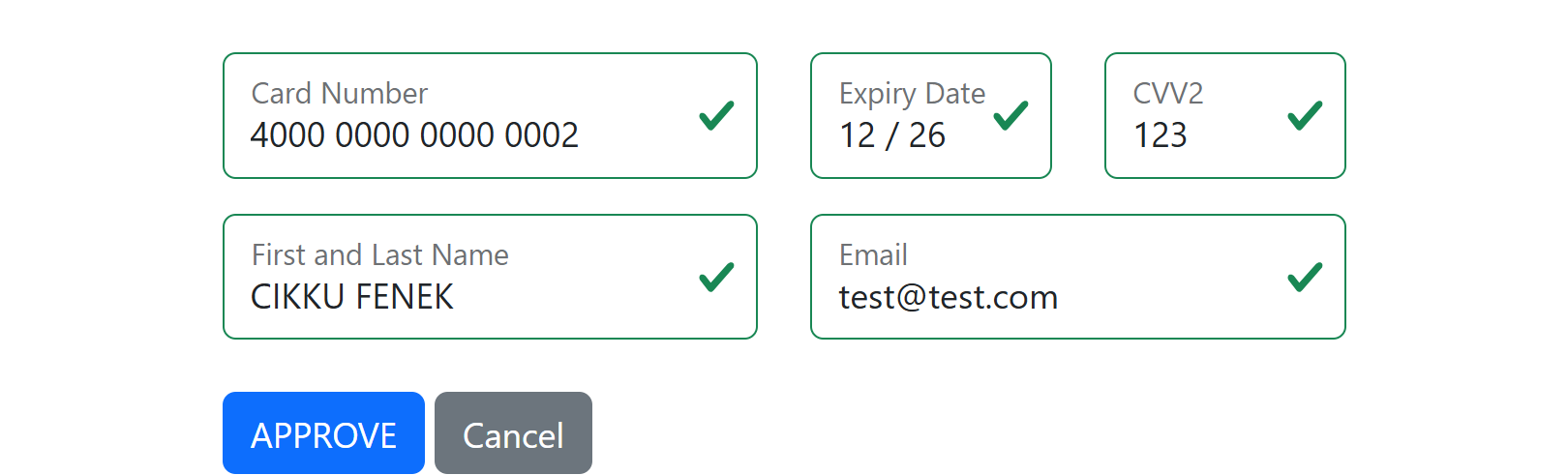
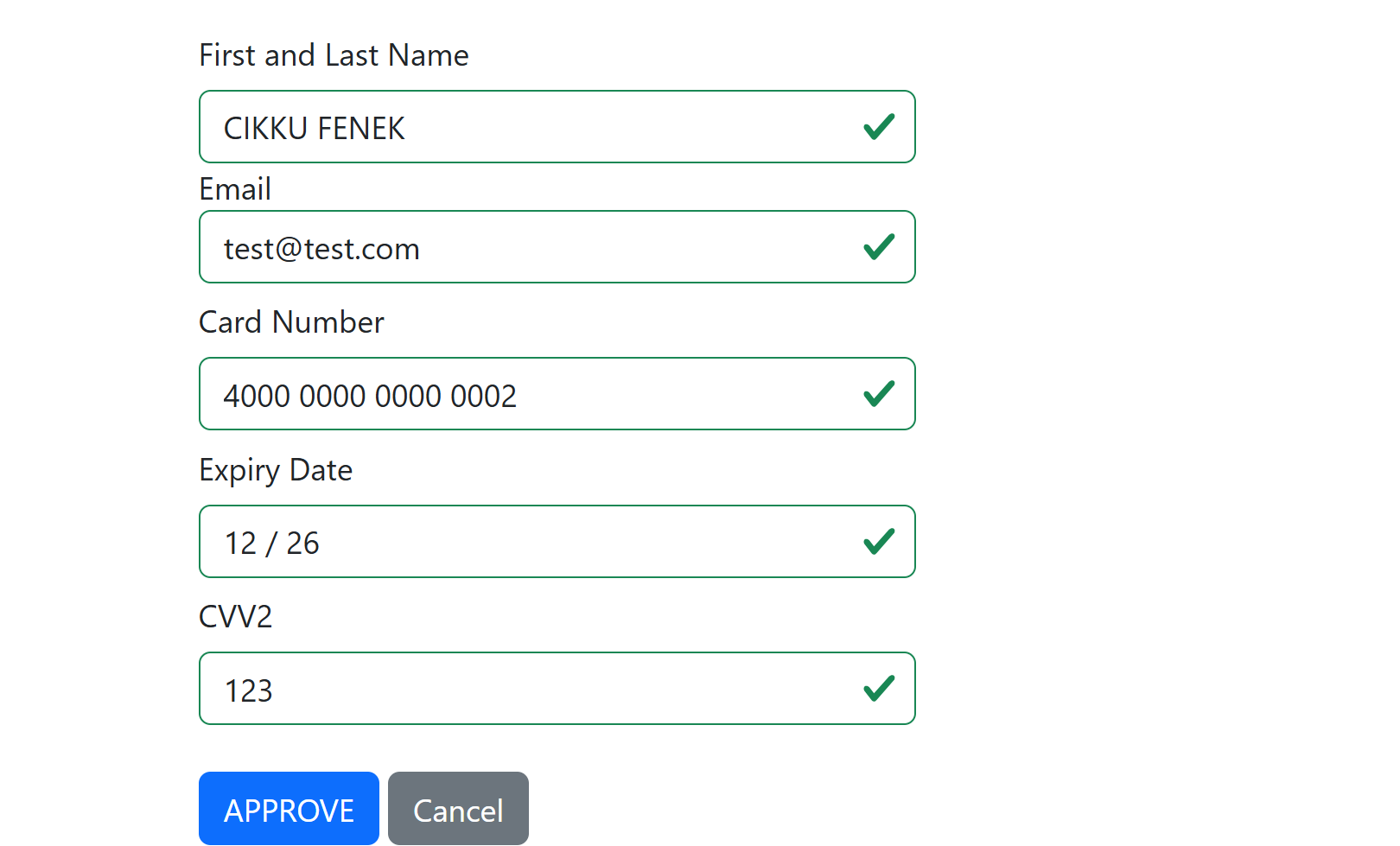
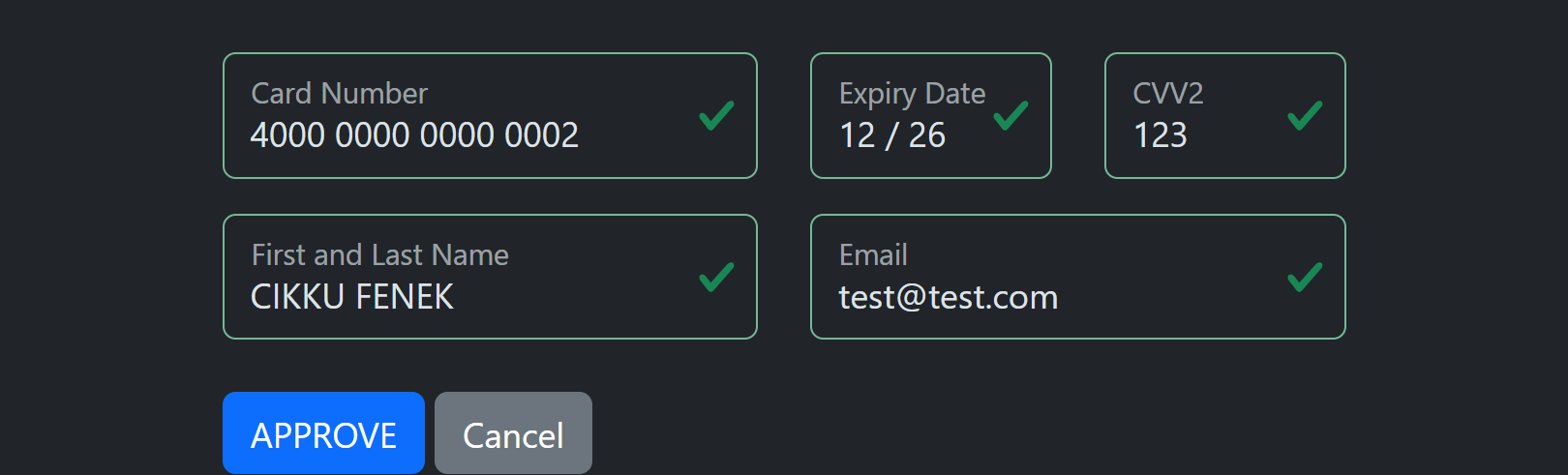
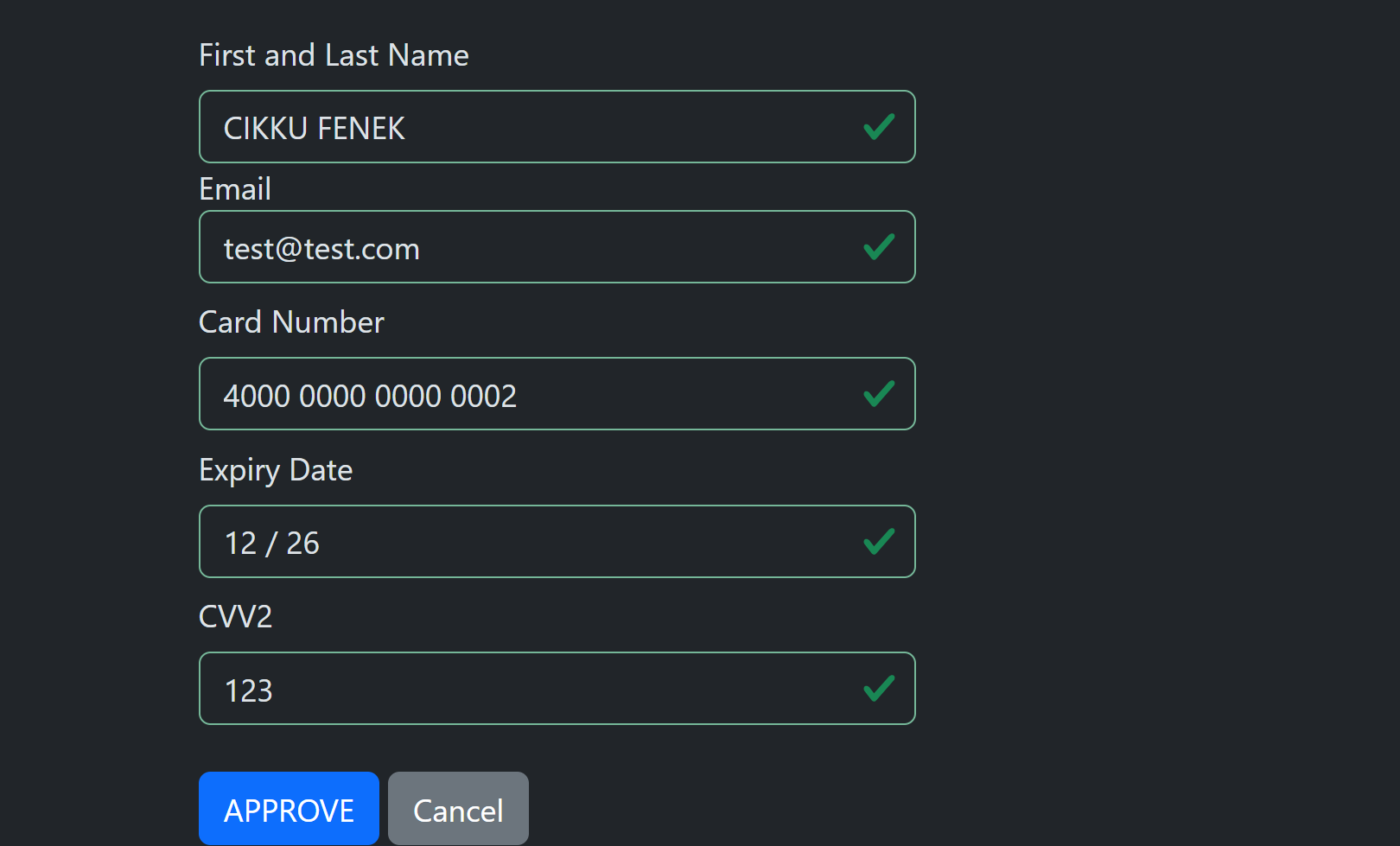
mode New shows the card entry form. The default horizontal template lays the card number, expiry and CVV2 on one row and the cardholder name and email on the next. Add Vertical to stack every field with its label above it, which suits narrow iframes.
| Horizontal (light) | Horizontal (dark) |
|---|---|
 |
 |
| Vertical (light) | Vertical (dark) |
|---|---|
 |
 |
When the page offers only the new card form it has no heading and no tabs, exactly as before.
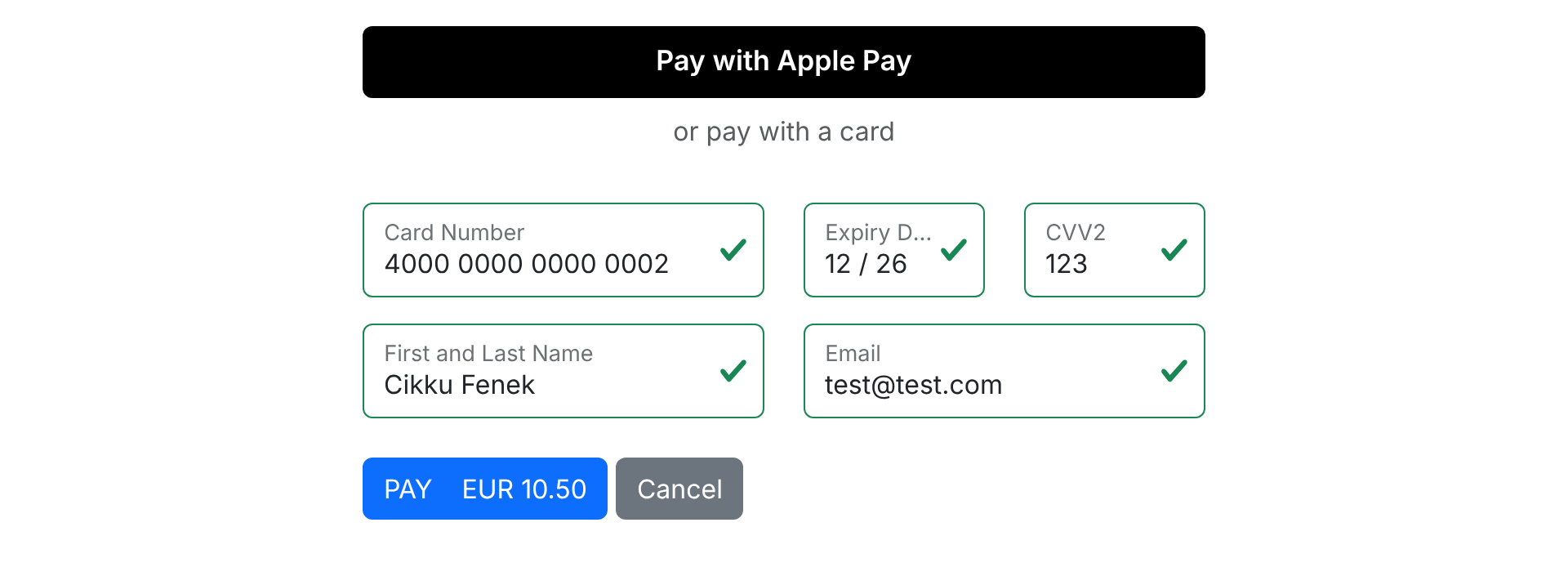
Apple Pay: WithApplePay
Add WithApplePay to mode (together with New) to show an Apple Pay button above the fields of the new card form. The button is part of the new card form: it is not shown on a saved card tab, and a request without New is not offered Apple Pay. It is offered only for a one-off payment (recurrence OneTime, no agreement) of an amount above zero, to a merchant that has Apple Pay switched on, with an account that can take it. Otherwise the request is accepted and the page simply shows the card form.
The Apple Pay permission of the merchant switches on both this button and Apple Pay through the Wallet API; the hosted page additionally needs WithApplePay in mode. The button is shown only when the merchant has an account whose processor takes Apple Pay (today only simulated, test, accounts do: for a live account ask PayLolly). The hosted page always uses PayLolly's Apple Pay registration, also for a merchant that has its own for the Wallet API.
| Light | Dark |
|---|---|
 |
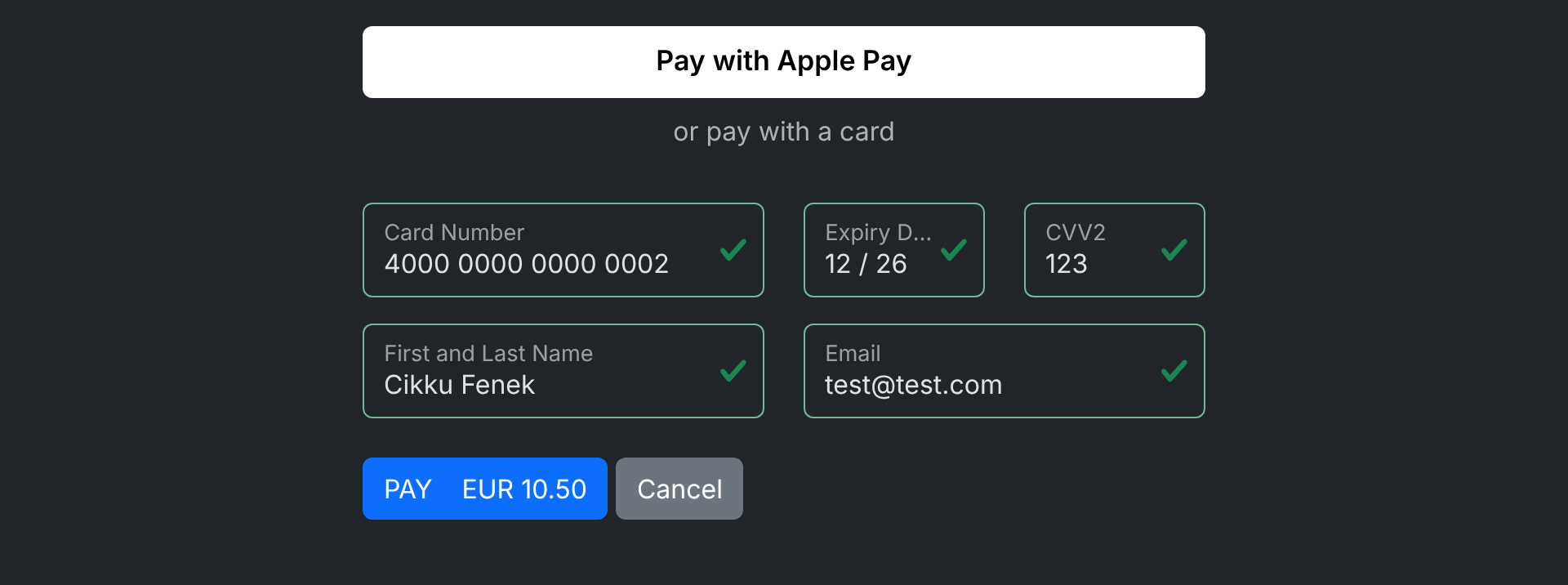 |
The button follows the theme: black on the light theme and white on the dark theme, as Apple asks. The pictures show a plain button because they were taken without Safari; Safari, and other browsers on Apple devices, draw Apple's own button. A browser without Apple Pay, such as Chrome on Windows, shows no Apple Pay button and the card form stays as it is.
The payer's billing details come from the Apple Pay sheet: the name and email are always asked for, and the address, zip, country and phone only when WithAddress, WithZip, WithCountry and WithPhoneNumber are in the mode. The sheet accepts Visa and Mastercard cards only. An Apple Pay payment does not save the card, whatever the save card tick says.
In an iframe. Apple Pay is tied to the website the payer is on. When the payment page is shown in an iframe, the website that holds the iframe must be registered with PayLolly for Apple Pay, and its iframe tag must carry allow="payment":
<iframe src="https://.../payment/hosted/..." allow="payment" width="420" height="720"></iframe>
Without allow="payment" the browser refuses Apple Pay inside the iframe. The page then shows the card form only, and PayLolly logs the website that embedded it, so support can tell you which page needs the attribute. Safari 17 or later is needed for Apple Pay inside an iframe.
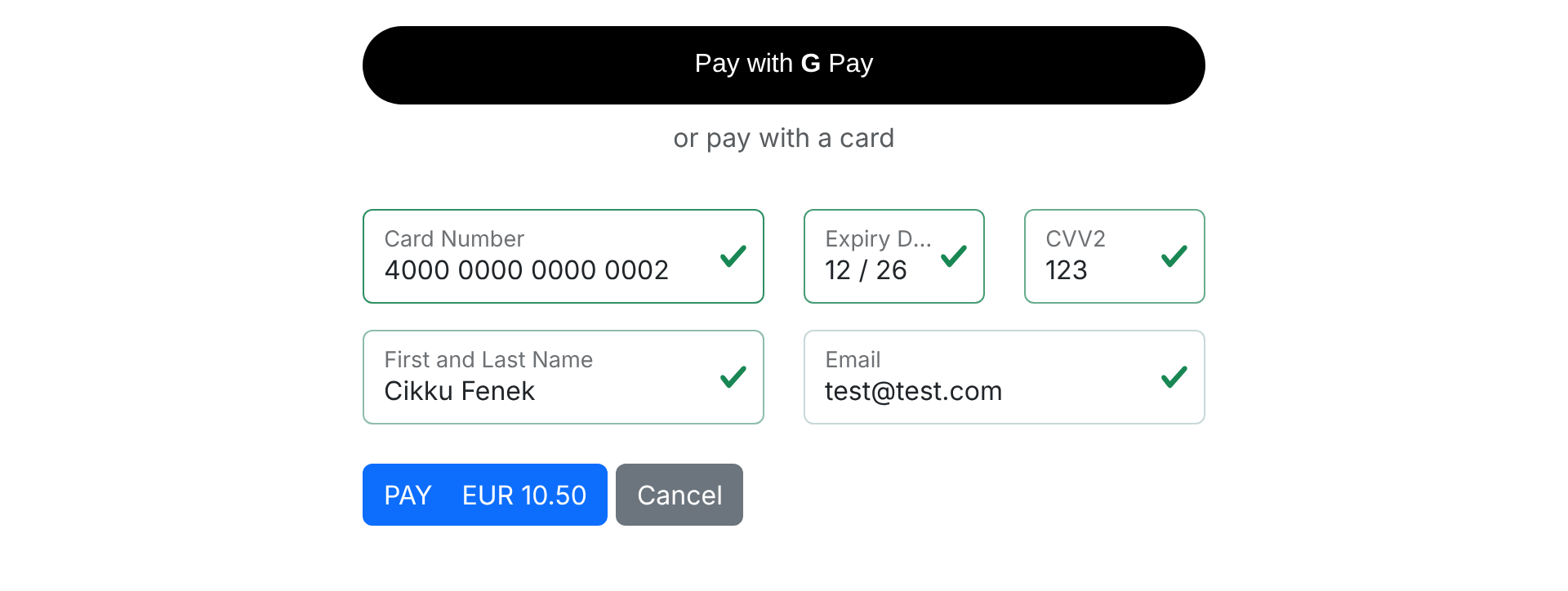
Google Pay: WithGooglePay
Add WithGooglePay to mode (together with New) to show a Google Pay button above the fields of the new card form. The button is part of the new card form: it is not shown on a saved card tab, and a request without New is not offered Google Pay. It is offered only for a one-off payment (recurrence OneTime, no agreement) of an amount above zero, to a merchant that has Google Pay switched on, with an account that can take it. Otherwise the request is accepted and the page simply shows the card form. Google Pay can be offered next to Apple Pay: both buttons are shown above the card fields.
The Google Pay permission of the merchant switches on both this button and Google Pay through the Wallet API; the hosted page additionally needs WithGooglePay in mode. The button is shown only when the merchant has an account whose processor takes Google Pay (today only simulated, test, accounts do: for a live account ask PayLolly). The hosted page always uses PayLolly's Google Pay registration, also for a merchant that has its own for the Wallet API.
| Light | Dark |
|---|---|
 |
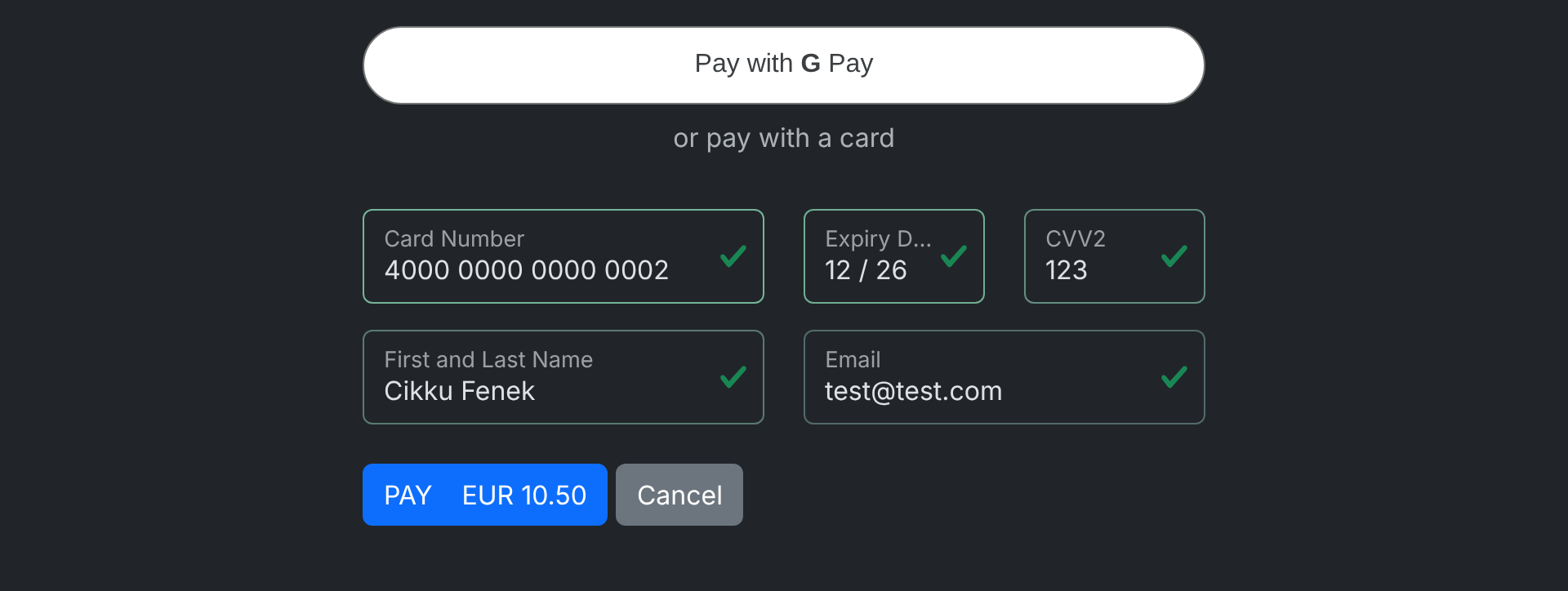 |
The button is Google's own and follows the theme: black on the light theme and white on the dark theme, as Google asks. It is shown only where Google says the payer can use Google Pay (Chrome and other browsers with a Google account and a card in Google Pay); elsewhere the card form stays as it is. The pictures show a plain stand-in for Google's button, because they were taken without Google's script; Google draws its own button in the same place.
The payer pays with a network token of the card in the Google Pay wallet, which PayLolly decrypts and sends to the acquirer together with its cryptogram, in place of a 3D Secure result. Cards that are only stored in the Google account as a card number (PAN_ONLY) are not offered in production; Google's test environment only has such cards, so there they are accepted, without authentication, to be able to test. The sheet accepts Visa and Mastercard cards only. A Google Pay payment does not save the card, whatever the save card tick says.
The payer's billing details come from the Google Pay sheet: the name and email are always asked for, and the address, zip, country and phone only when WithAddress, WithZip, WithCountry and WithPhoneNumber are in the mode. (Google only gives the name together with the billing address, so the sheet always shows the billing address; the parts the mode does not ask for are not used.)
In an iframe. When the payment page is shown in an iframe, the iframe tag must carry allow="payment":
<iframe src="https://.../payment/hosted/..." allow="payment" width="420" height="720"></iframe>
Without allow="payment" the browser refuses Google Pay inside the iframe. The page then shows the card form only, and PayLolly logs the website that embedded it, so support can tell you which page needs the attribute. In production the website that embeds the page must also be registered with Google for the PayLolly Google Pay merchant.
To show Google Pay on your own page and send the payment from your server, see Wallets. The same goes for Apple Pay. To use your own Apple and Google registrations on your own page, see Setting up your own Apple Pay and Google Pay.
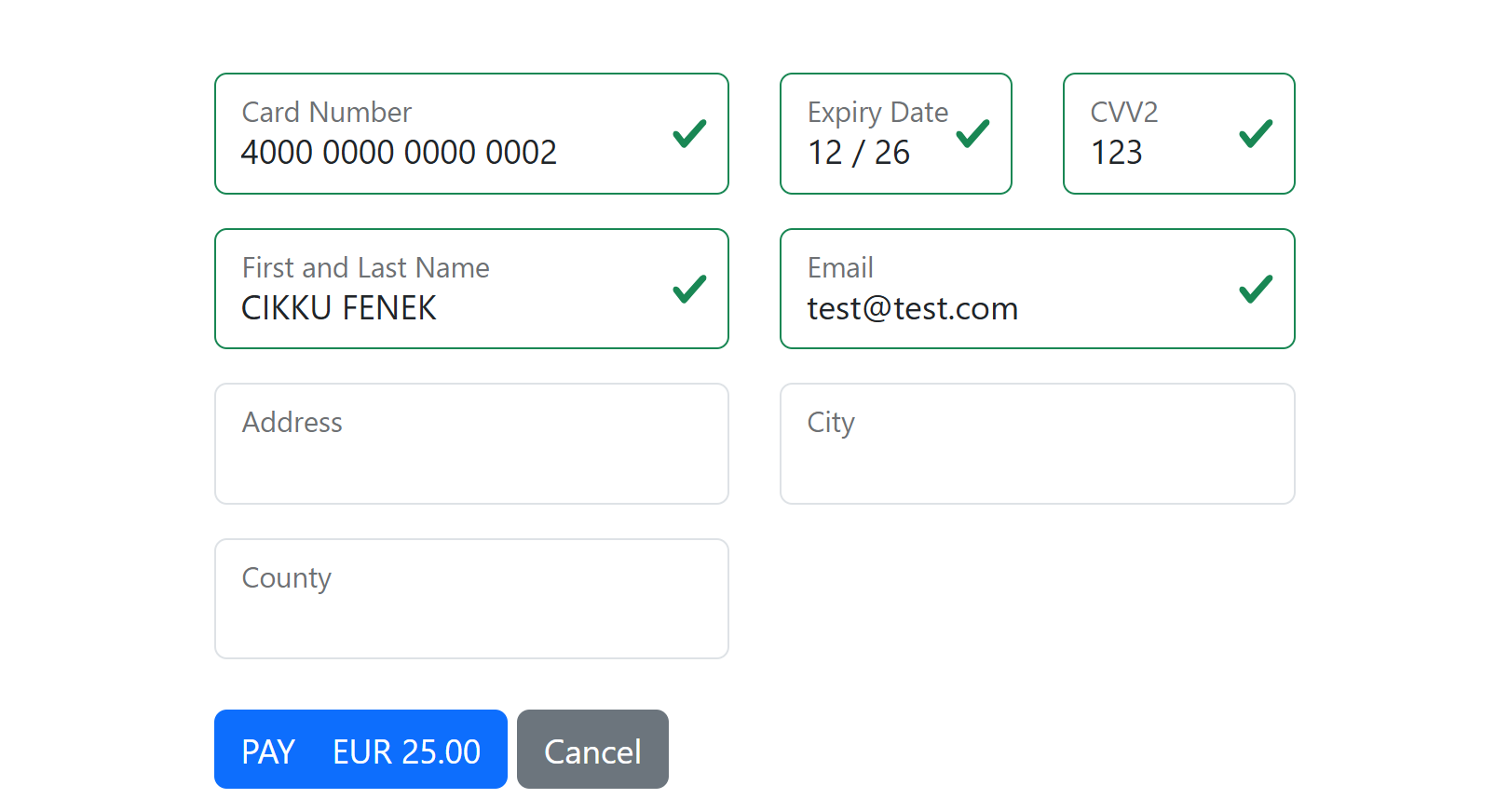
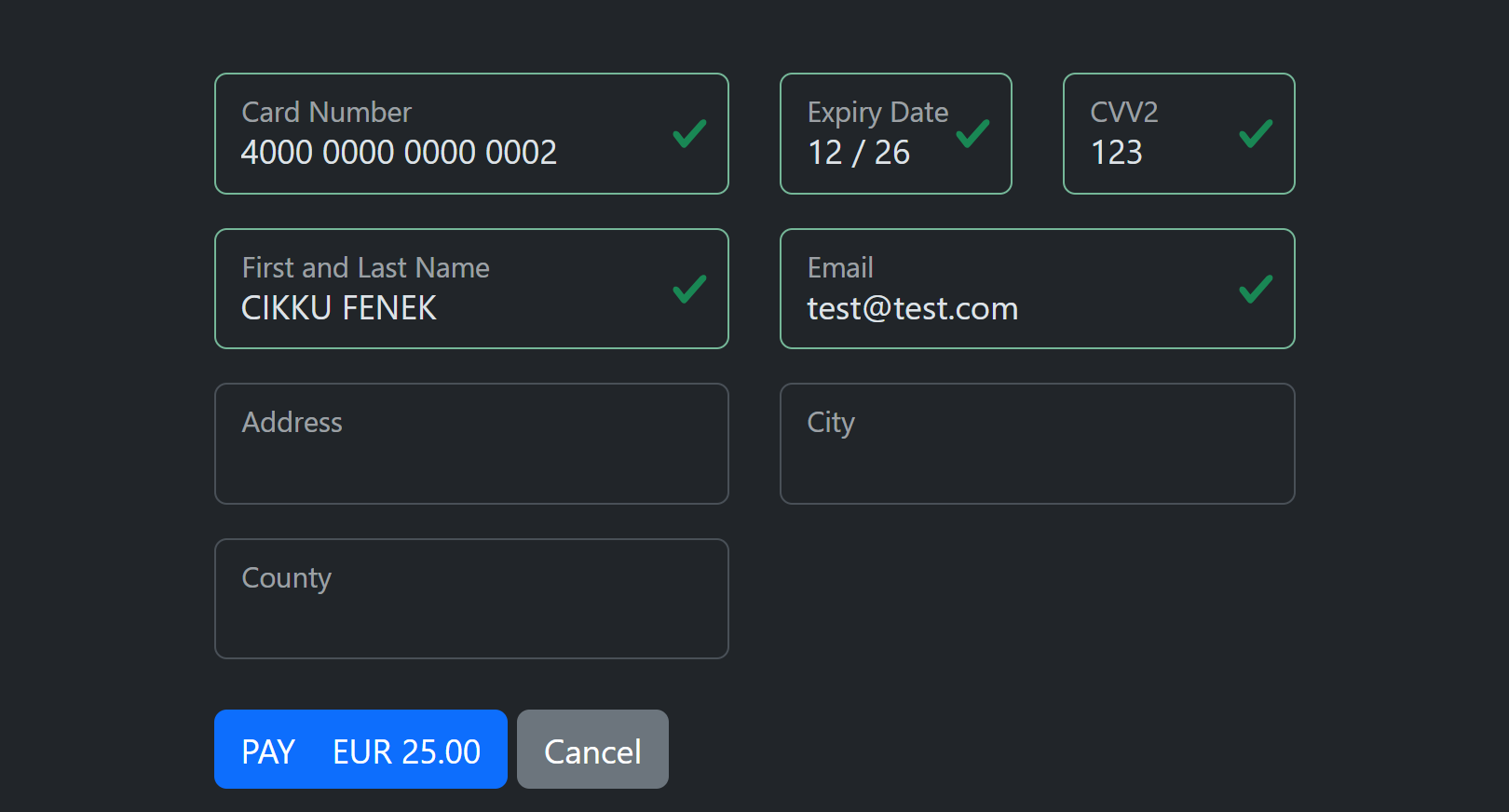
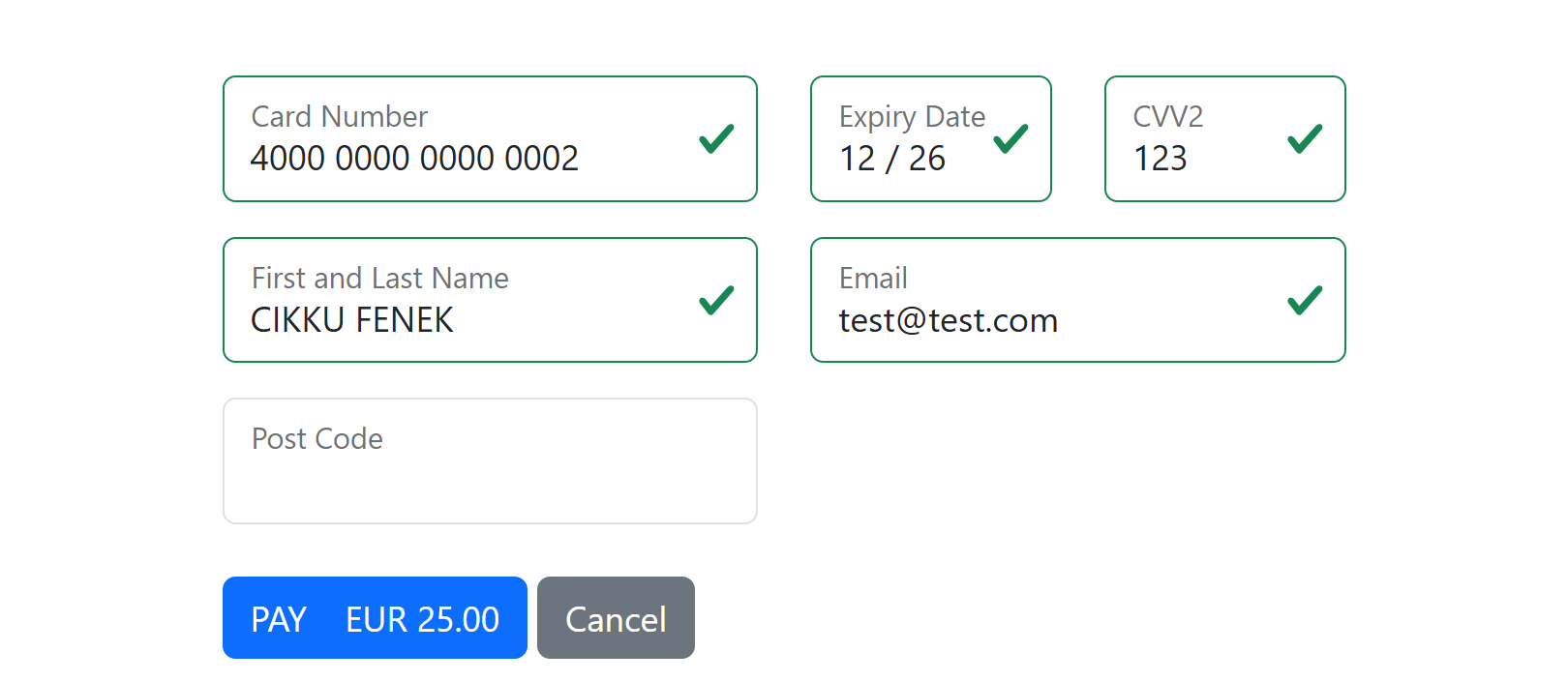
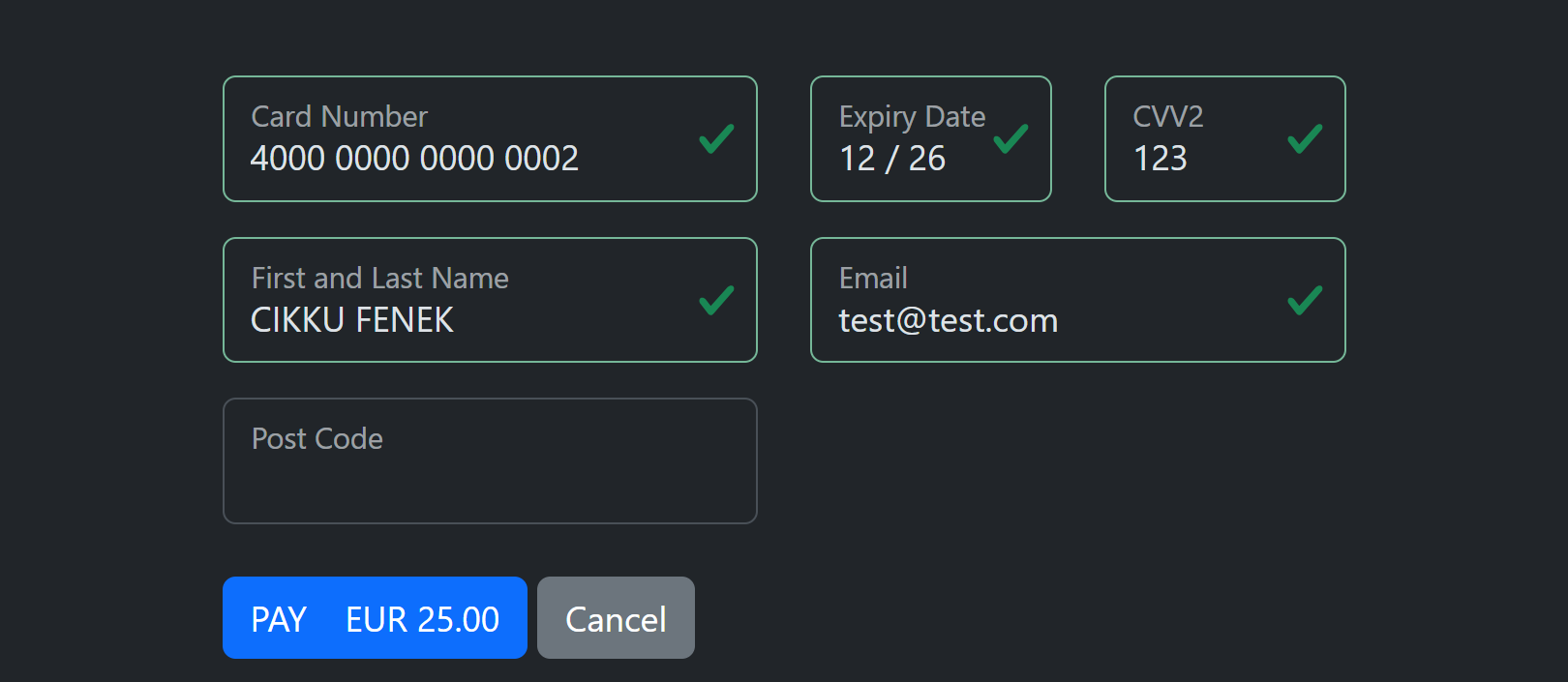
More cardholder details: WithAddress, WithZip, WithCountry, WithPhone
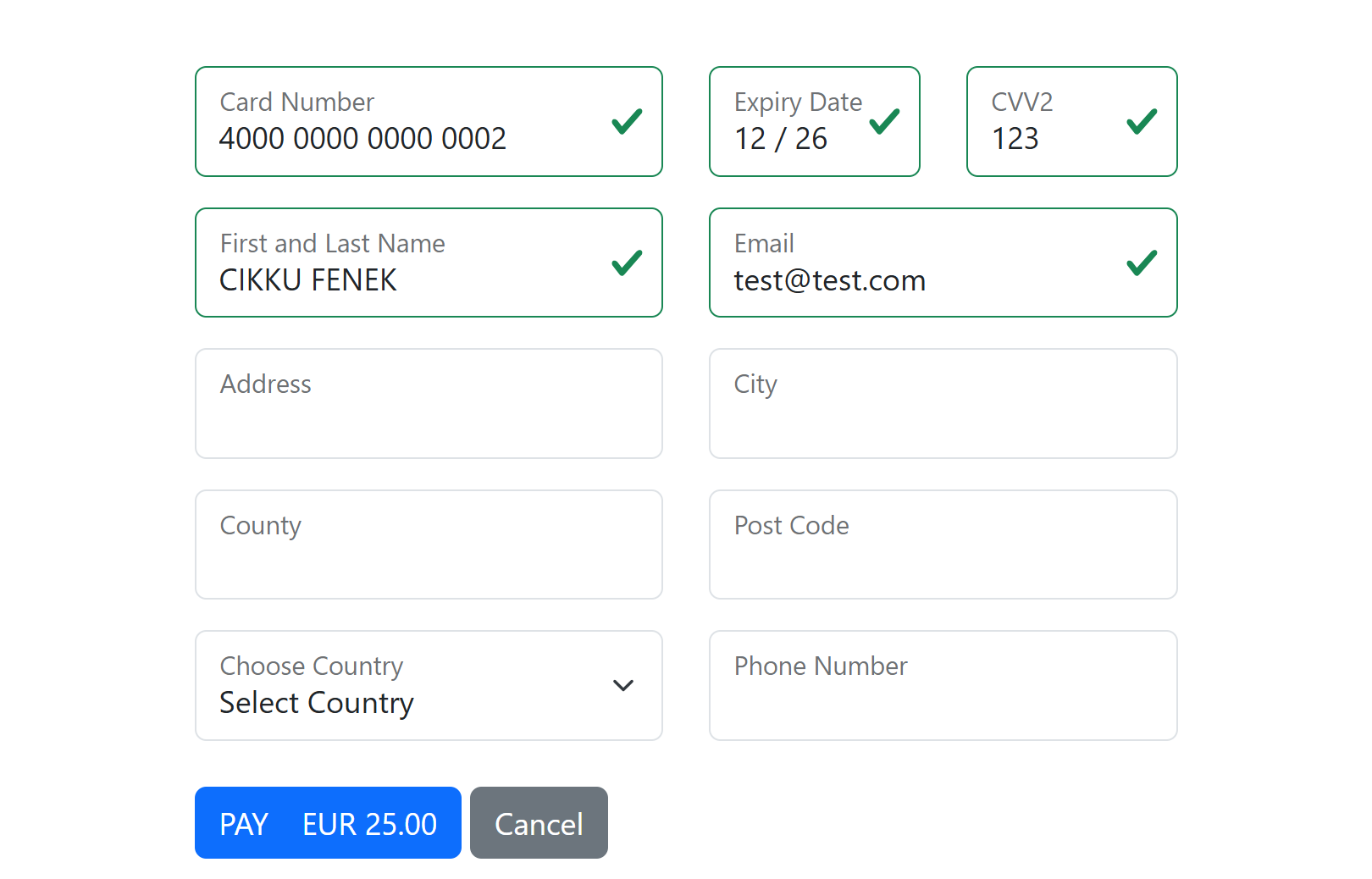
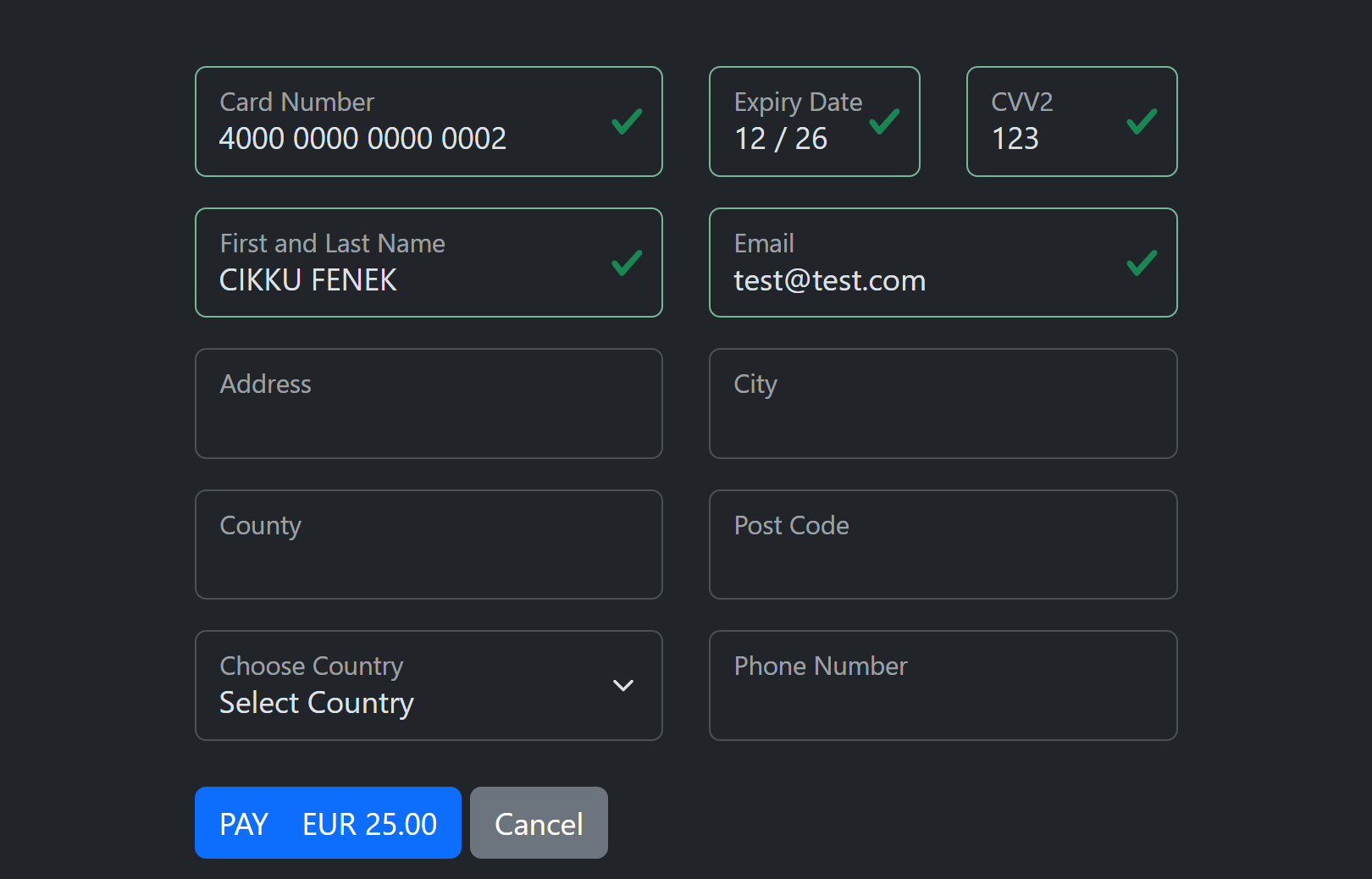
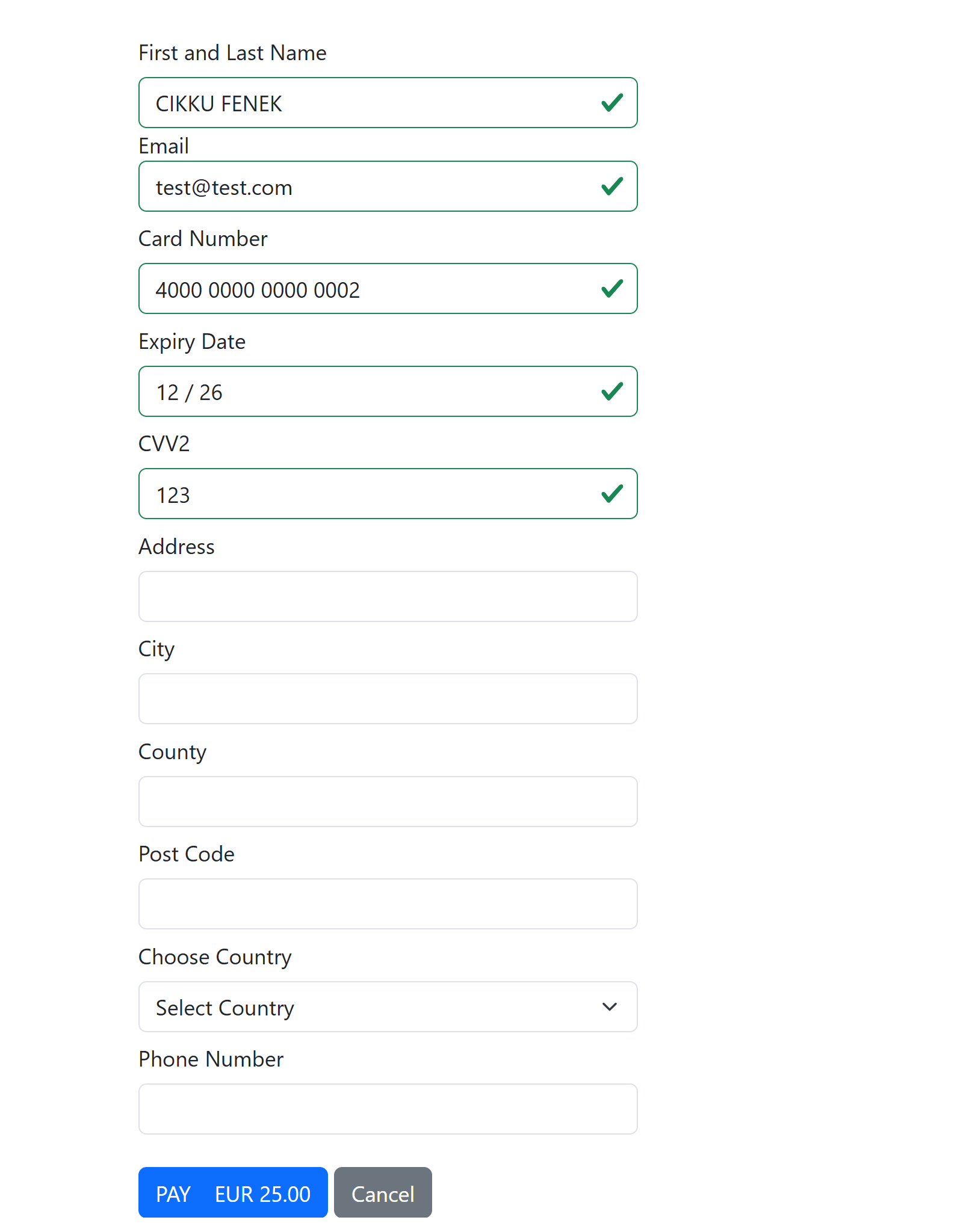
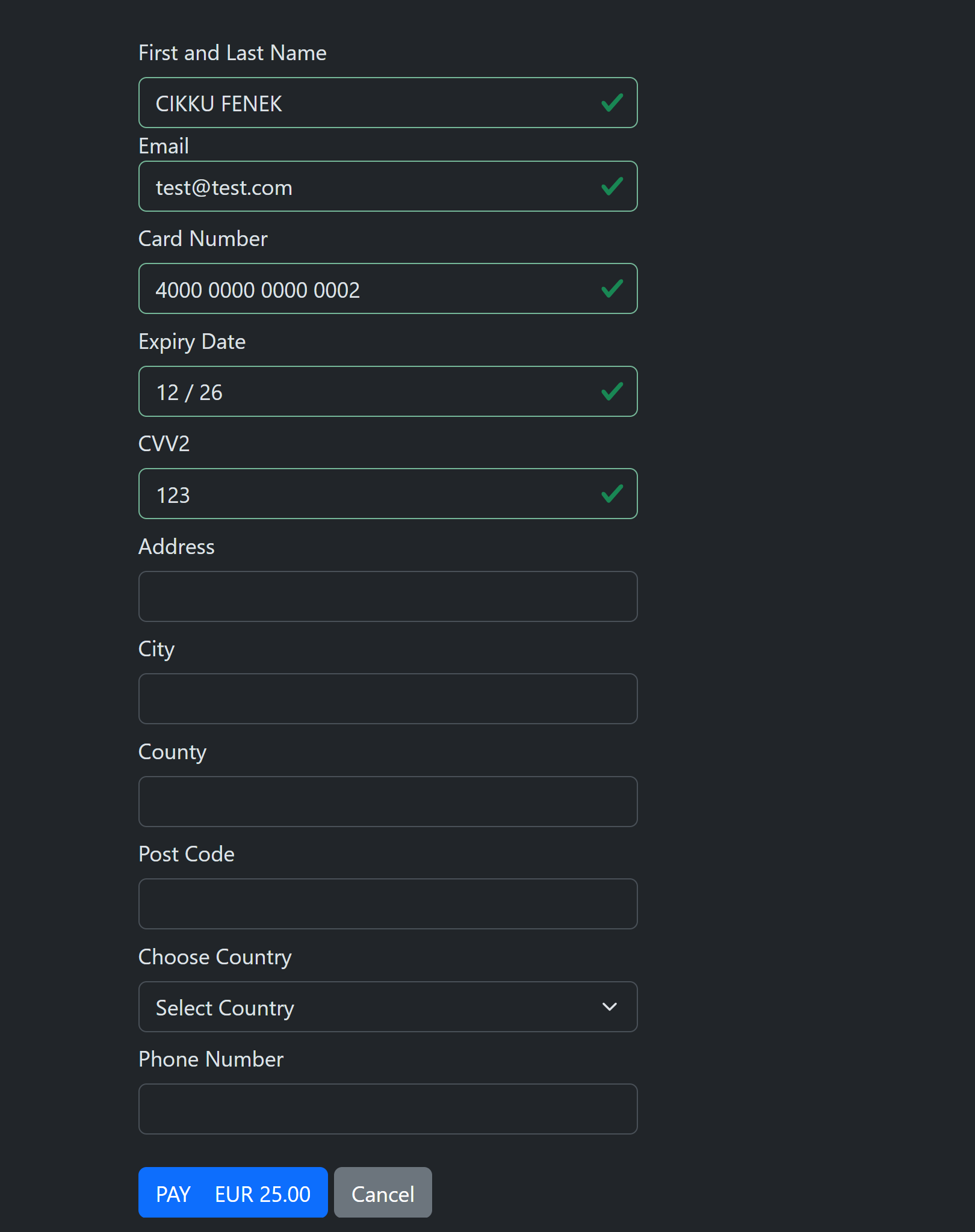
These modes add fields to the new card form. Every field they add is required: the cardholder cannot pay until it is filled in. They can be combined freely.
| Mode | Adds |
|---|---|
WithAddress |
Address, City and County |
WithZip |
Post Code |
WithCountry |
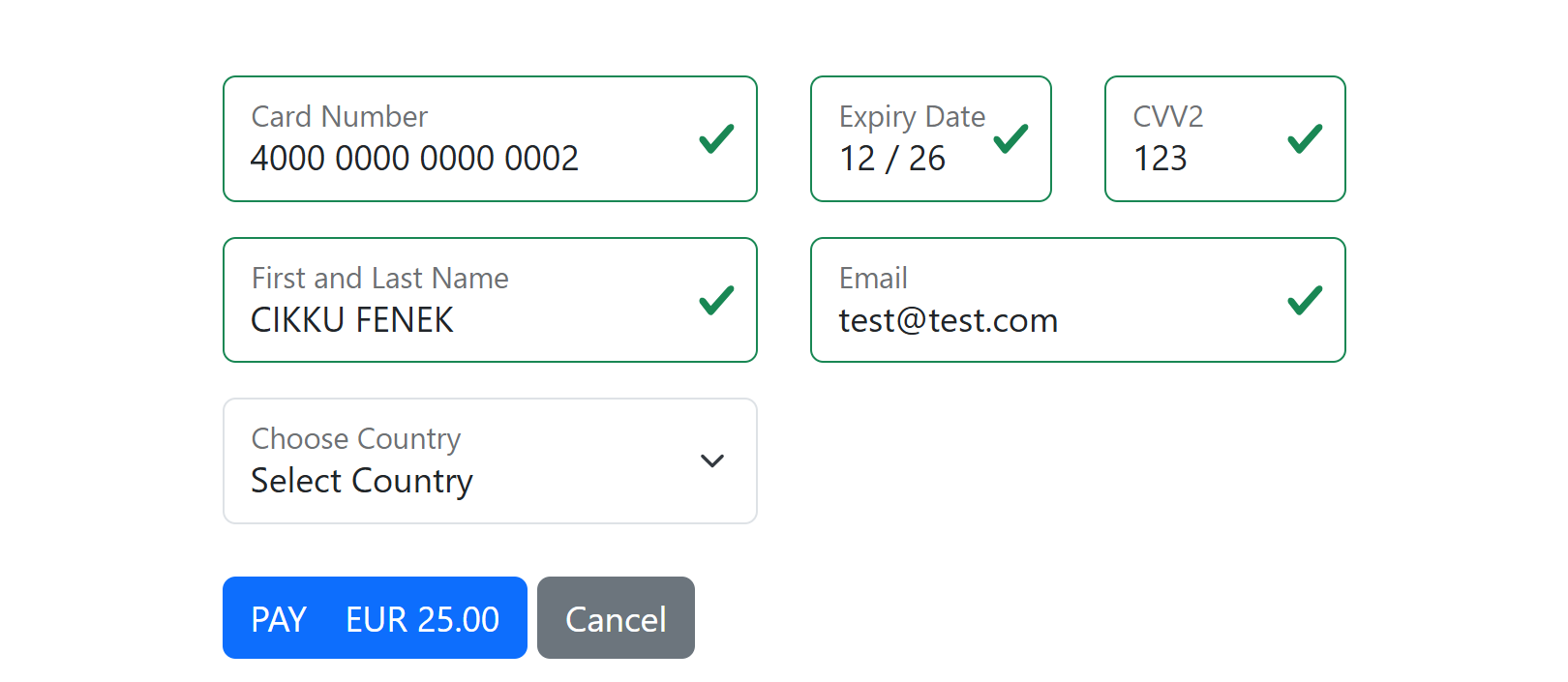
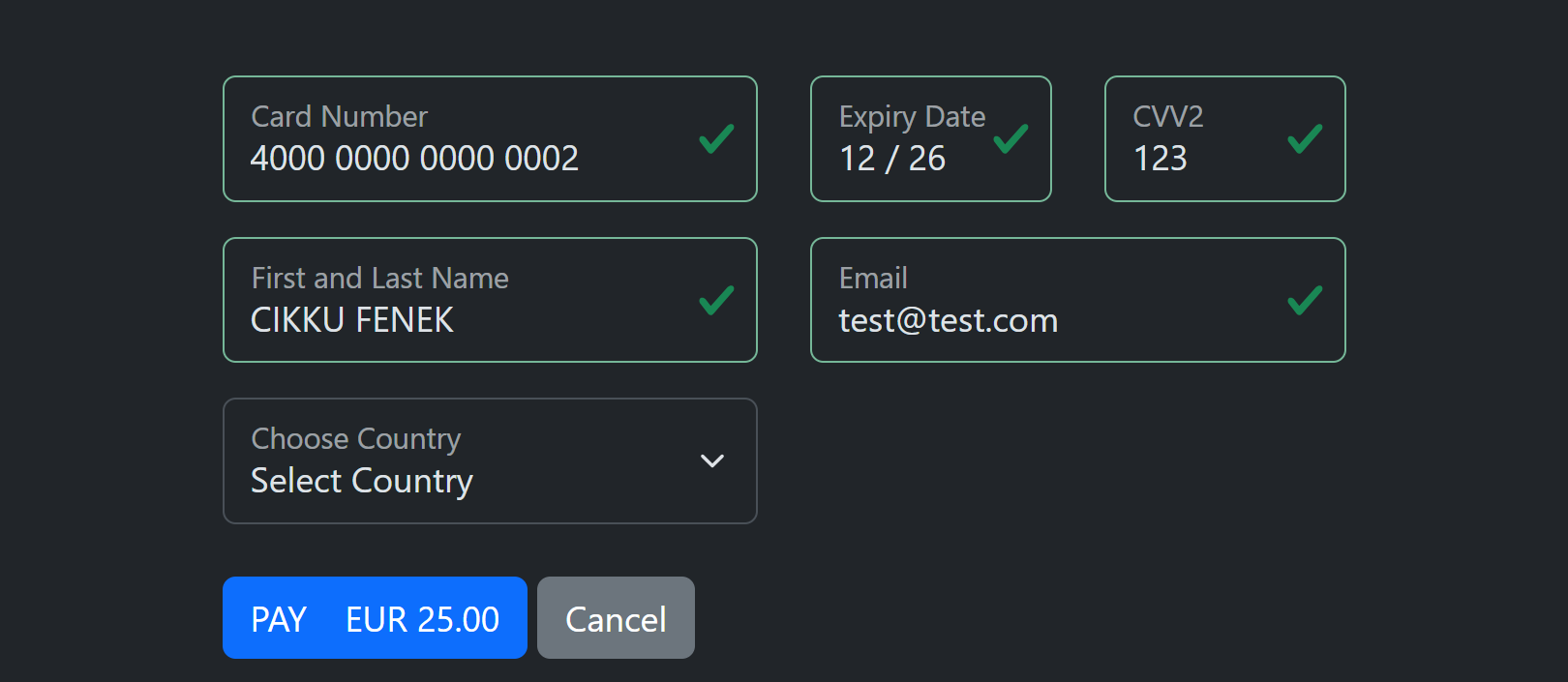
A country list (Choose Country) |
WithPhone |
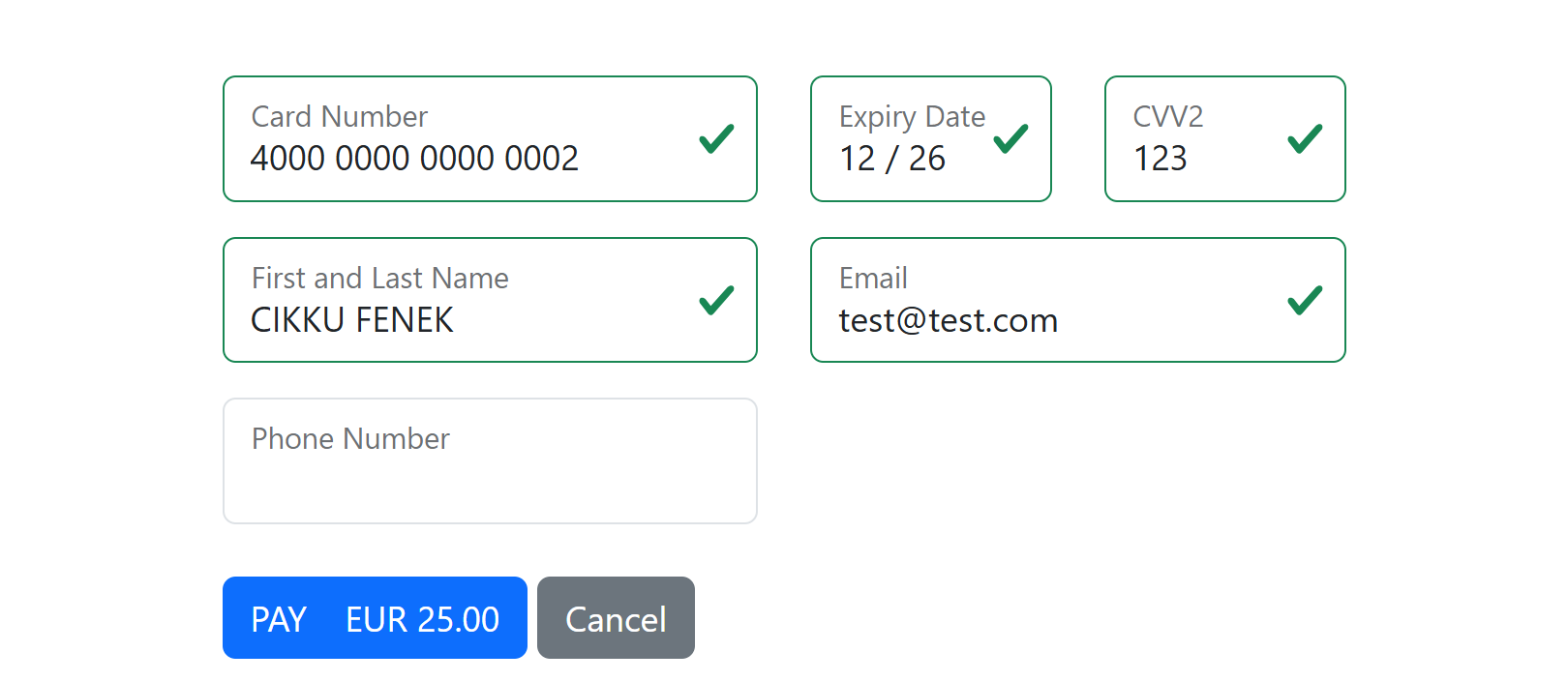
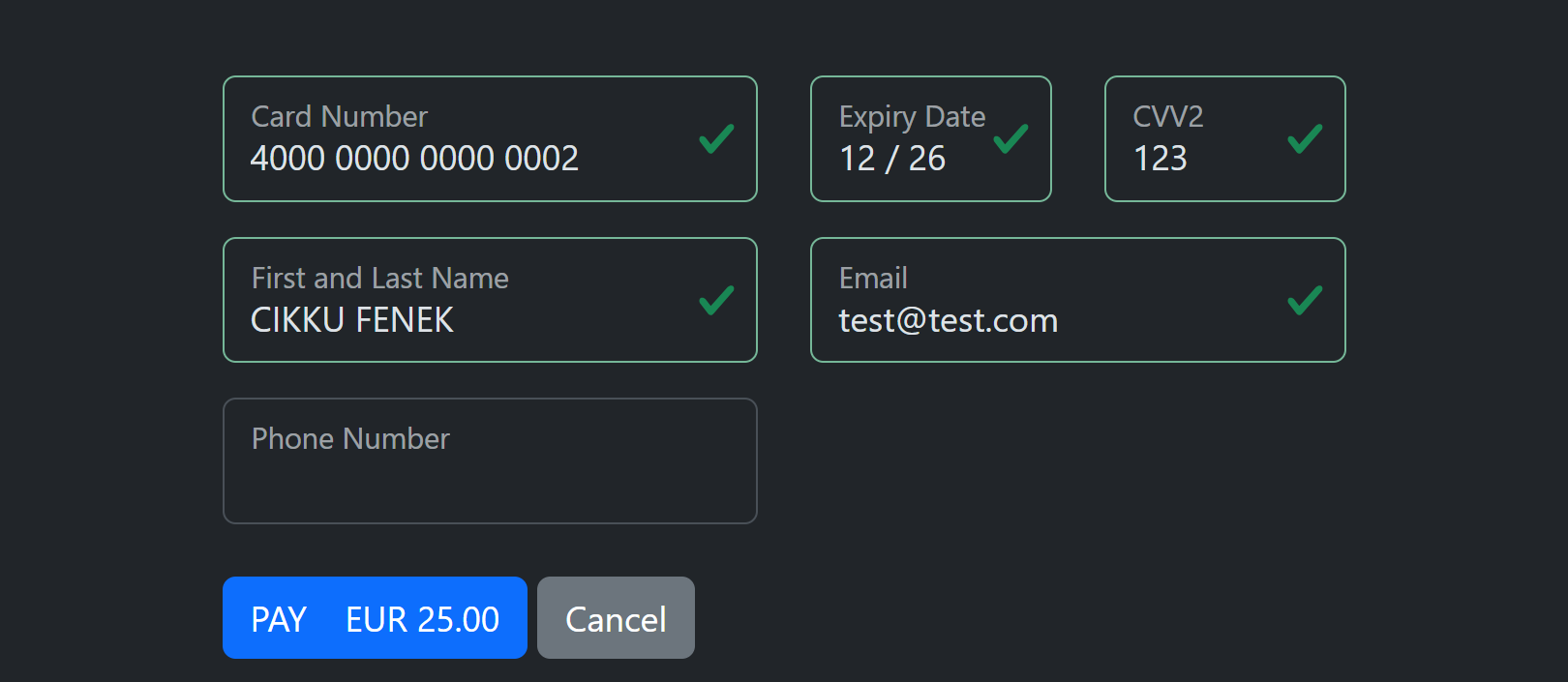
Phone Number |
WithAddress (light) |
WithAddress (dark) |
|---|---|
 |
 |
WithZip (light) |
WithZip (dark) |
|---|---|
 |
 |
WithCountry (light) |
WithCountry (dark) |
|---|---|
 |
 |
WithPhone (light) |
WithPhone (dark) |
|---|---|
 |
 |
All four together, horizontal and vertical (New, WithAddress, WithZip, WithCountry, WithPhone and the same with Vertical):
| Horizontal (light) | Horizontal (dark) |
|---|---|
 |
 |
| Vertical (light) | Vertical (dark) |
|---|---|
 |
 |
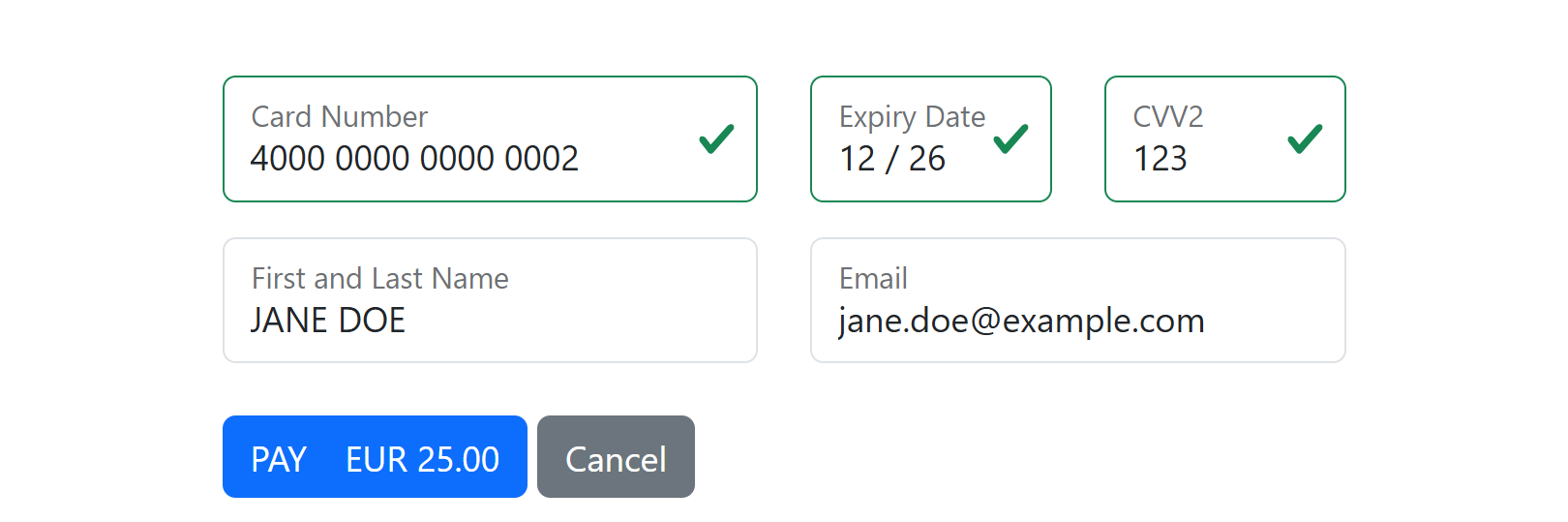
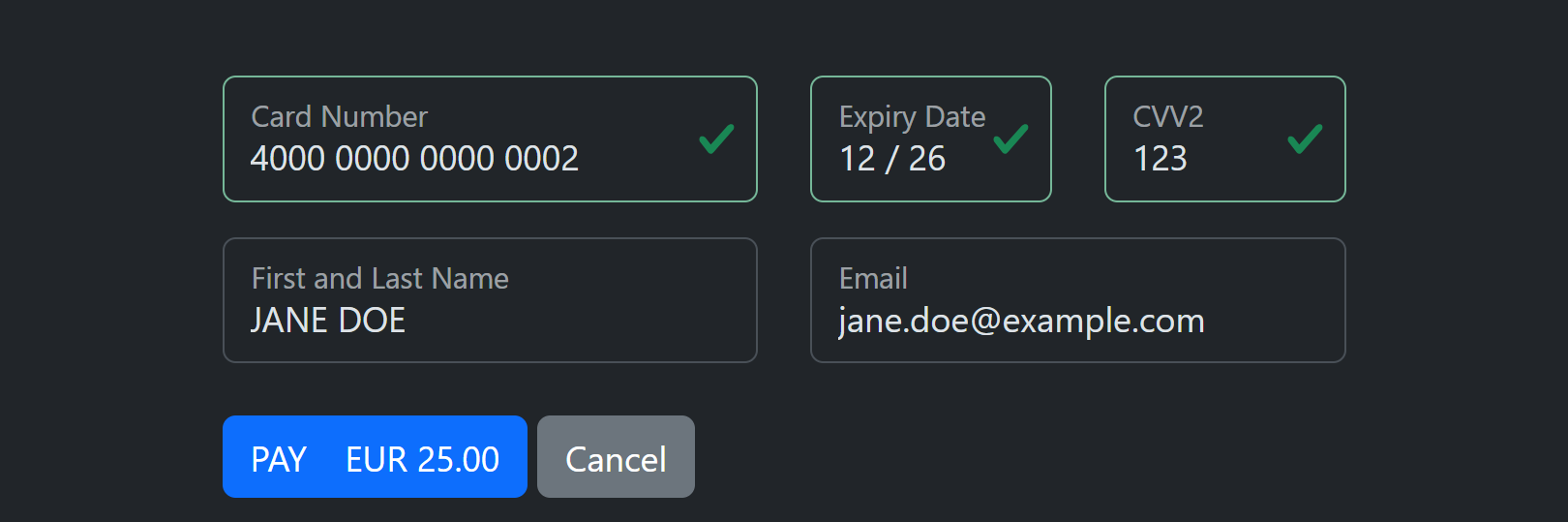
Fixed cardholder details: FixedCardHolderEmail, FixedCardHolderName
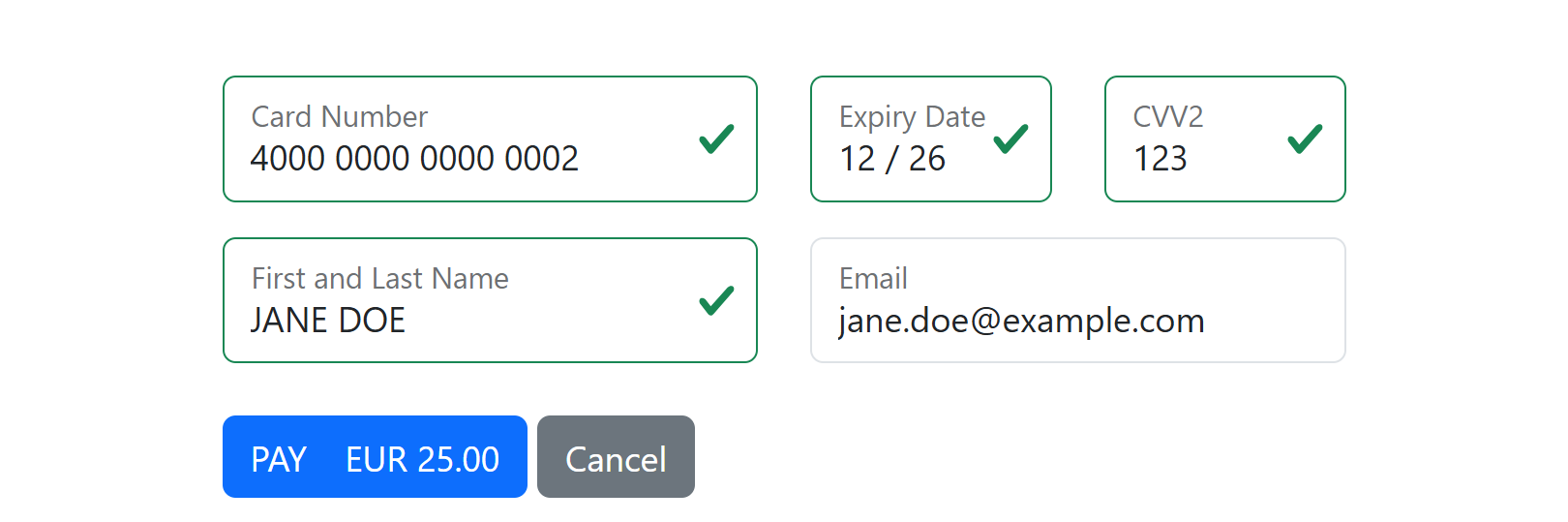
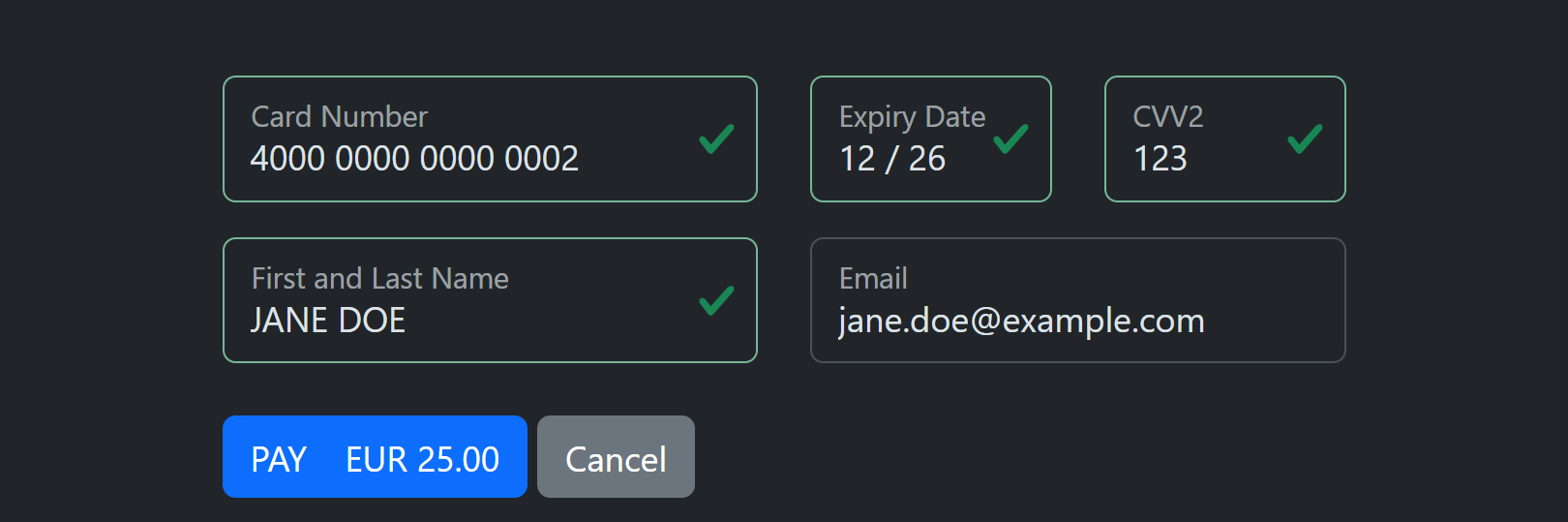
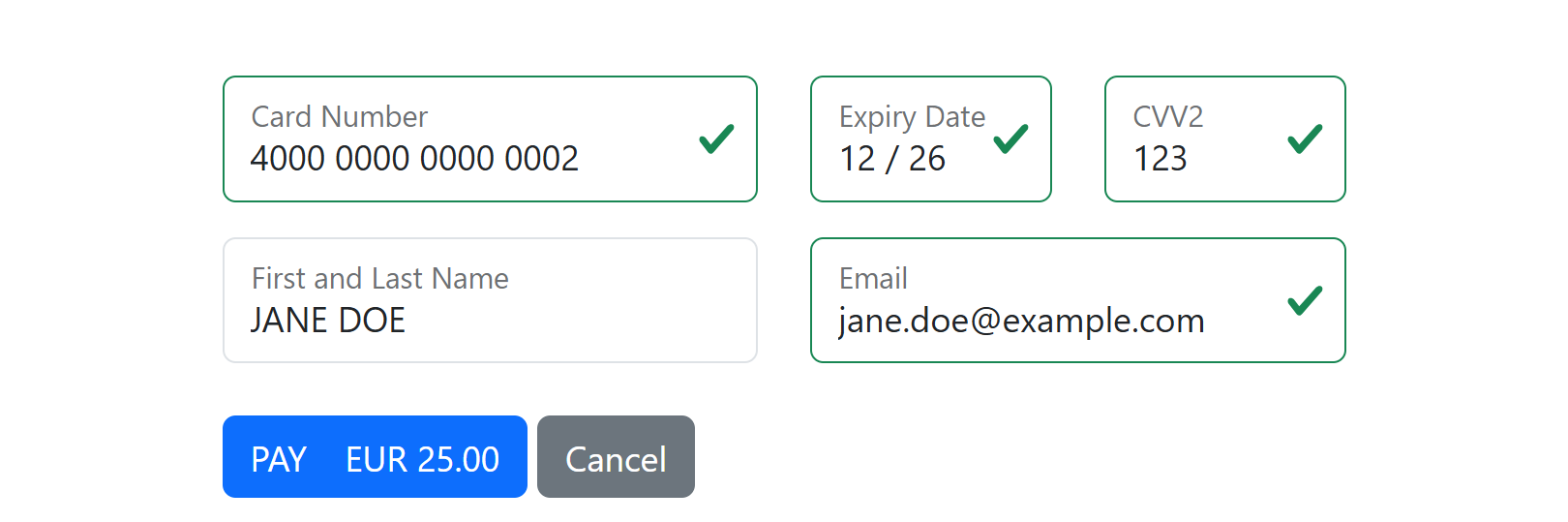
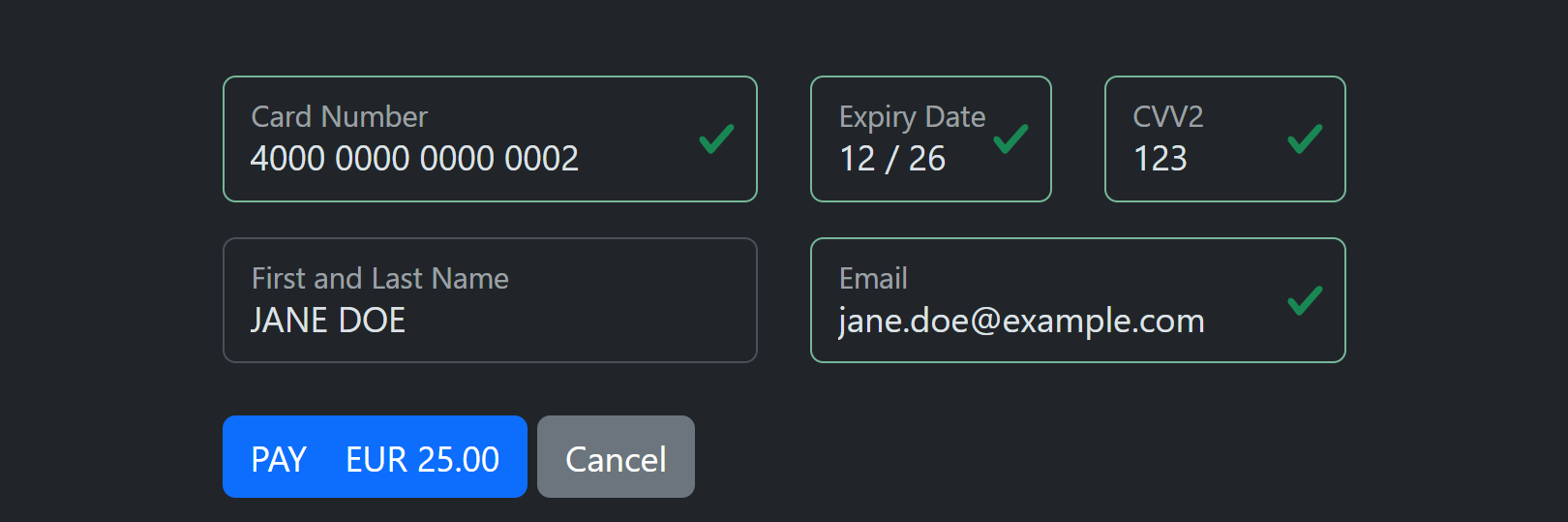
Send the cardholder's email and/or name in cardHolder and add the mode: the field is shown read-only and the cardholder cannot change it. This is how you make sure a payment link sent by email is paid for the person it was meant for.
FixedCardHolderEmail (light) |
FixedCardHolderEmail (dark) |
|---|---|
 |
 |
FixedCardHolderName (light) |
FixedCardHolderName (dark) |
|---|---|
 |
 |
| Both fixed (light) | Both fixed (dark) |
|---|---|
 |
 |
The Pay button: DisablePay
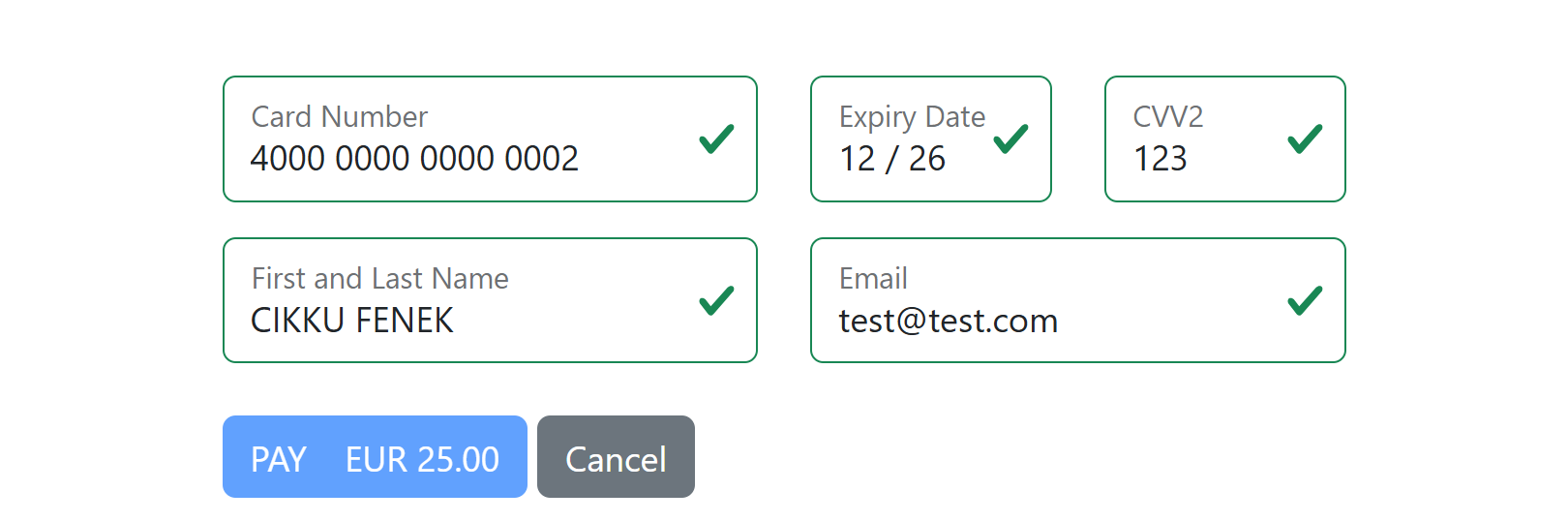
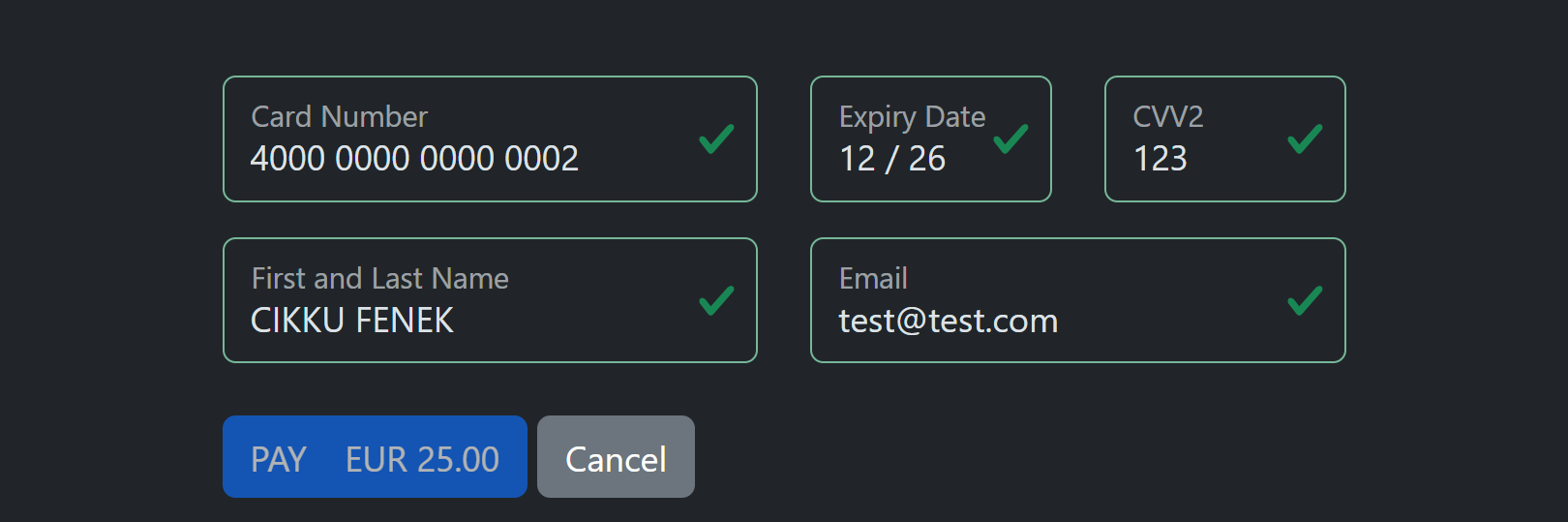
DisablePay shows the page with the Pay button disabled (greyed out). Use it for a preview of the page, or when your own page decides when payment may proceed.
| Light | Dark |
|---|---|
 |
 |
Save the card without an agreement: AskTokenize
With AskTokenize and no agreement object the page shows a "Save card details for next time" checkbox. It is unticked for a OneTime request (and pre-ticked for a OneClick request). Ticking it makes the payment save the card and return the token. With an agreement object the checkbox is the consent checkbox instead, see Saving a card.
| Light | Dark |
|---|---|
 |
 |
Declines: Retry and FriendlyErrors
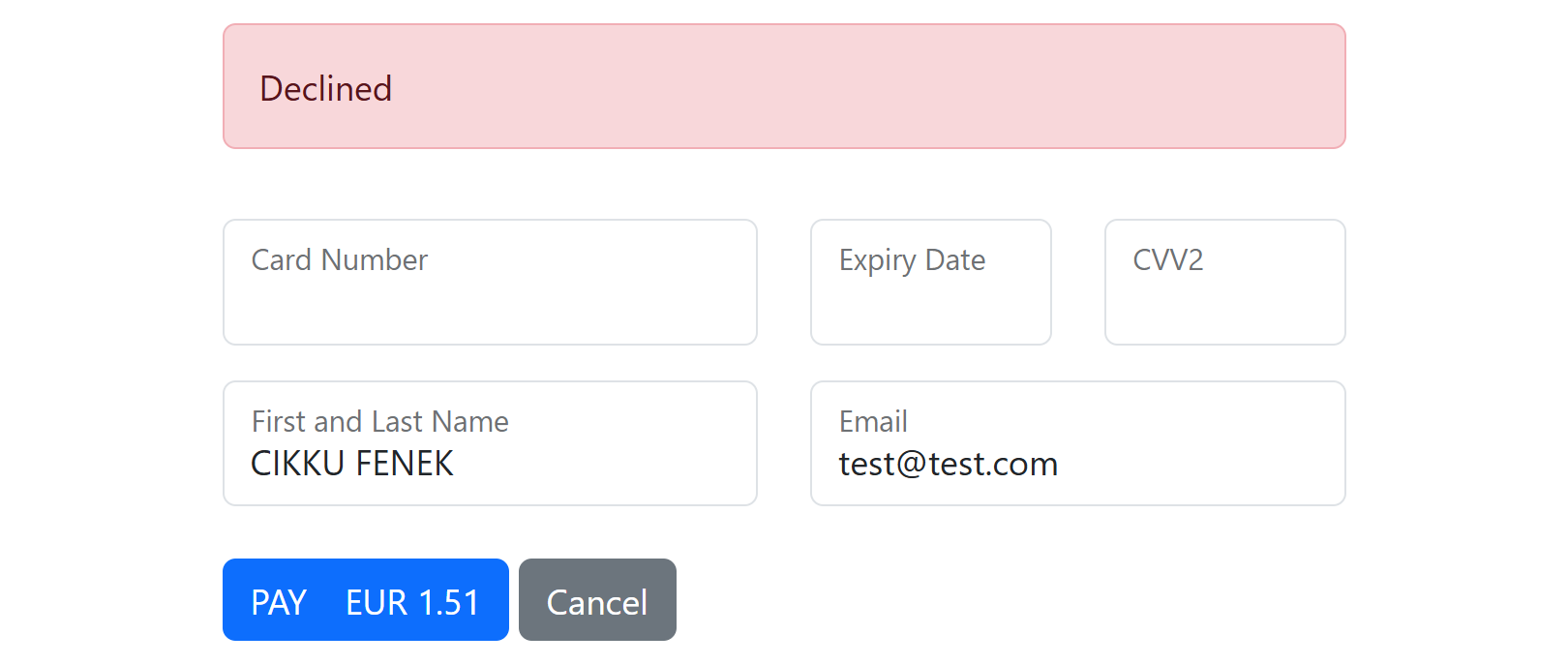
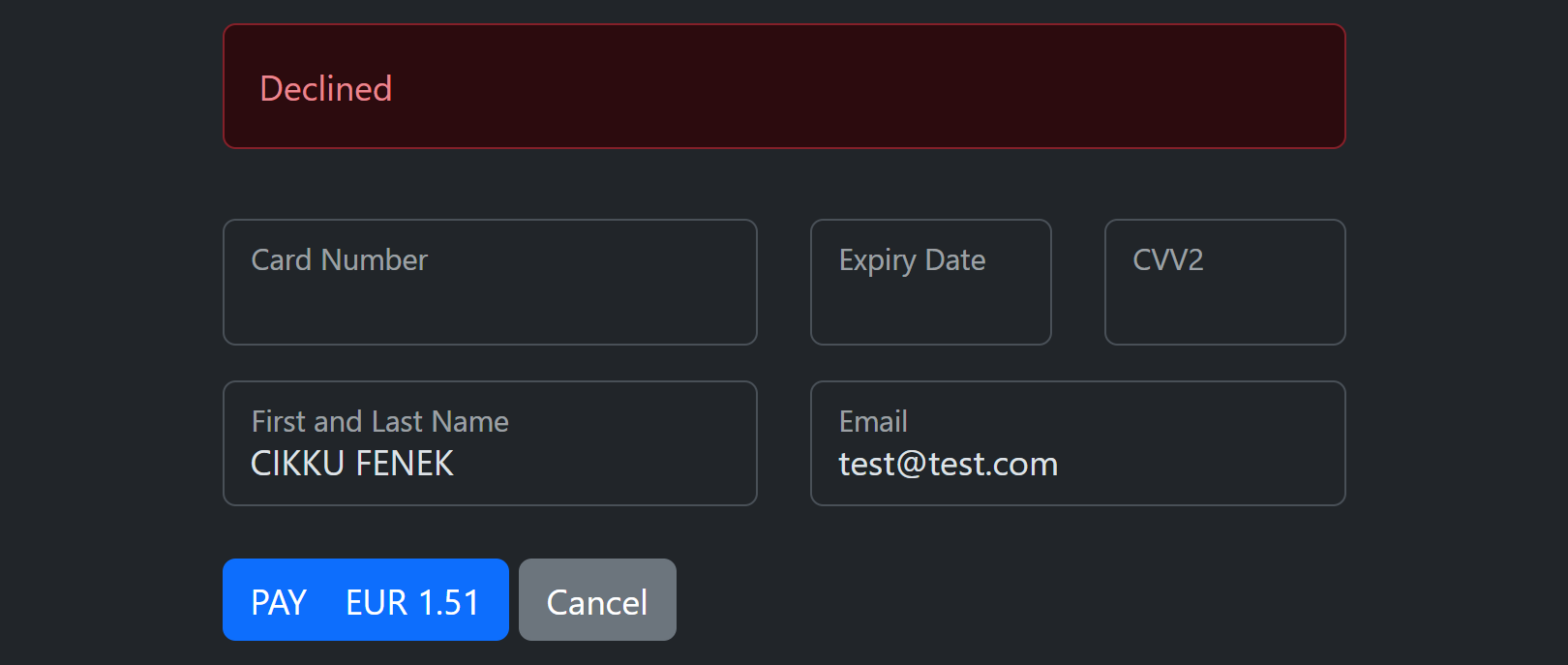
With Retry a declined or failed attempt does not end the payment: the page shows the reason and the form again so the cardholder can try another card. Without it the payment ends and the cardholder returns to your site.
FriendlyErrors (only meaningful with Retry) replaces the bare "Declined" with a plain wording for the decline reason when PayLolly has one, for example "Please check funds available, or try another card".
Retry (light) |
Retry (dark) |
|---|---|
 |
 |
Retry, FriendlyErrors (light) |
Retry, FriendlyErrors (dark) |
|---|---|
 |
 |
Important
If you rely on polling instead of webhooks, do not enable Retry: a payment you saw as declined could be approved by a later attempt.
One saved card
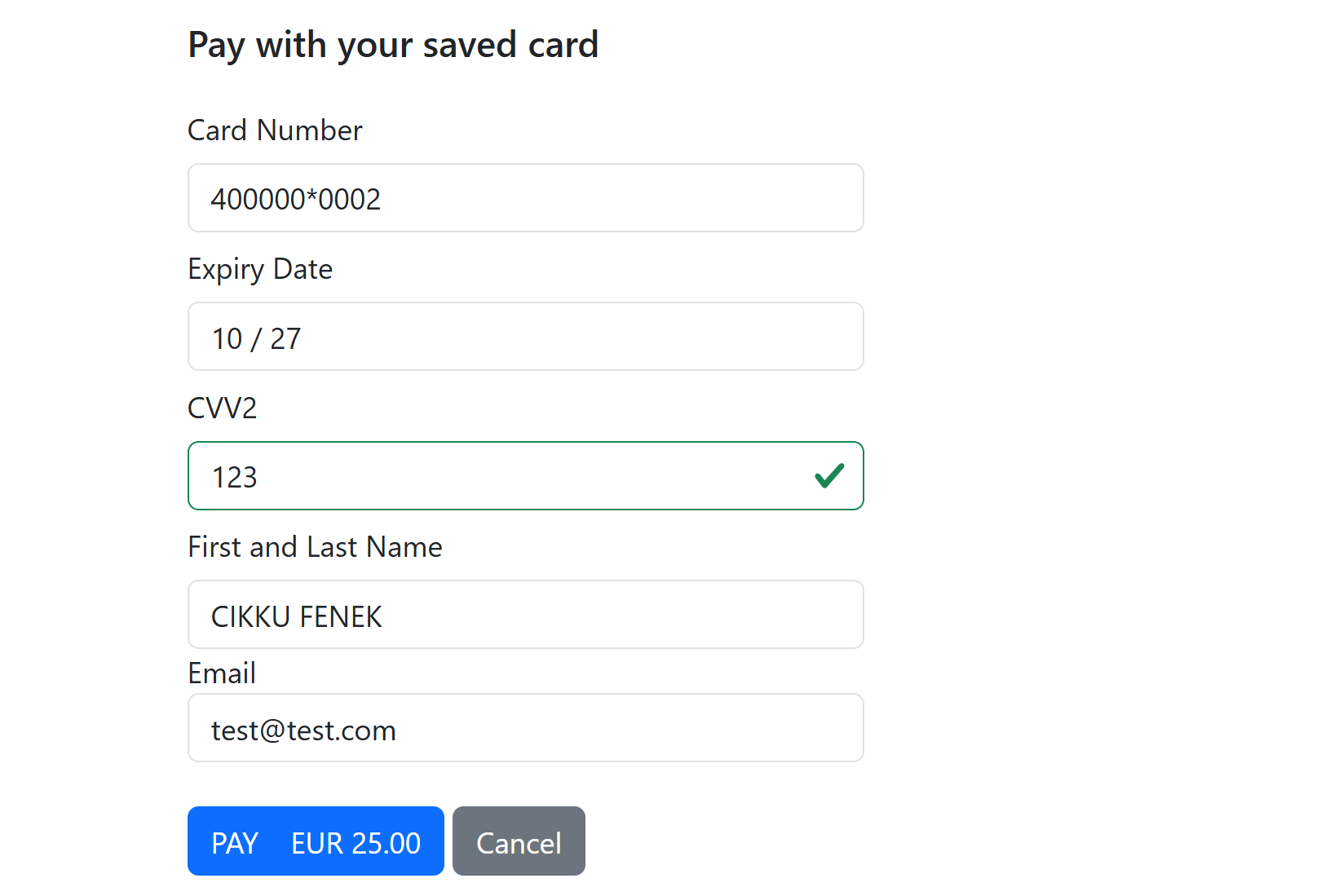
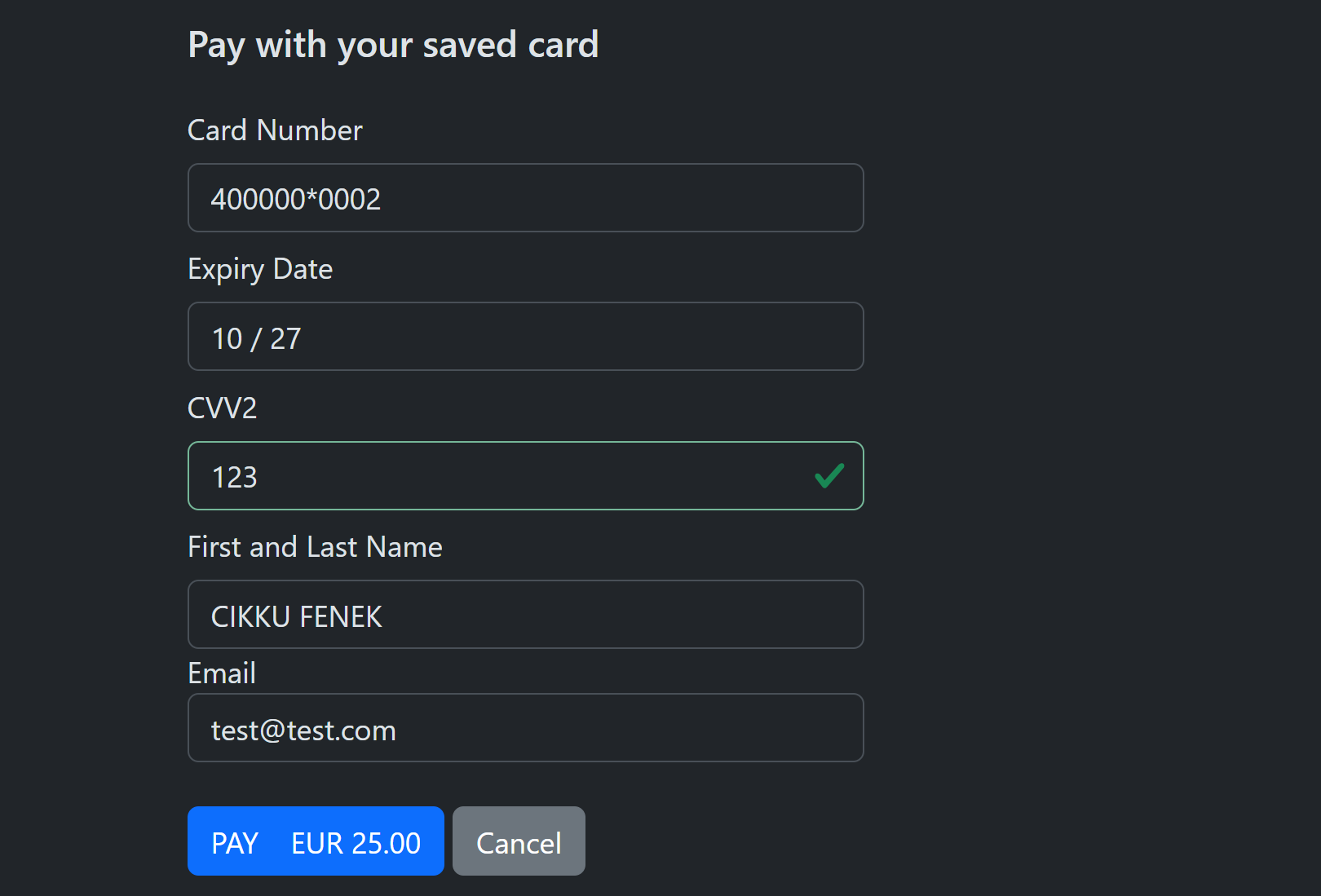
mode PresetToken with tokenData shows the card read-only (masked number and expiry) with the cardholder name and email; the cardholder only enters the CVV2. The saved card pages have one layout: the Vertical mode does not change them.
| Light | Dark |
|---|---|
 |
 |
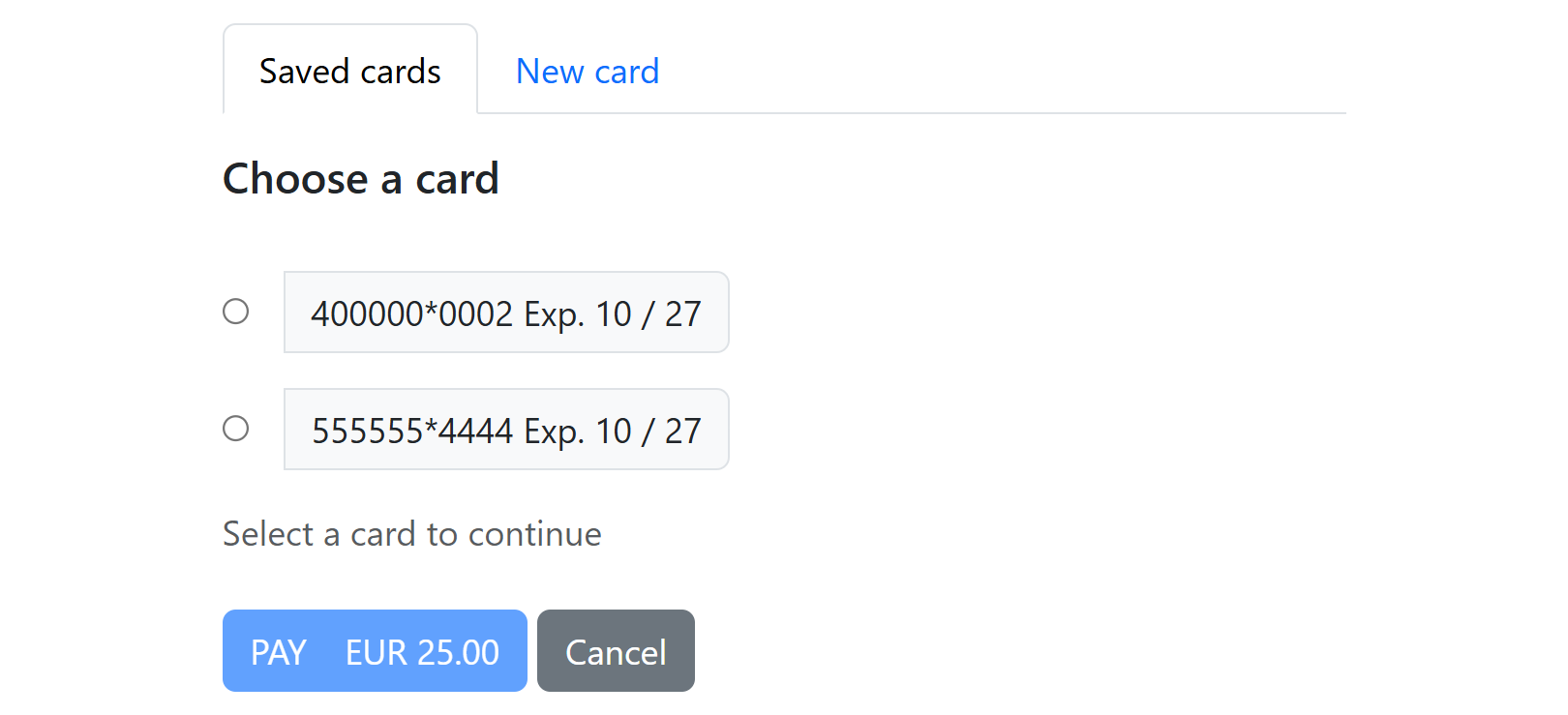
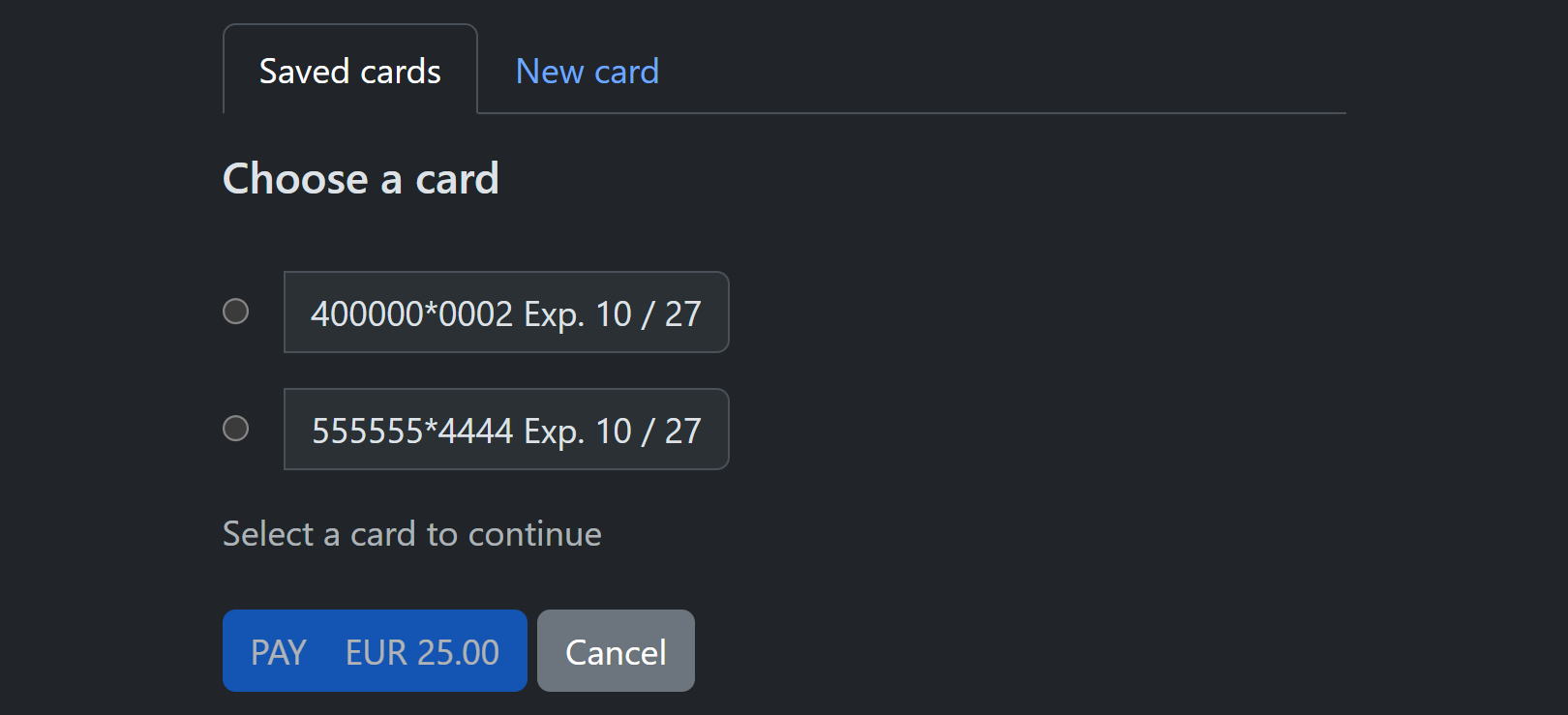
Several saved cards
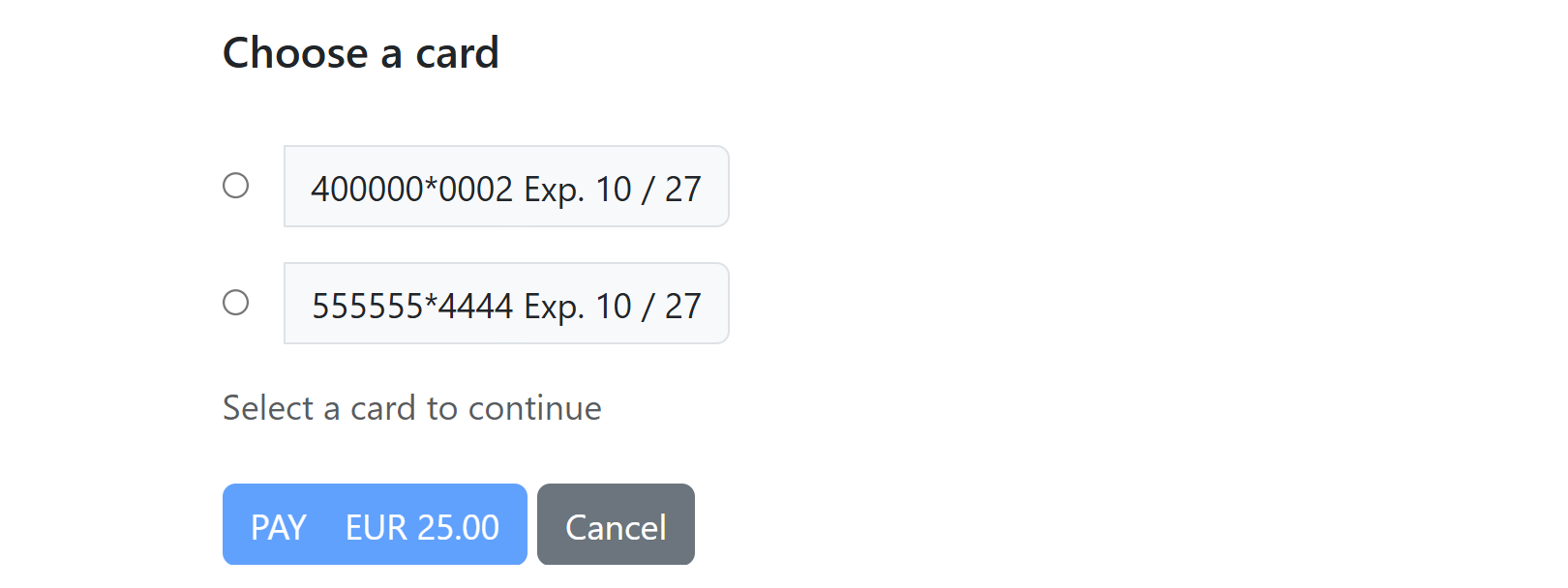
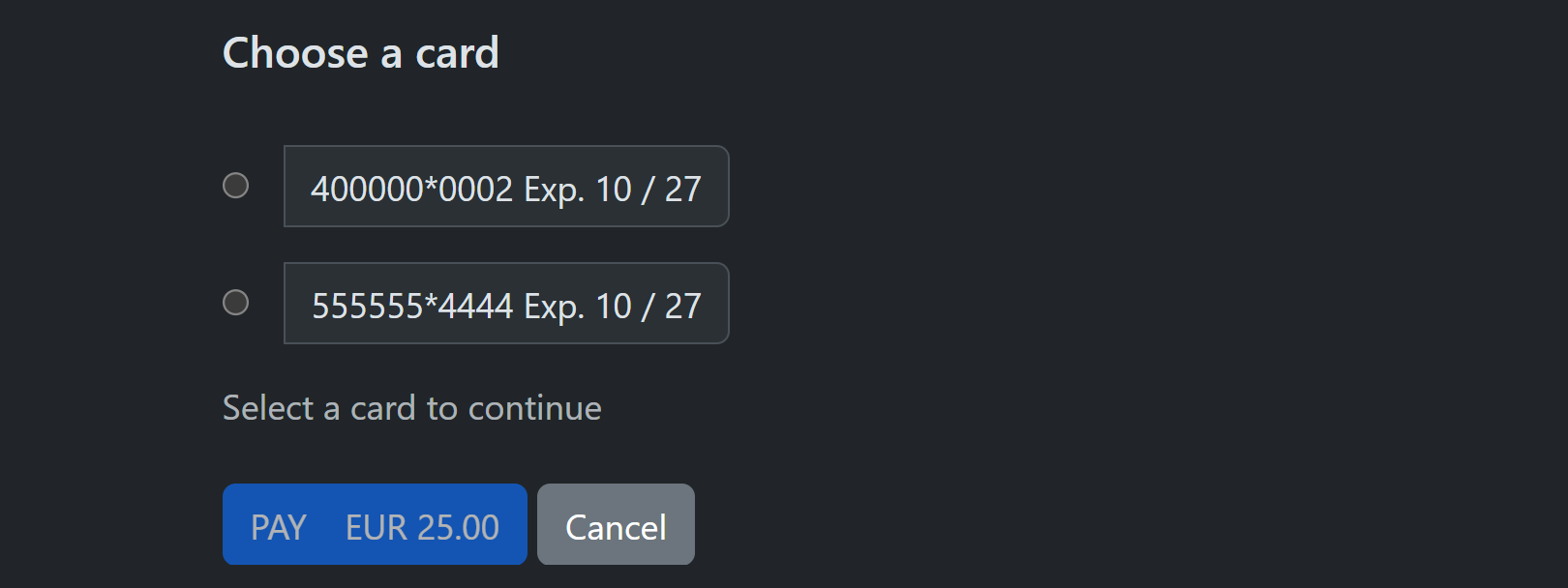
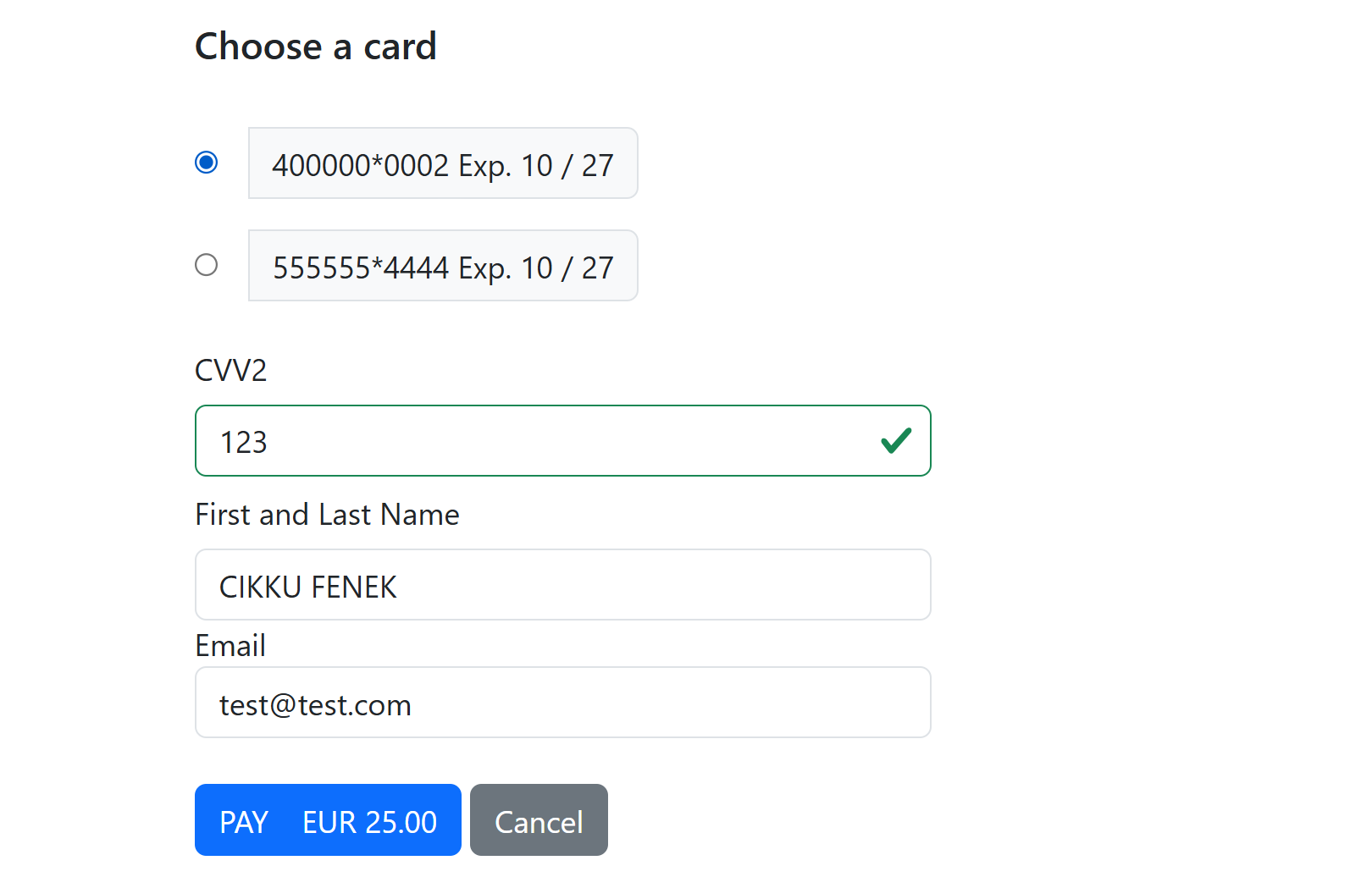
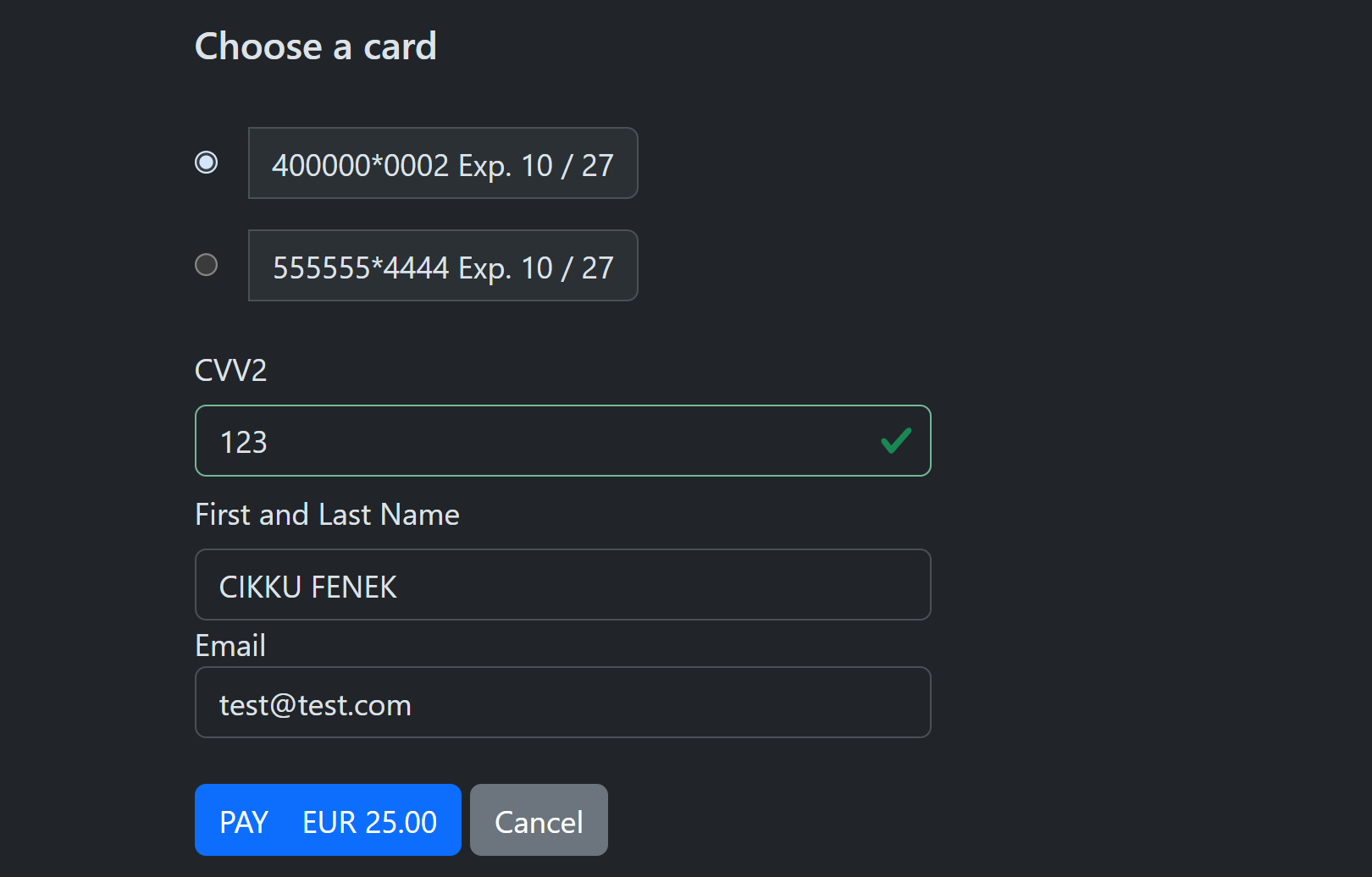
mode PresetTokens with tokens shows the cards to choose from. The page starts with "Select a card to continue": the CVV2, name and email fields and the Pay button appear once a card is chosen, so a payment cannot be made without choosing.
| Nothing selected (light) | Nothing selected (dark) |
|---|---|
 |
 |
| Card selected (light) | Card selected (dark) |
|---|---|
 |
 |
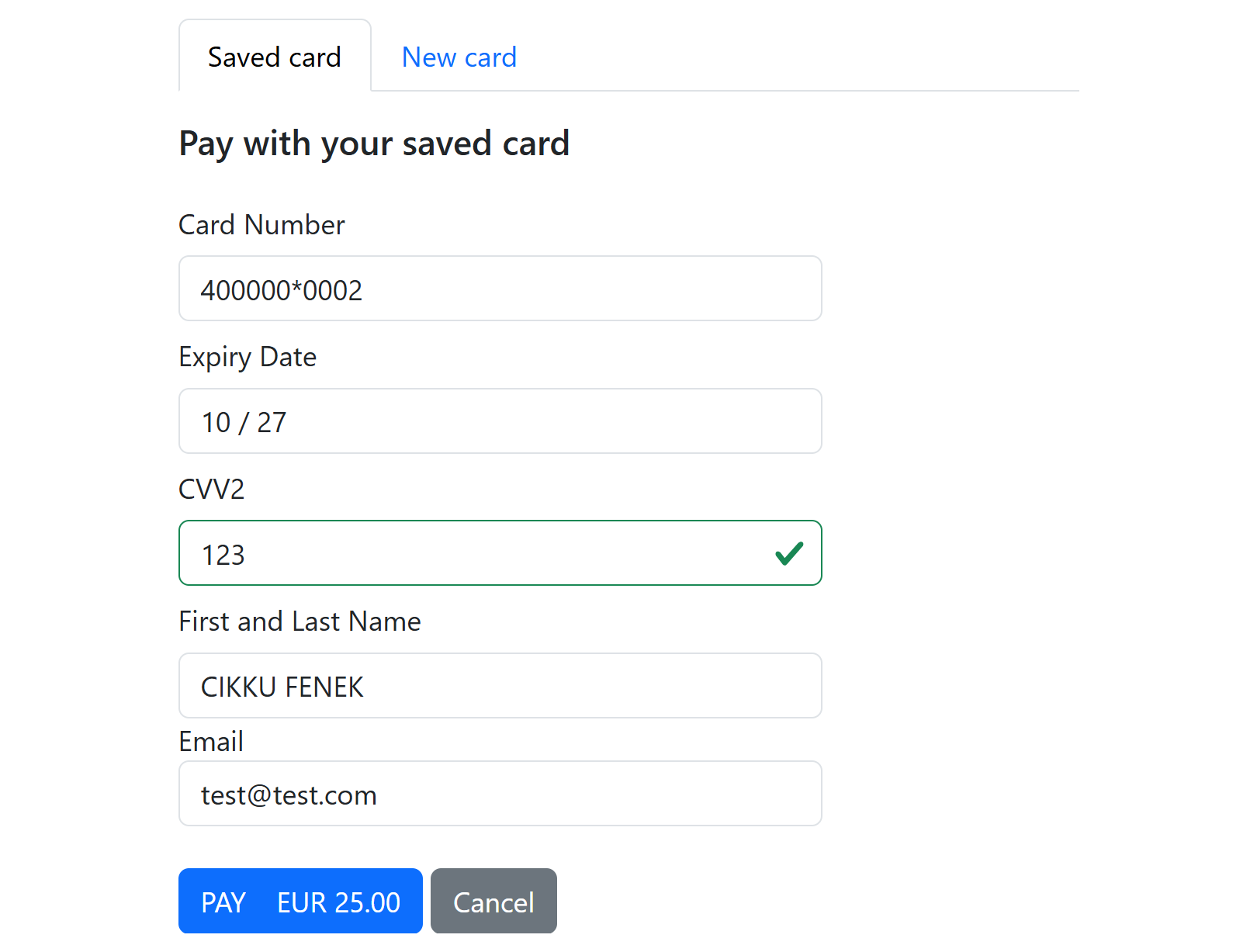
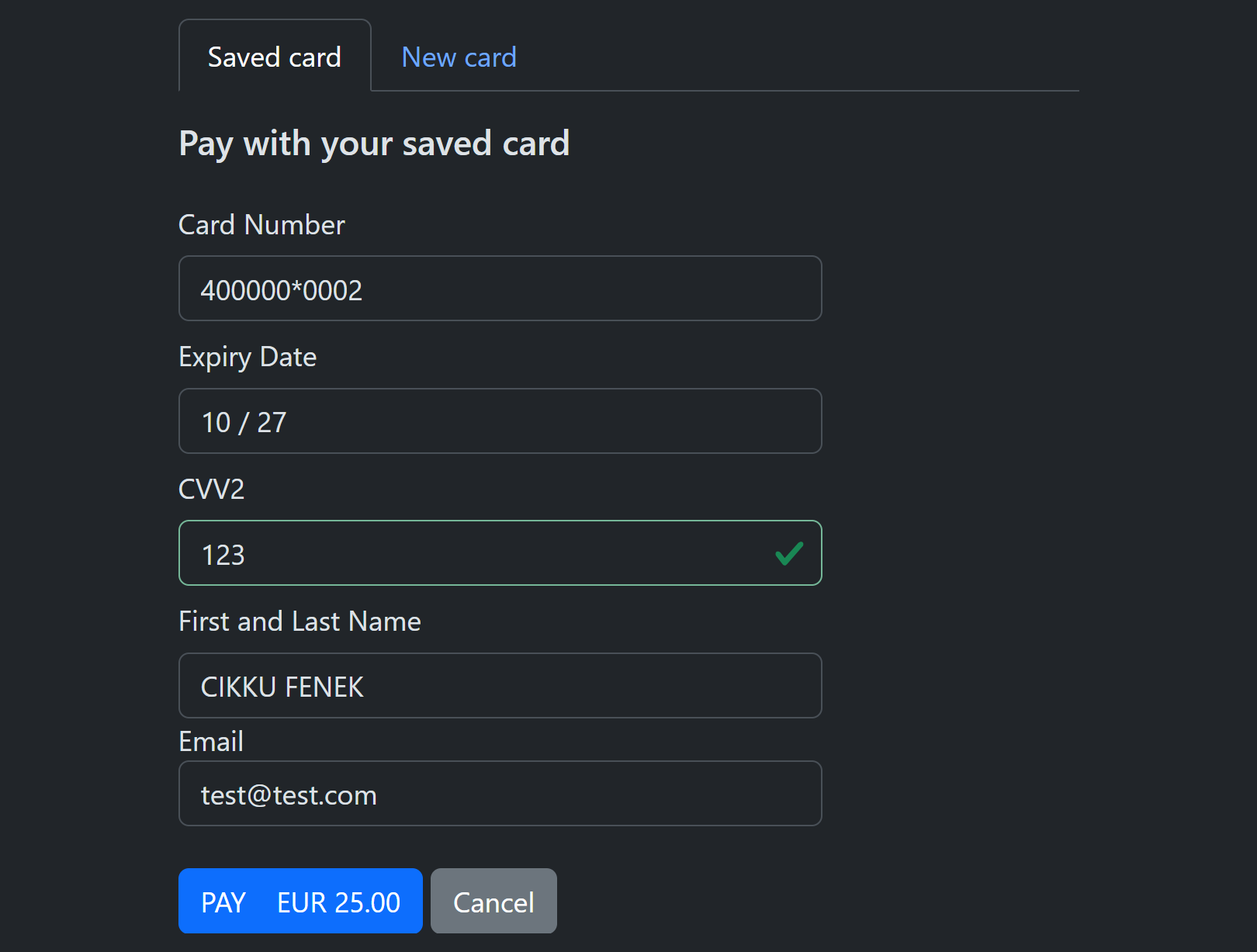
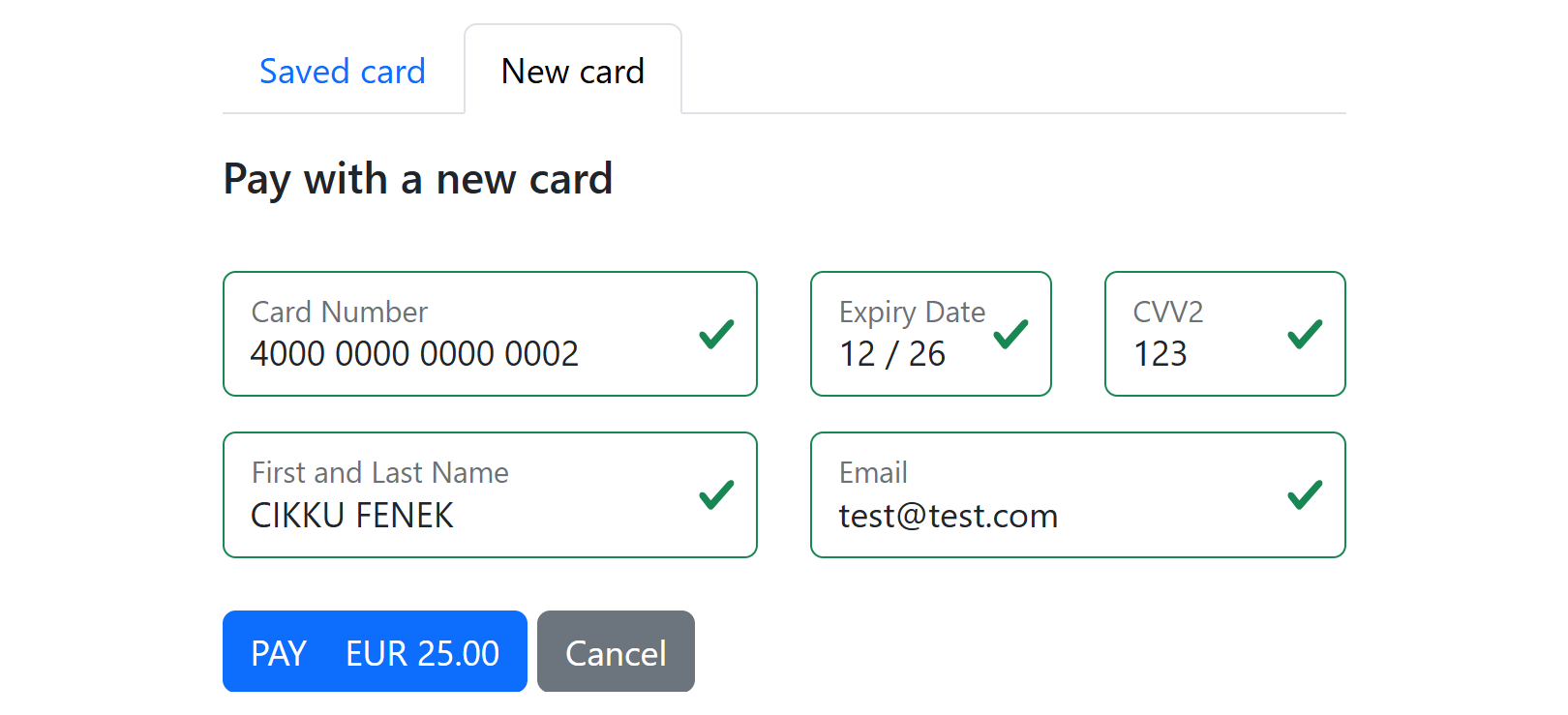
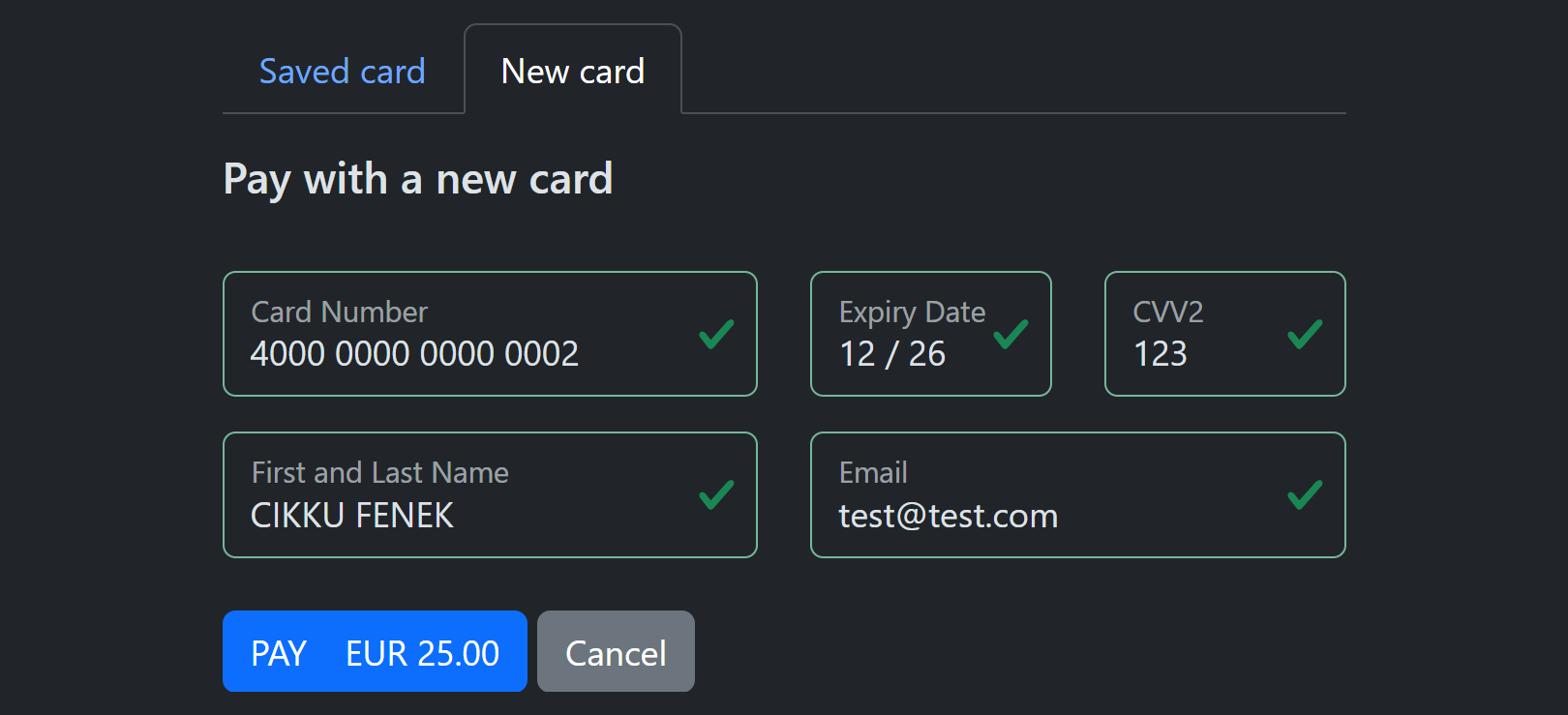
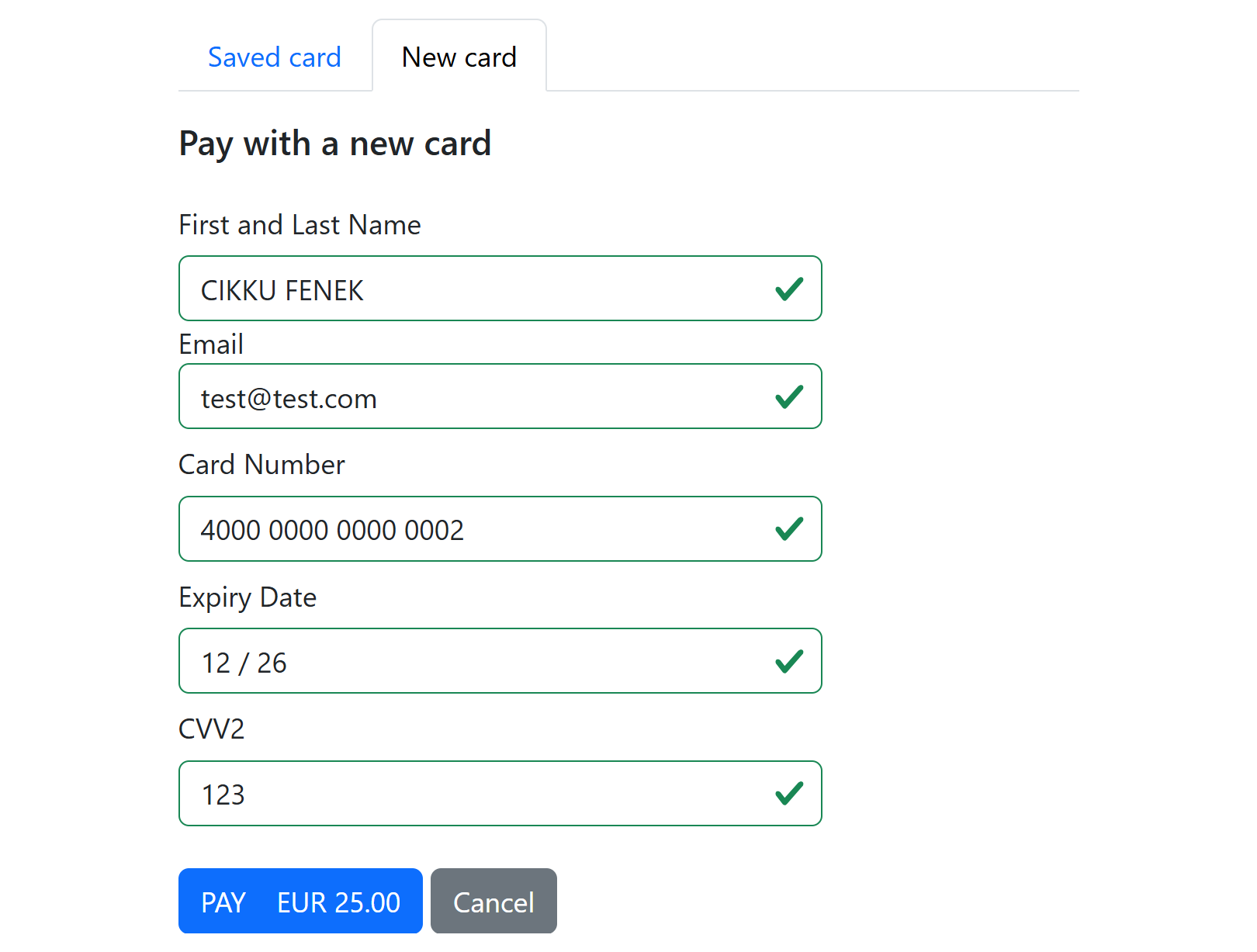
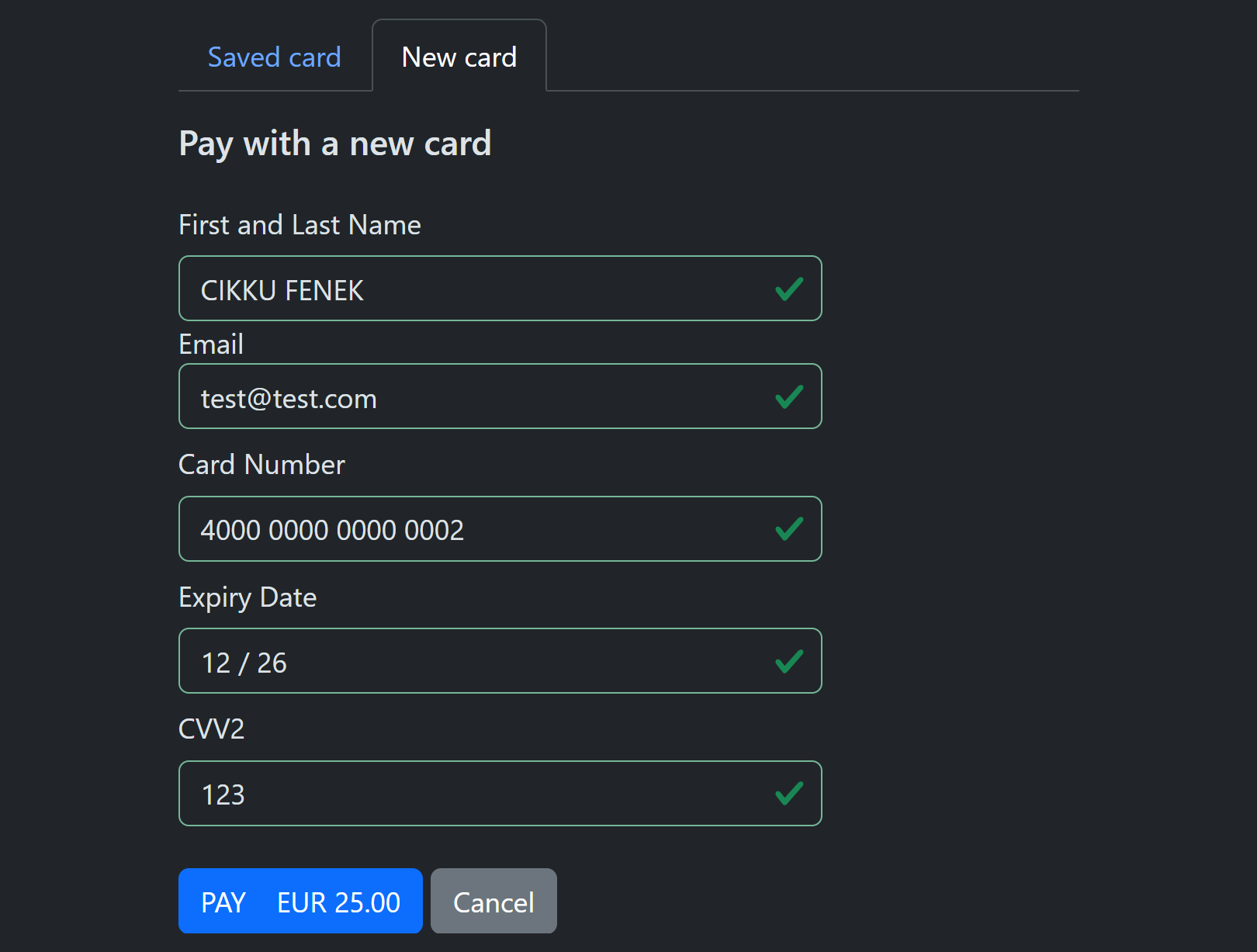
Saved card or new card: the tabs
When more than one method is offered (for example New, PresetToken or New, PresetTokens, which is also what Auto gives you) the page shows tabs: Saved card (or Saved cards) first and selected by default, then New card. Each method has its own heading. Clicking a tab shows that method; if a payment attempt is refused (for example the consent box was not ticked) the page stays on the same tab.
Note
The new card form is prefilled with the cardholder name and email of the saved card. Paying with a new card never uses the saved card, whatever the preset token was. Note: when the cardholder types the same card number and expiry as the saved card, the stored card is replaced by this payment's data, which carries no scheme reference (Trace ID) and no processor references. This is how every payment with a raw card number behaves for a card that is already stored; later merchant initiated payments on that token then go out without the original reference. Offer one method (PresetToken only) when your customers pay with a saved card and you rely on it.
One saved card + new card: saved card tab
| Light | Dark |
|---|---|
 |
 |
One saved card + new card: new card tab, horizontal and vertical
| Horizontal (light) | Horizontal (dark) |
|---|---|
 |
 |
| Vertical (light) | Vertical (dark) |
|---|---|
 |
 |
Several saved cards + new card: saved cards tab
| Light | Dark |
|---|---|
 |
 |
Several saved cards + new card: new card tab, horizontal and vertical
| Horizontal (light) | Horizontal (dark) |
|---|---|
 |
 |
| Vertical (light) | Vertical (dark) |
|---|---|
 |
 |
The three plain pages side by side (light):
| New | PresetToken | New + PresetToken |
|---|---|---|
|
|
|
Zero amount
With amount 0 nothing is charged: the page is a card check and its button reads Approve instead of Pay. Everything else about the page follows the modes you already know; the examples below are the same pictures with a zero amount.
A zero amount is a normal request, with these rules:
- It needs a processor verified for zero value payments (
SupportsZeroAmount, off until the acquirer confirmed it and it was tested). When none of your accounts in the currency qualifies, creating the hosted payment is rejected withRTE03; the customer never sees a page that cannot work. - A negative amount is rejected (
PAB02). - The payment cannot be captured, refunded or voided (
PRO30): there is nothing to settle. - The payment appears in your reports and webhooks with amount
0, and the result isApprovedorDeclinedlike any other. - With the
agreementobject and recurrenceOneClickthe approved check also registers the agreement: the card is saved and consent is recorded without a charge. This is the way to save a card with no payment.
See Sync Payment for the rules shared with the other payment types.
A card check with a new card
Request: "amount": 0, "mode": "New", no agreement object. The card is checked, not saved.
| Horizontal | Vertical |
|---|---|
 |
 |
 |
 |
A card check with a saved card
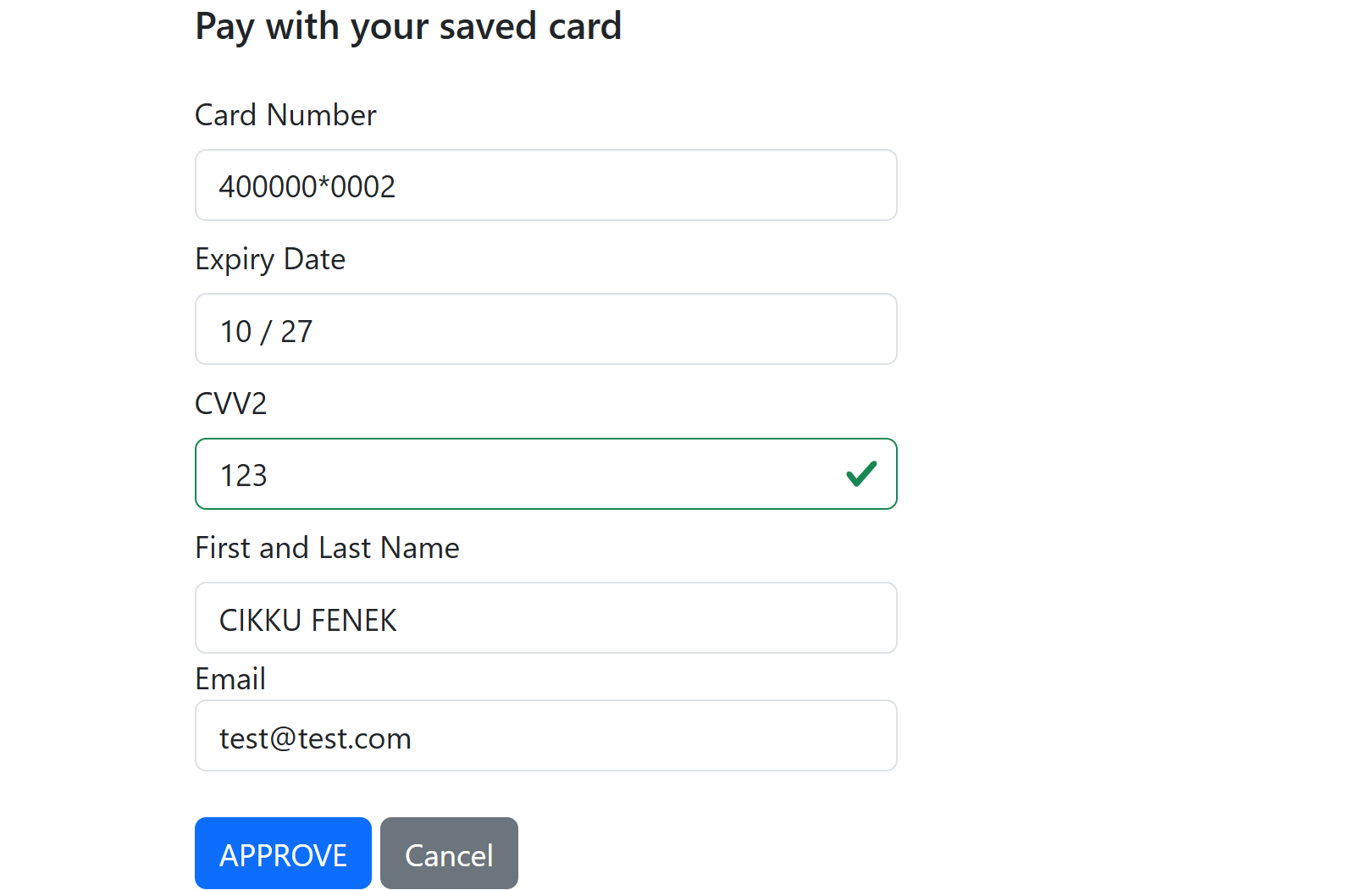
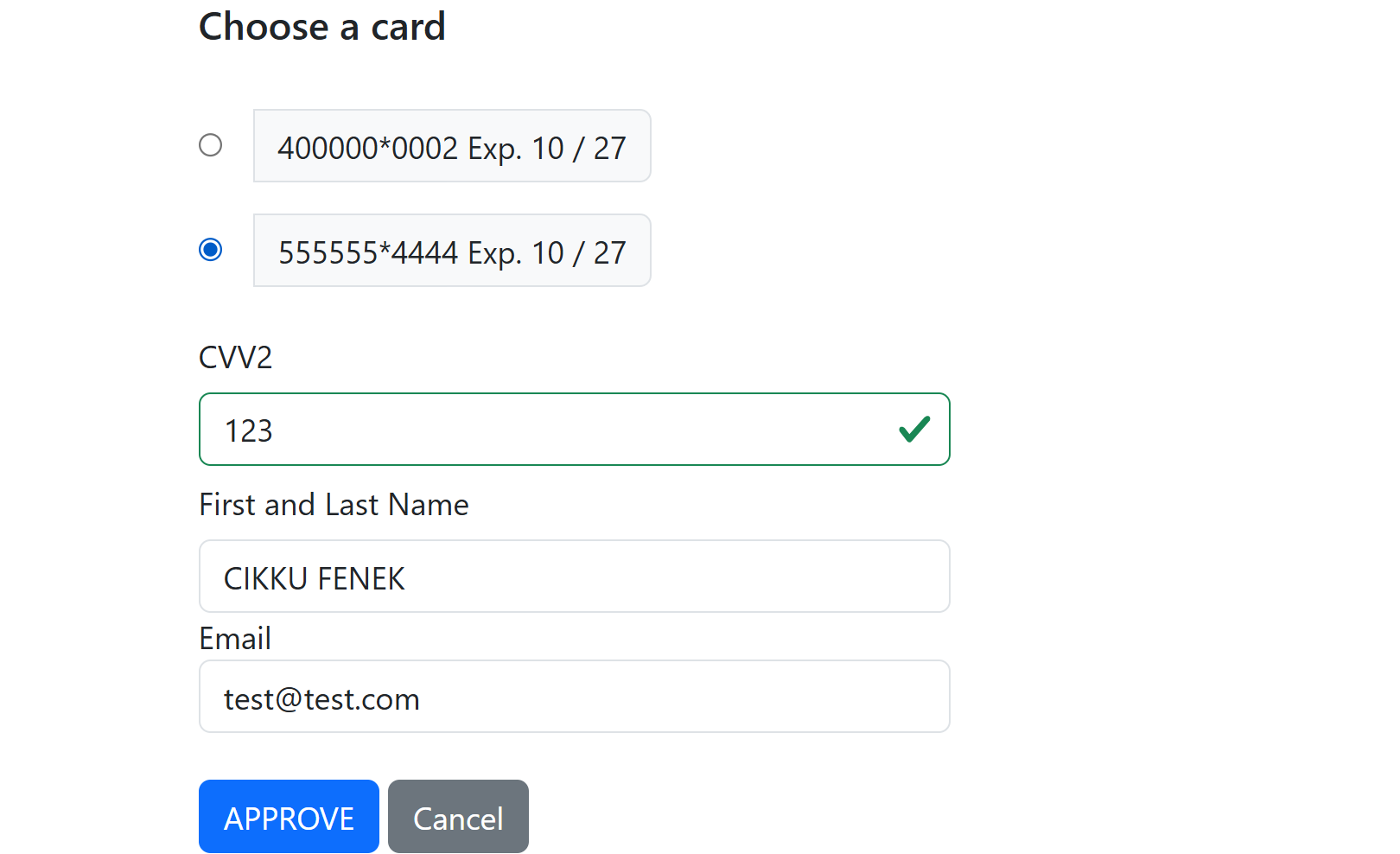
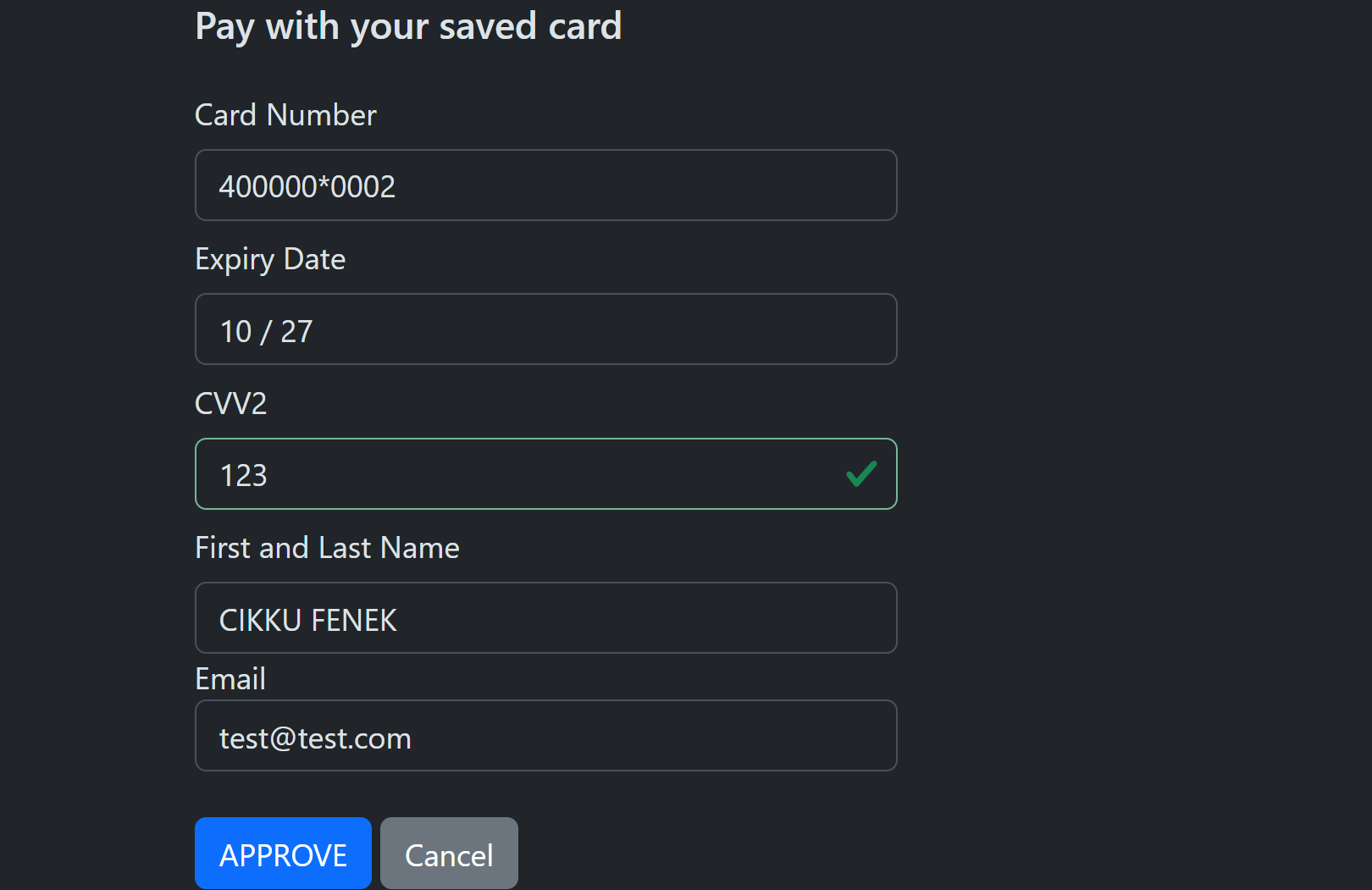
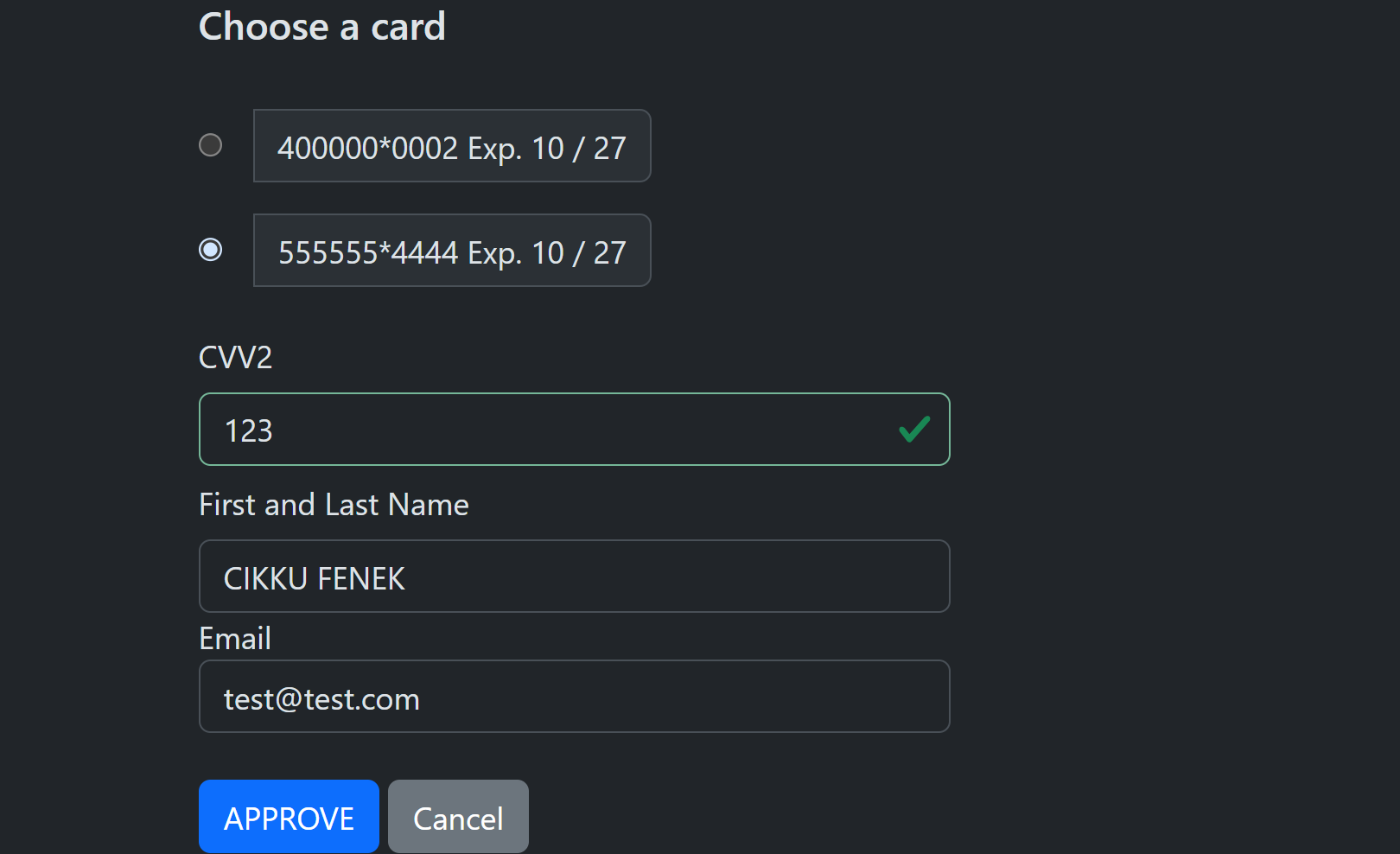
Request: "amount": 0, "mode": "PresetToken" (one card) or "PresetTokens" (a list), with the token or tokens. The page asks for the CVV2 only. In a list the details and the button appear once a card is chosen.
| One saved card | Card list, a card selected |
|---|---|
 |
 |
 |
 |
Note
The layout of saved card pages is the same with or without Vertical: Vertical only changes the form for a new card.
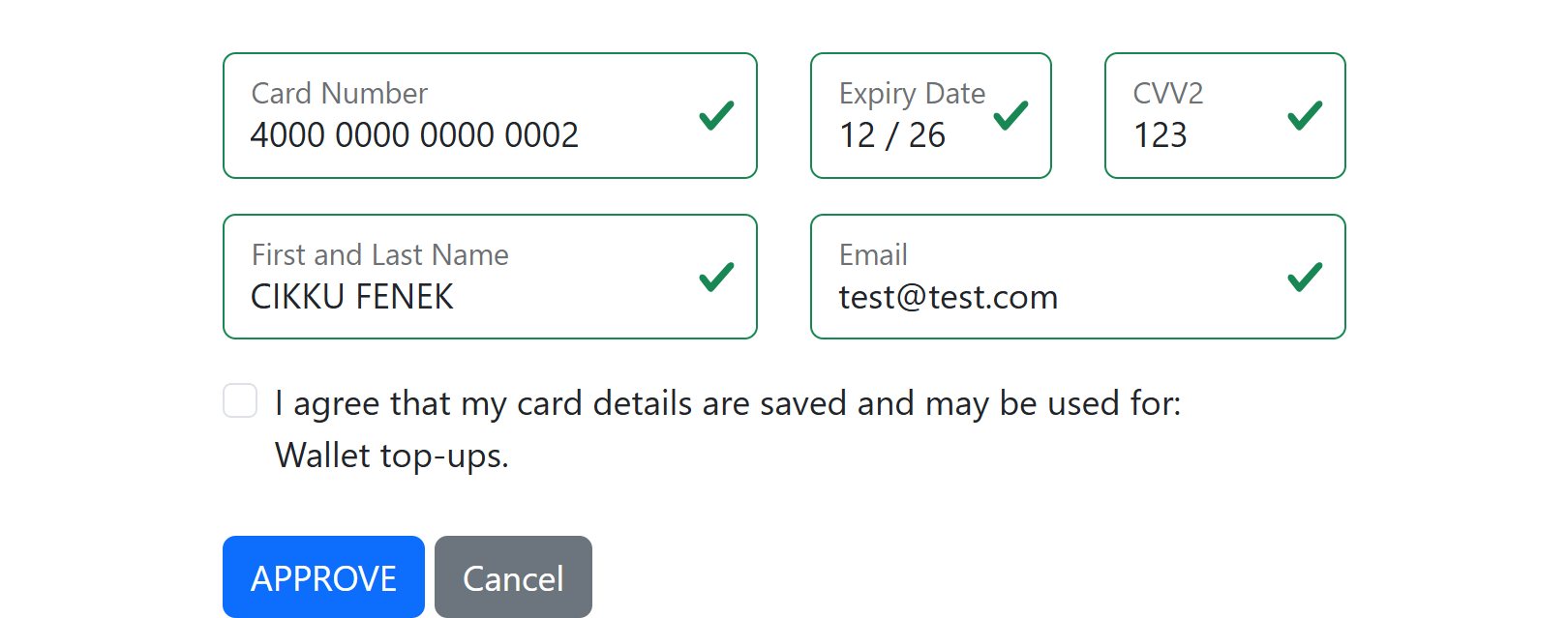
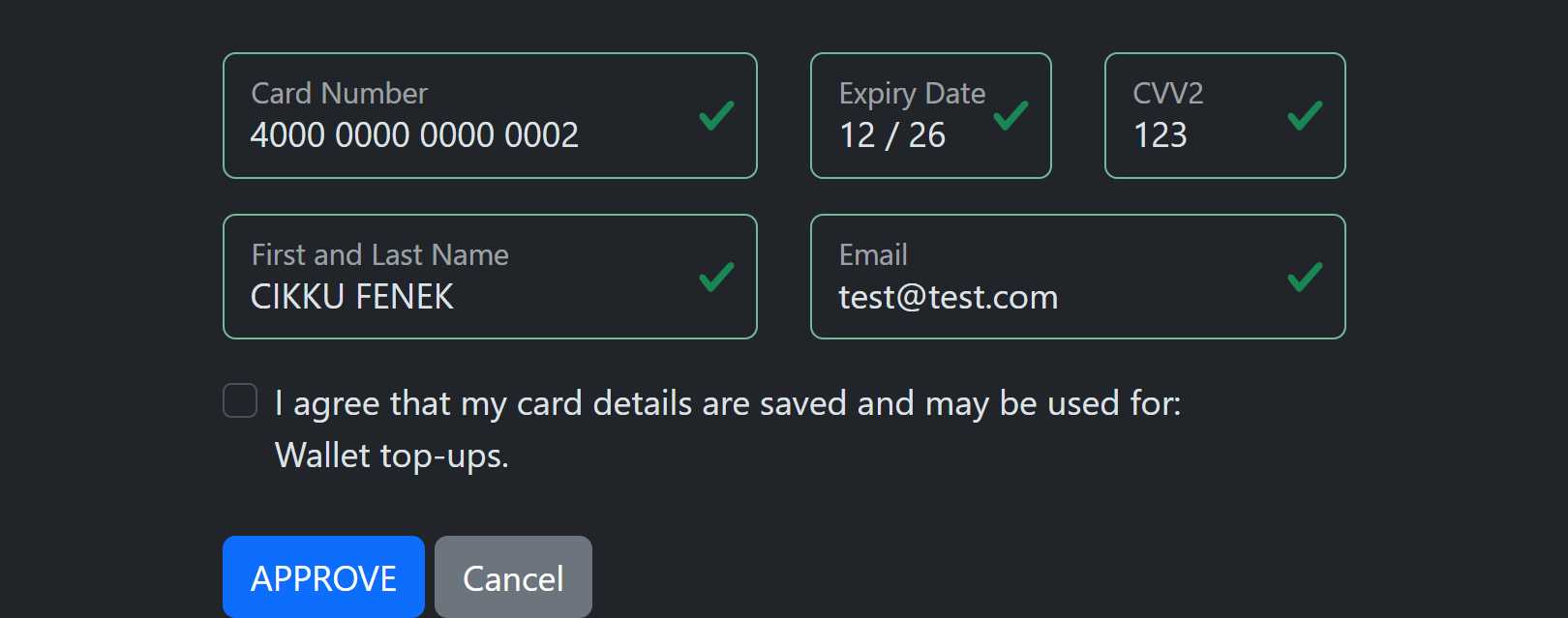
Saving a card without a charge: consent forced
Request: "amount": 0, "mode": "New", "recurrence": "OneClick", and the agreement object. The consent box is shown unticked and must be ticked (the server checks it as well). After an approved check the response and the webhook carry the agreement block with status Created, and the card has a token.
| Light | Dark |
|---|---|
 |
 |
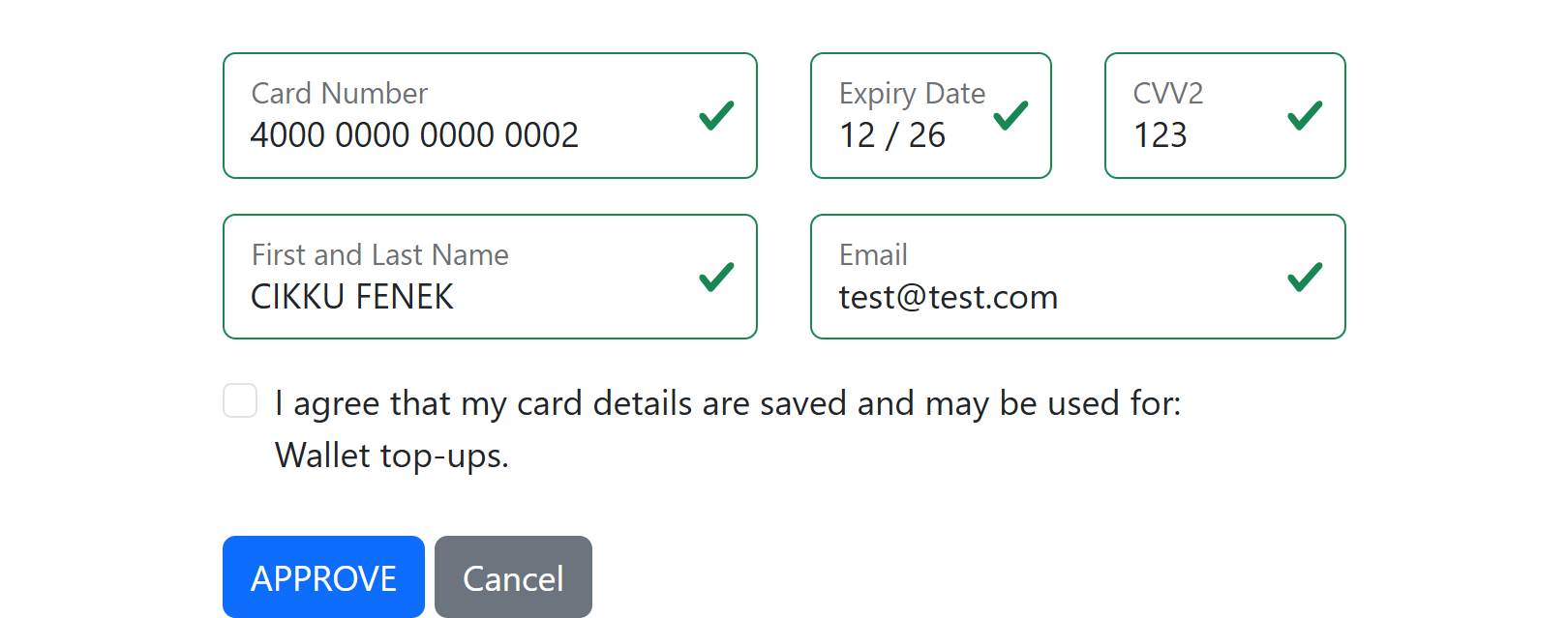
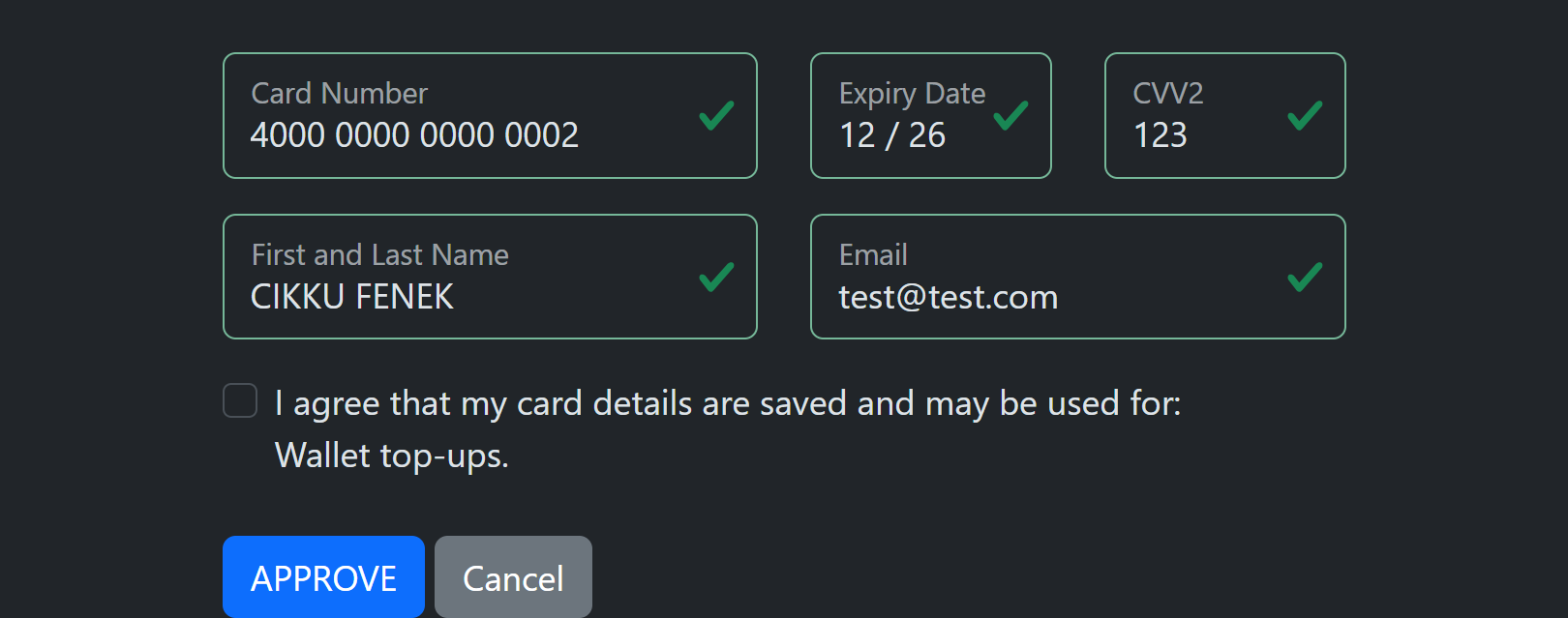
Saving a card without a charge: consent optional
Request: "amount": 0, "mode": "New,AskTokenize", "recurrence": "OneTime", and the agreement object. The box looks the same. Ticked, the approved check registers the agreement and returns a token. Not ticked, the card is only checked: the payment is Approved, the agreement block says NotCreated with reason ConsentDeclined, and no token is returned.
| Light | Dark |
|---|---|
 |
 |
What the page does when the check is declined
Declines behave as for any payment: with Retry the page shows the reason and the form again, otherwise the payment ends and the cardholder returns to your returnUrl. No agreement is created for a declined check (NotCreated, reason PaymentNotApproved).
Saving a card: agreements and consent
To save a card for later payments (merchant initiated payments, one-click payments, subscriptions) send the agreement object together with recurrence OneClick. The cardholder gives consent on the page, PayLolly records the evidence, and after an approved payment the card is registered as an agreement. The payment response returns an agreementId you quote on later payments.
The agreement object
| Field | Required | Description |
|---|---|---|
| agreementRef | no | Your own reference, up to 36 characters (letters, digits, -, _, .). It tells parallel agreements for the same customer and card apart |
| description | yes (hosted) | What the card may be used for, up to 200 characters. It is part of the consent sentence the cardholder agrees to |
| maxAmount | no | Cap per payment in the payment currency, greater than zero, with no more decimals than the currency allows. Shown in the consent sentence |
| expiresAt | no | End of the agreement (UTC), must be in the future. Shown in the consent sentence |
| consent | not allowed | On hosted payments PayLolly records the consent itself (AGR05 if you send it) |
Rules:
cardHolder.referenceis mandatory (1 to 64 characters,AGR01). It is your id for the customer. Together with the card and theagreementRefit identifies the agreement: the same customer, card andagreementRefregisters the same agreement again (sameagreementId, statusUpdated), a different combination creates a different agreement.recurrencemust be OneClick (AGR02), or OneTime together with the AskTokenize mode (the cardholder's tick then turns it into OneClick).- The merchant must be enabled for agreements (
AGR09). initiationis always CIT. 3D Secure requests a mandated challenge (indicator04) on the payment that registers a card, so the cardholder is asked to authenticate.
Consent is mandatory or optional - the AskTokenize mode decides
| Mode | Consent checkbox | Cardholder does not tick |
|---|---|---|
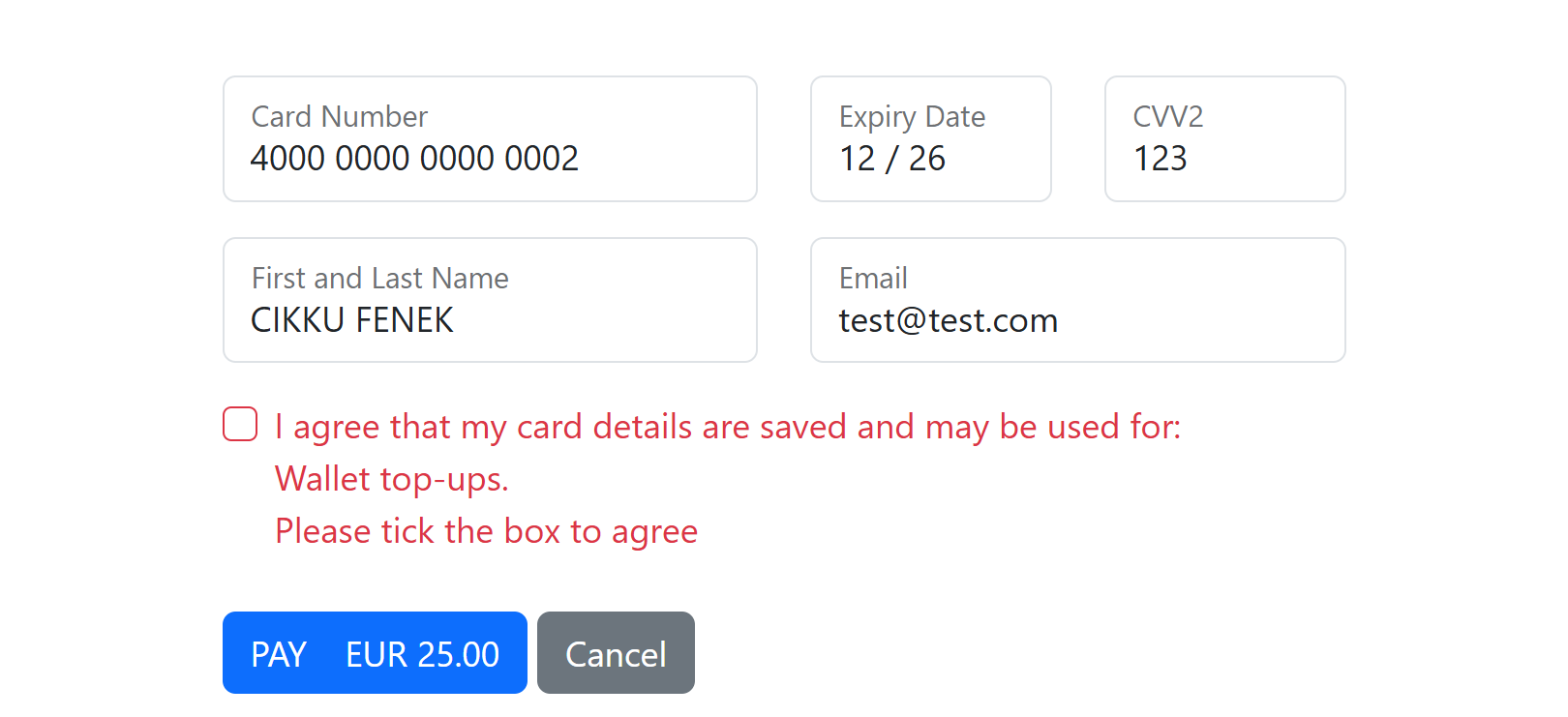
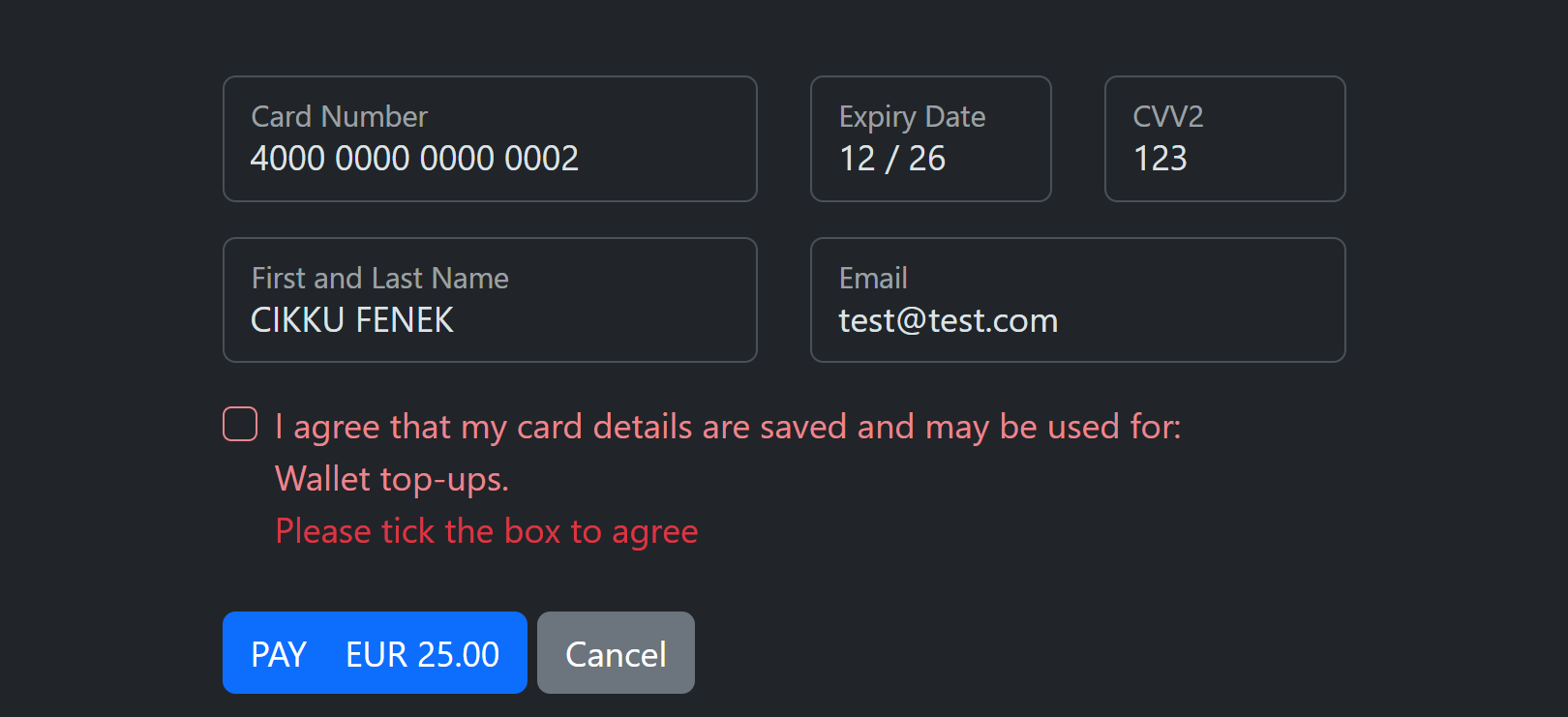
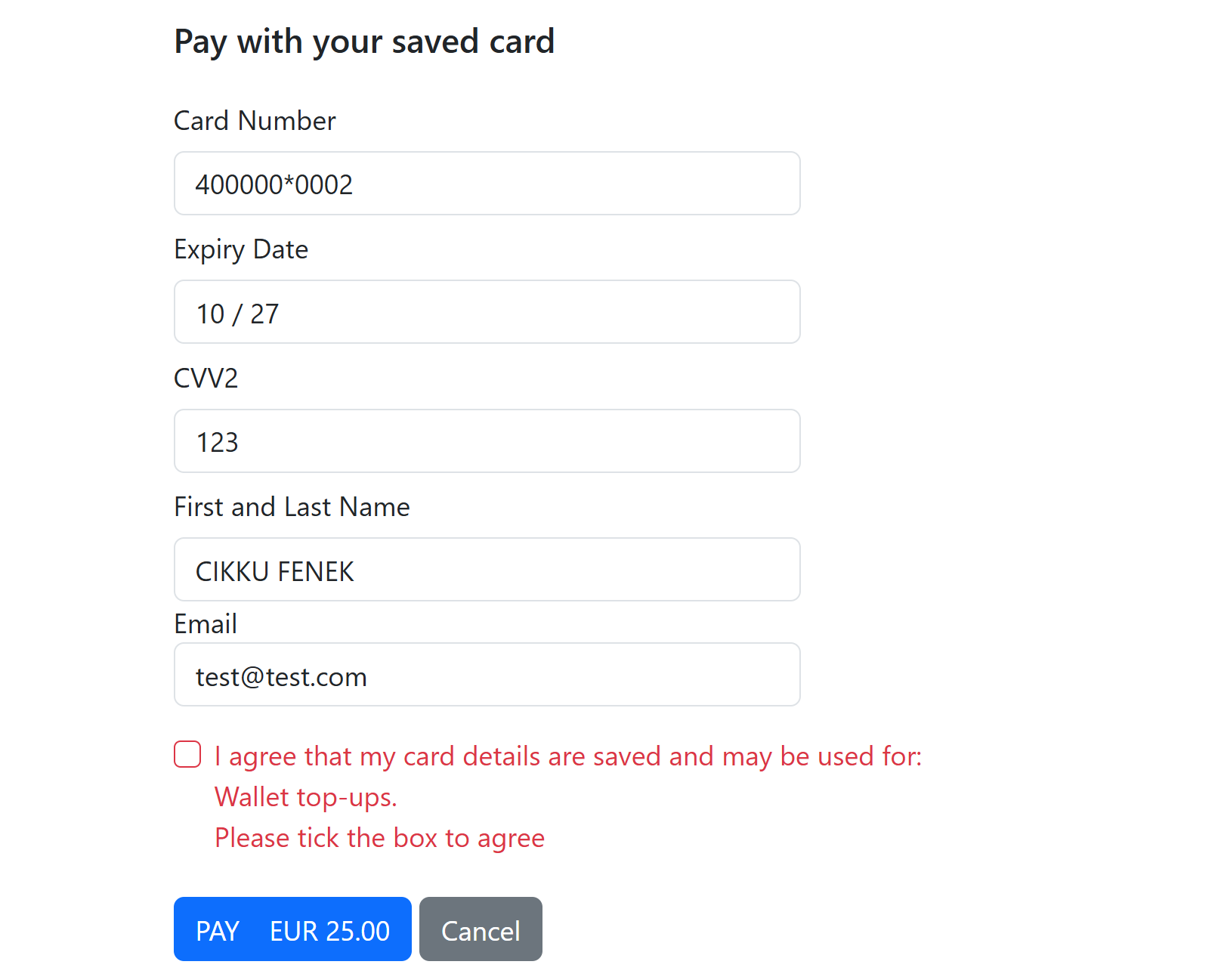
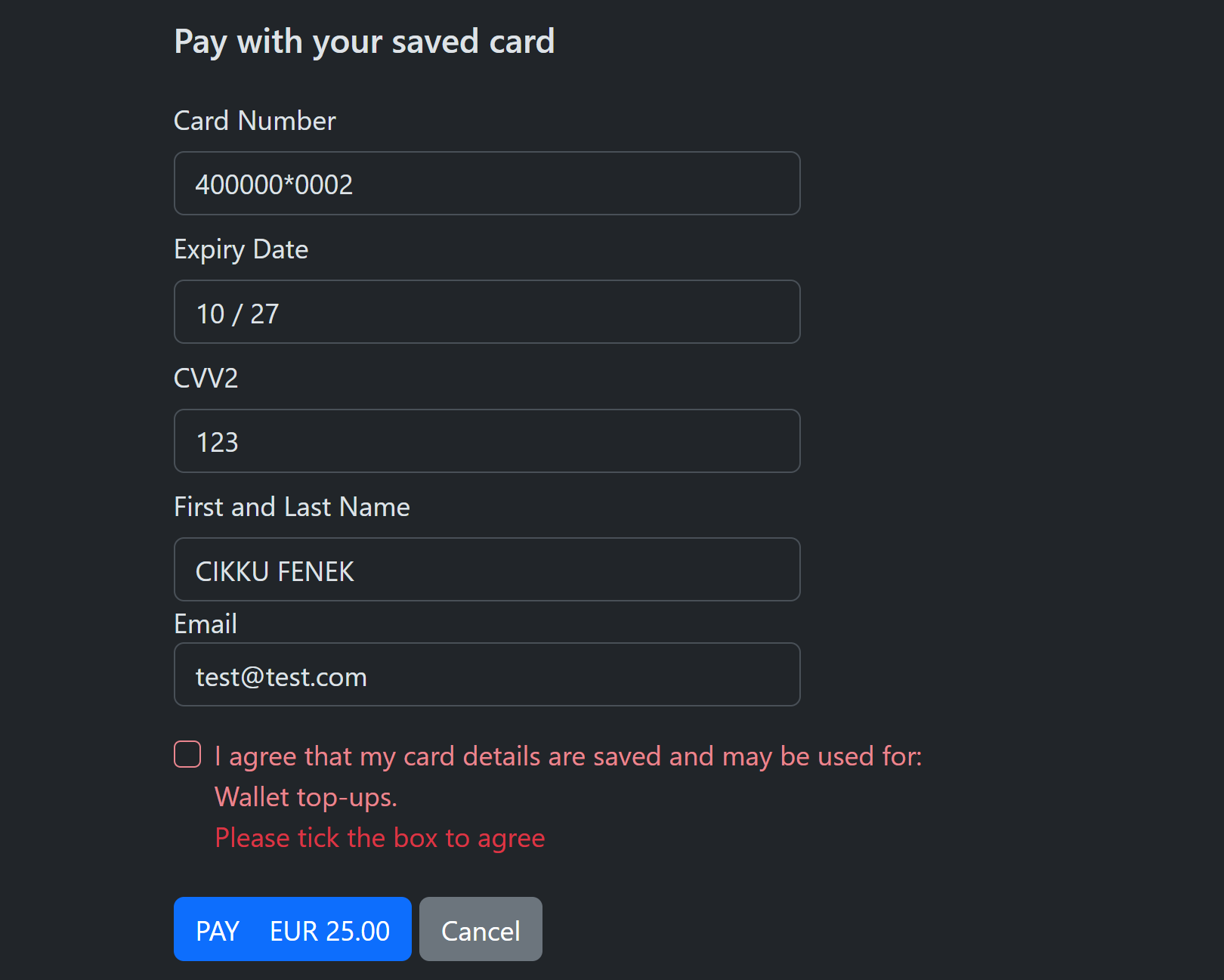
| without AskTokenize (default) | Mandatory. Always shown, never pre-ticked | The payment is not made: the page is shown again with "Please tick the box to agree". This is checked on the server, not only in the browser |
| with AskTokenize | Optional, never pre-ticked | The payment proceeds as a one-time payment, nothing is registered, and the response says so (ConsentDeclined) |
Warning
Without the agreement object nothing changes: the existing behaviour of OneClick and AskTokenize (a "Save card details for next time" checkbox) is kept.
The consent text is fixed by PayLolly and filled with your description and limits:
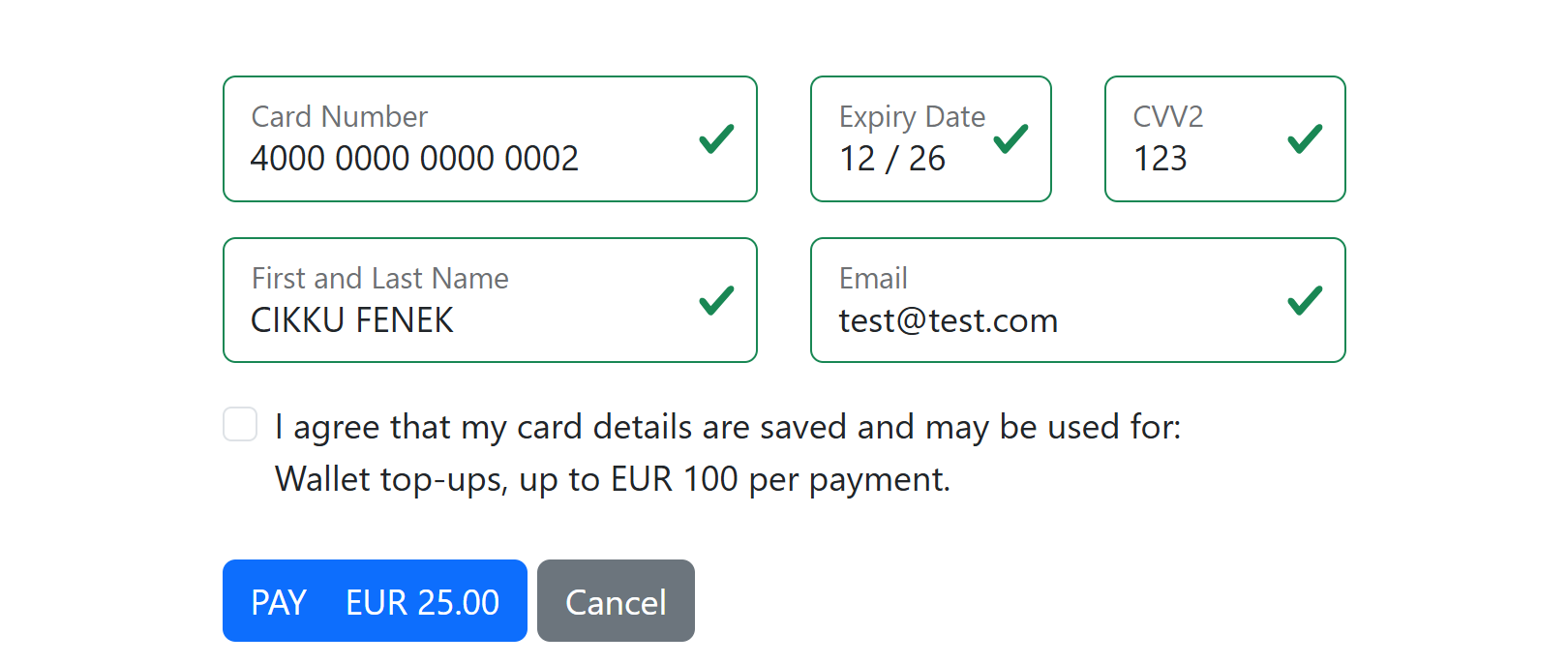
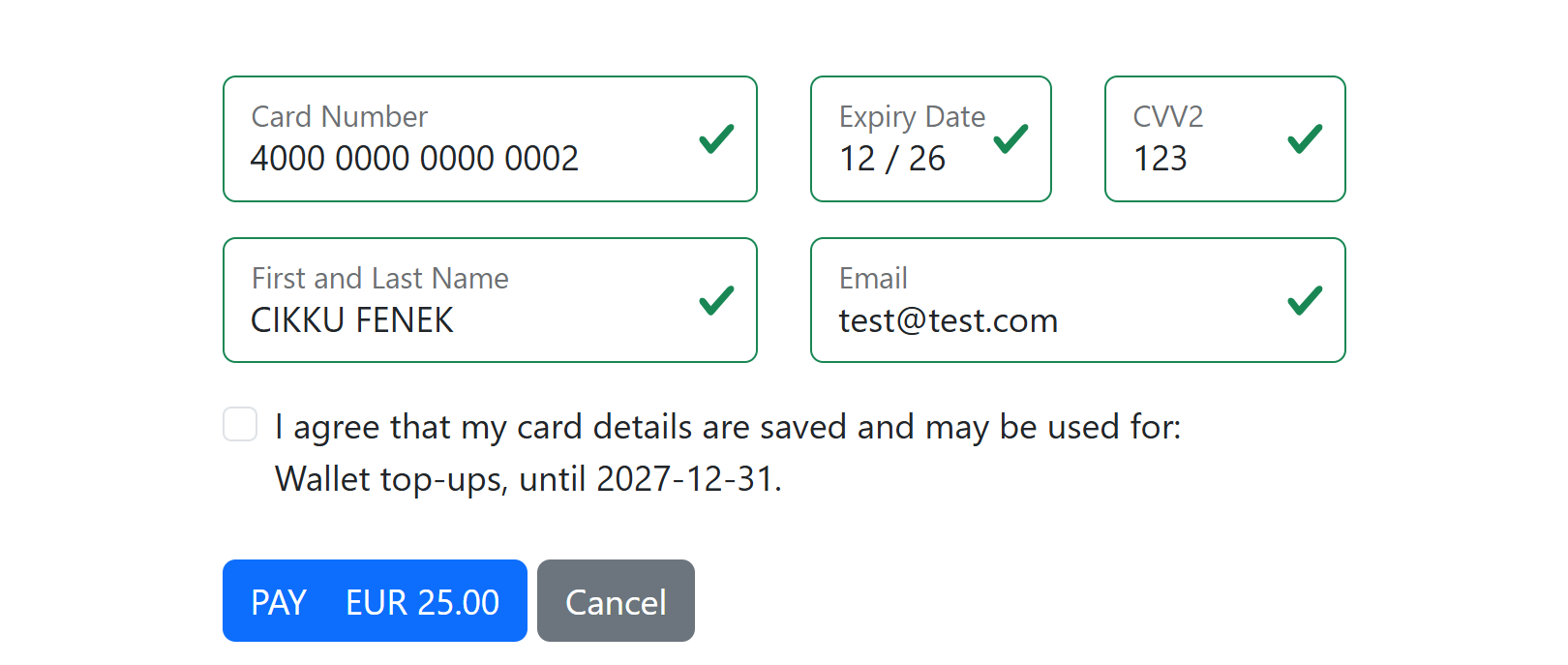
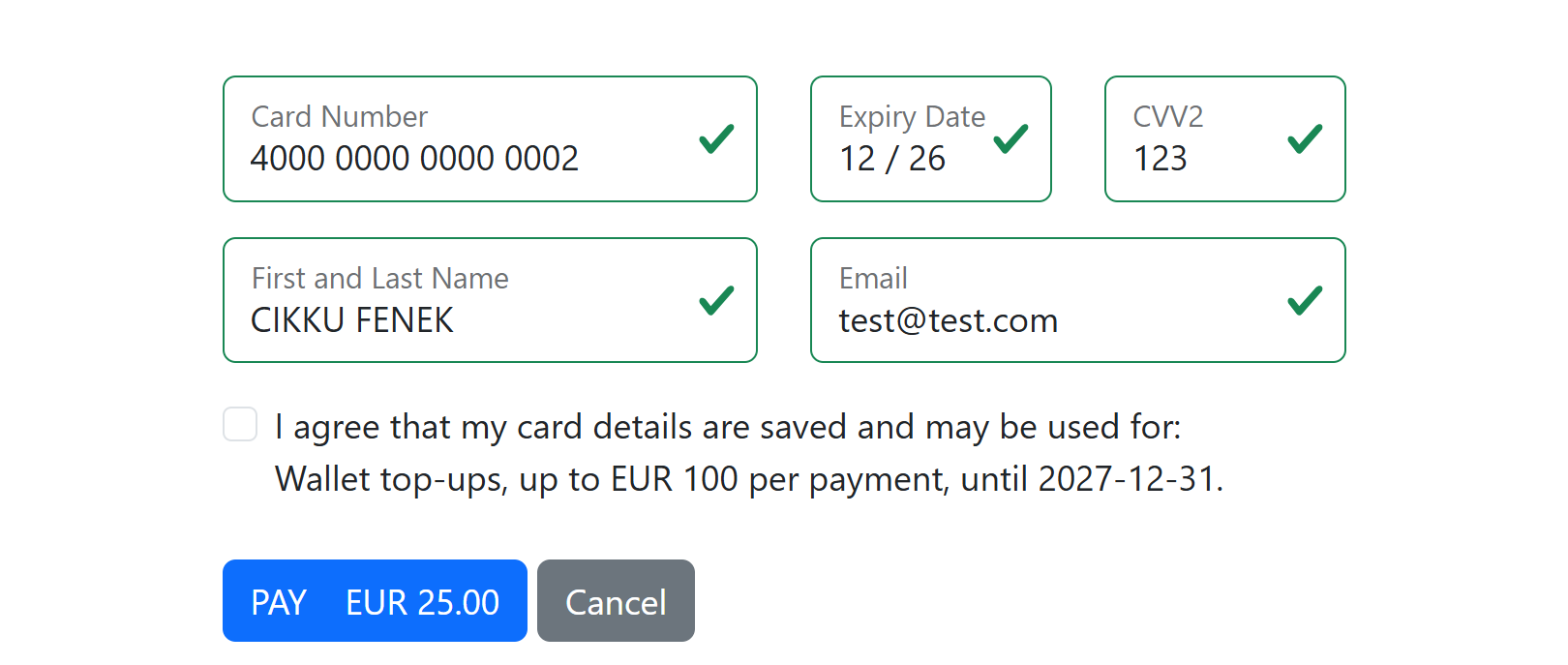
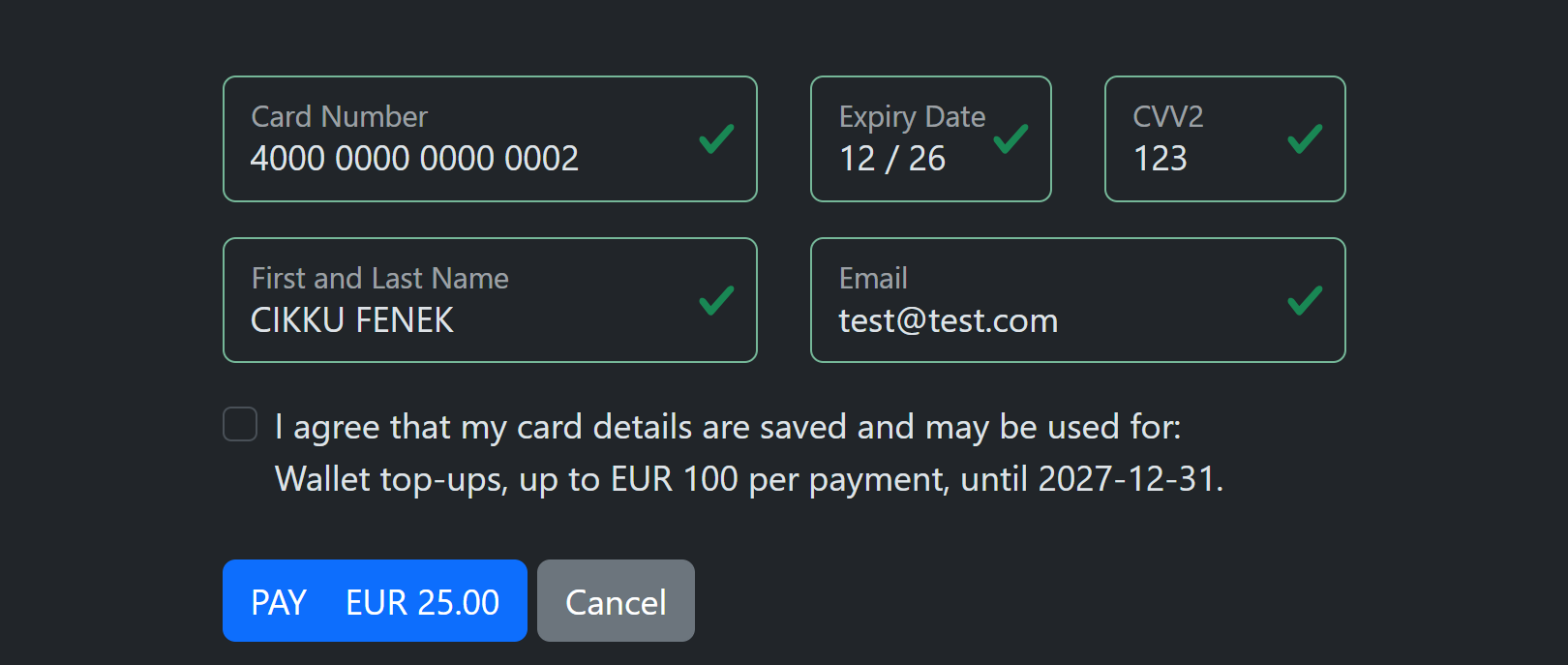
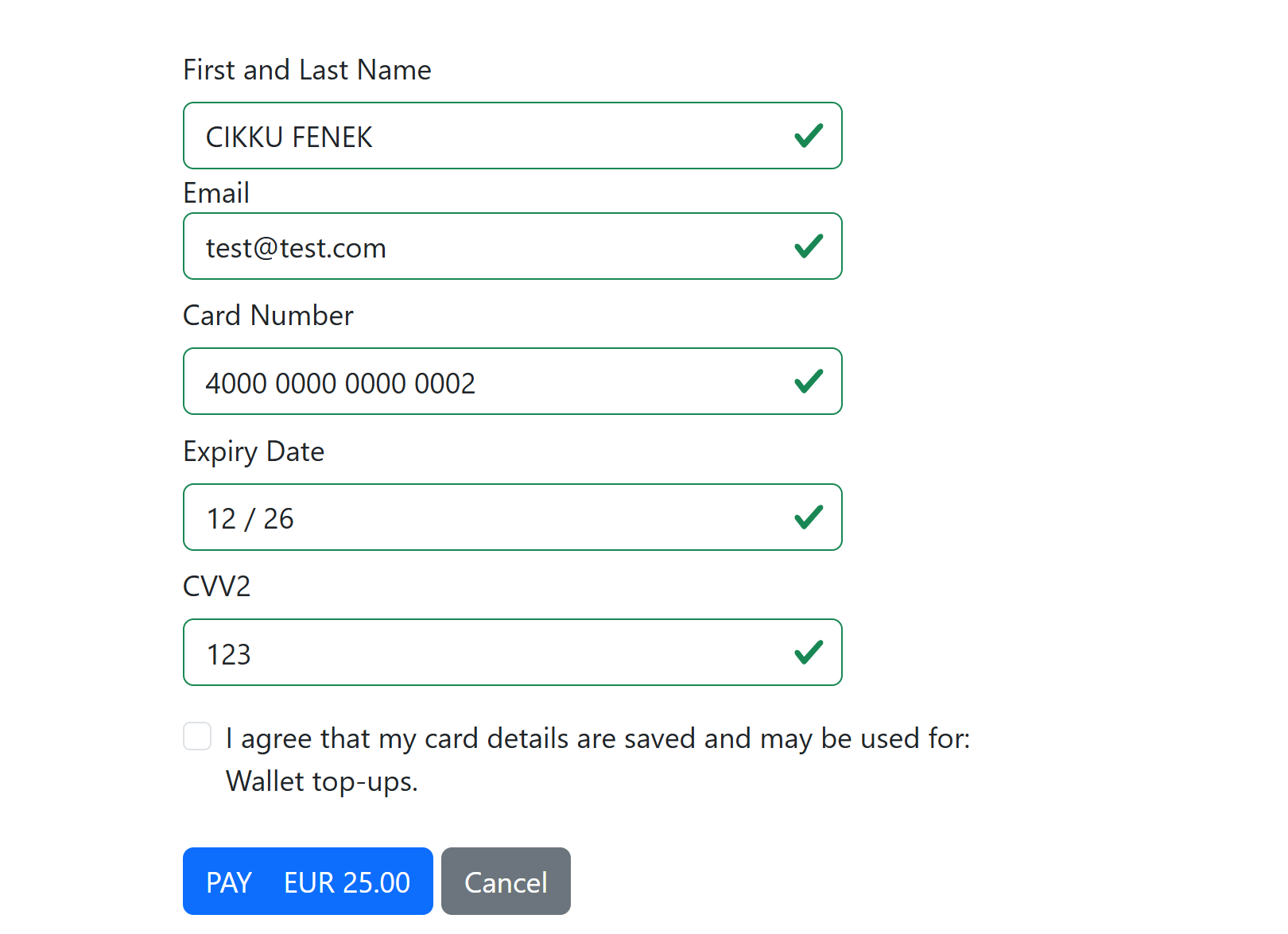
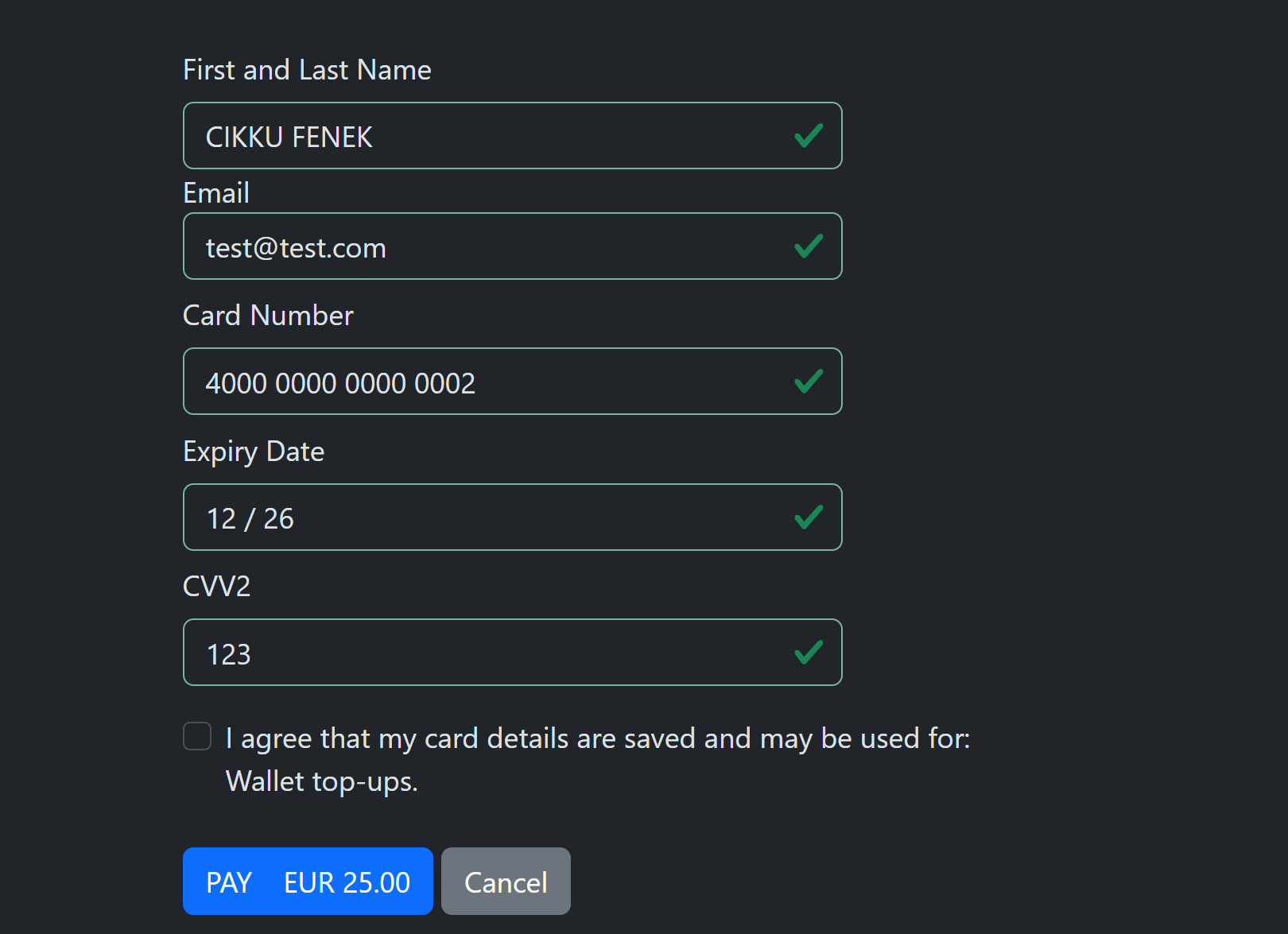
I agree that my card details are saved and may be used for: {description}[, up to {currency} {maxAmount} per payment][, until {yyyy-MM-dd}].
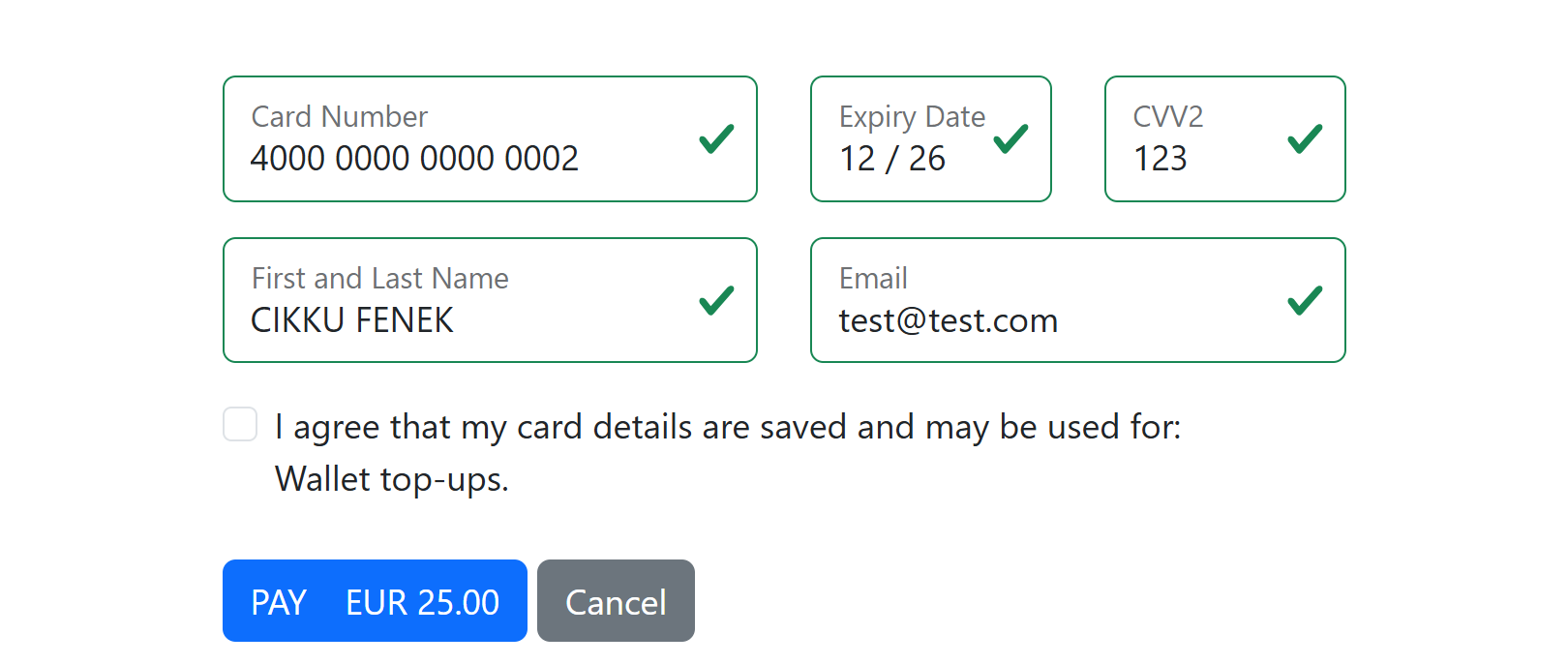
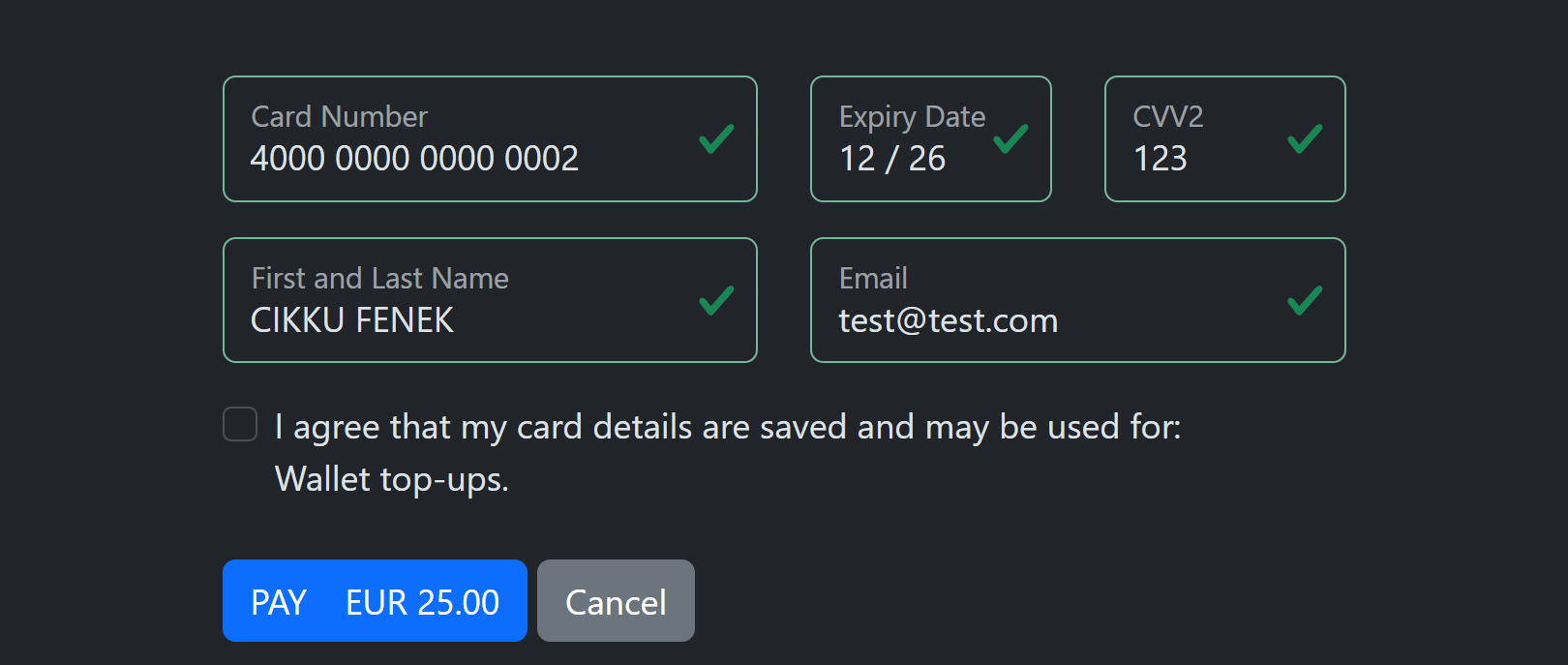
The description is shown on its own line. The limits you send follow it on the same line; the ones you leave out are not mentioned. Without limits (the pictures further down) the sentence ends after the description.
With "maxAmount": 100 (payment currency EUR) the sentence ends "...Wallet top-ups, up to EUR 100 per payment.":
| Light | Dark |
|---|---|
 |
 |
With "expiresAt": "2027-12-31T00:00:00Z" it ends "...Wallet top-ups, until 2027-12-31.":
| Light | Dark |
|---|---|
 |
 |
With both it ends "...Wallet top-ups, up to EUR 100 per payment, until 2027-12-31.":
| Light | Dark |
|---|---|
 |
 |
On the new card form with a description only (horizontal and vertical):
| Horizontal (light) | Horizontal (dark) |
|---|---|
 |
 |
| Vertical (light) | Vertical (dark) |
|---|---|
 |
 |
When the mandatory consent is not ticked:
| Light | Dark |
|---|---|
 |
 |
Consent for a saved card
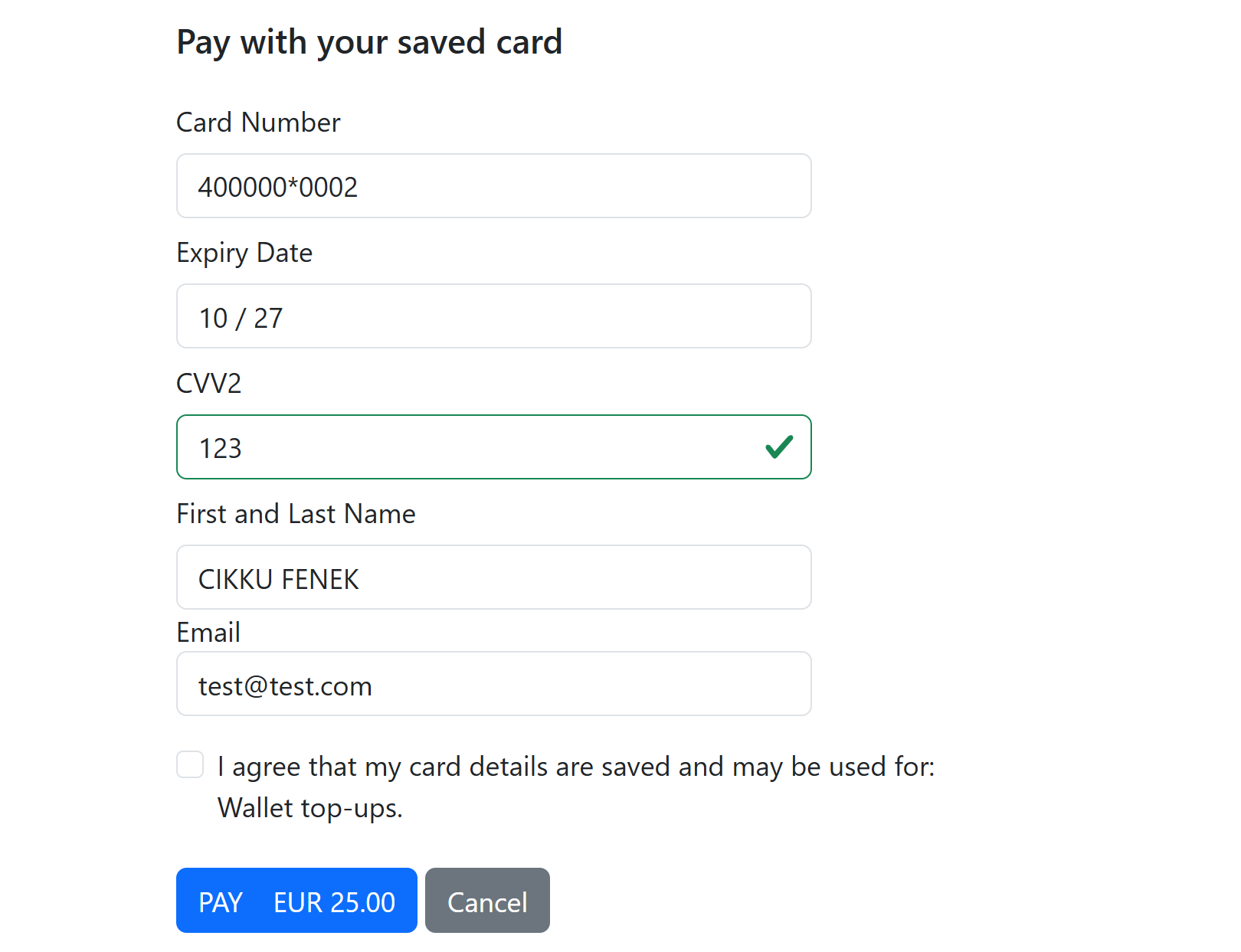
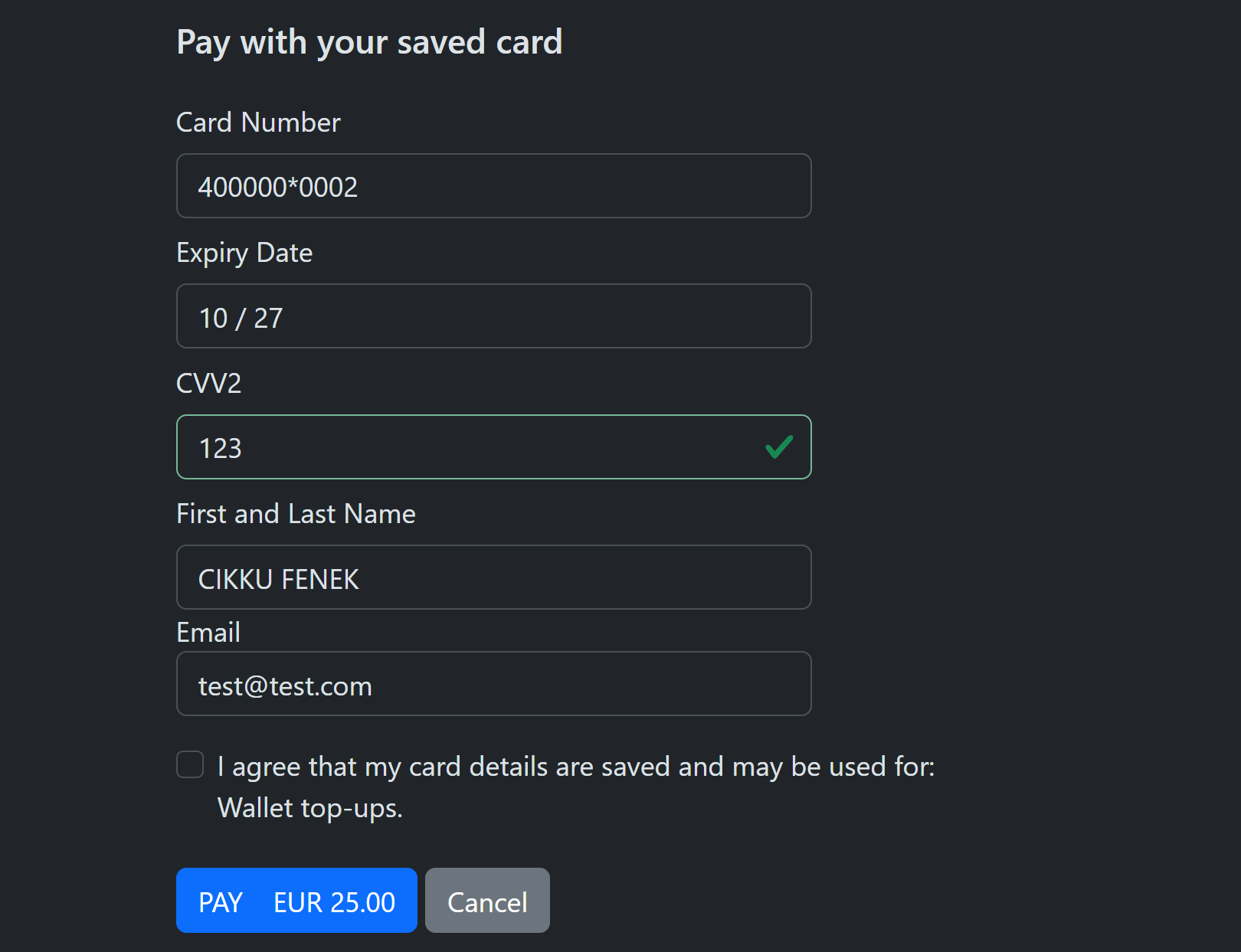
The checkbox is also shown for a saved card, but only when the card has no recorded consent for this agreement, or when what you now send differs from what the agreement holds: a different description, maximum amount, end date or schedule is something new to agree to. A card whose agreement says exactly the same is not asked again (this holds for scheduled agreements too). This also covers cards you saved before agreements existed: the first customer-present payment records the consent. Each attempt starts from what you sent: a retry does not inherit the tick or the recurrence of the previous attempt.
Saved card, consent needed
| Light | Dark |
|---|---|
 |
 |
Saved card, consent not ticked
| Light | Dark |
|---|---|
 |
 |
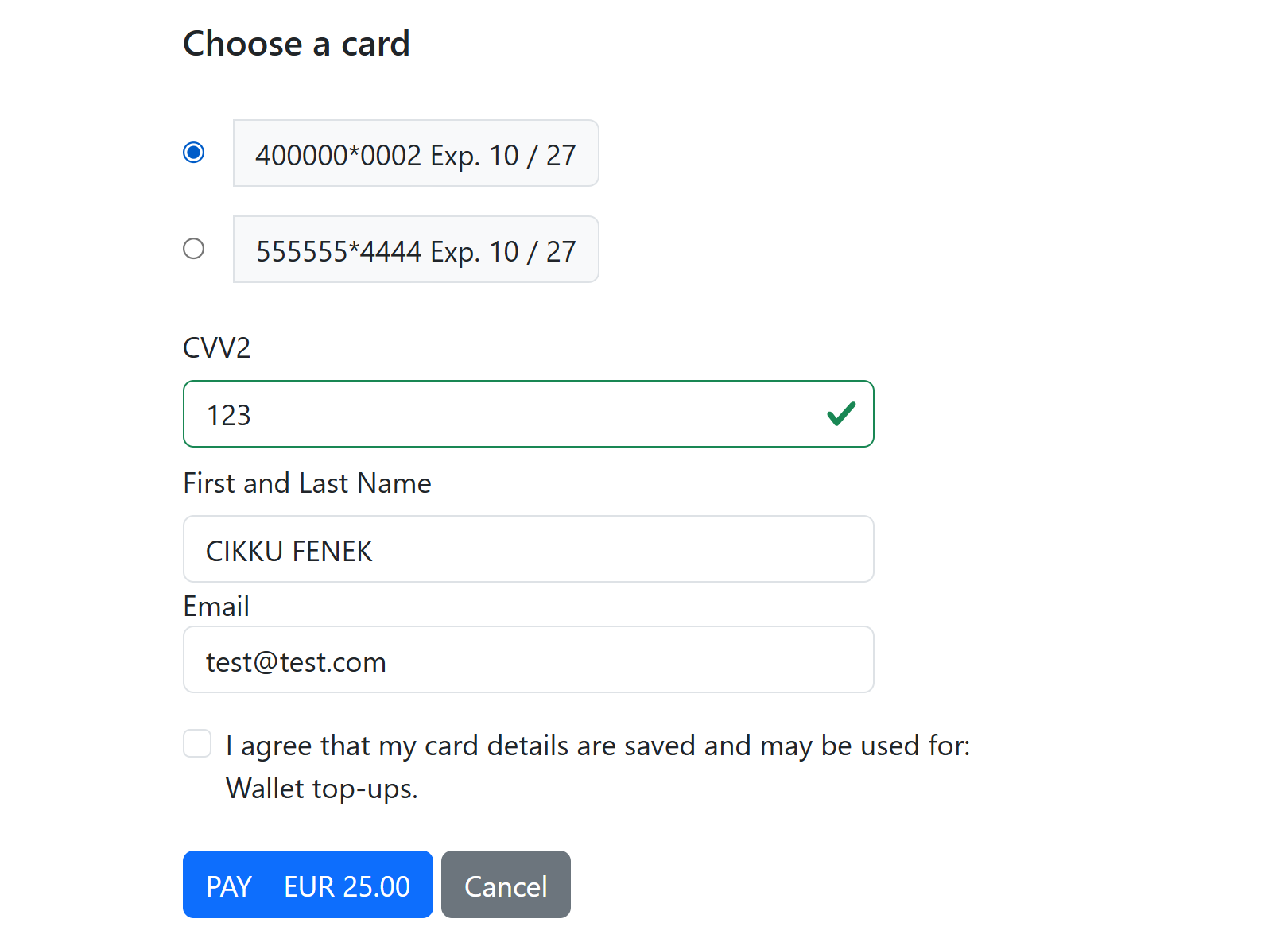
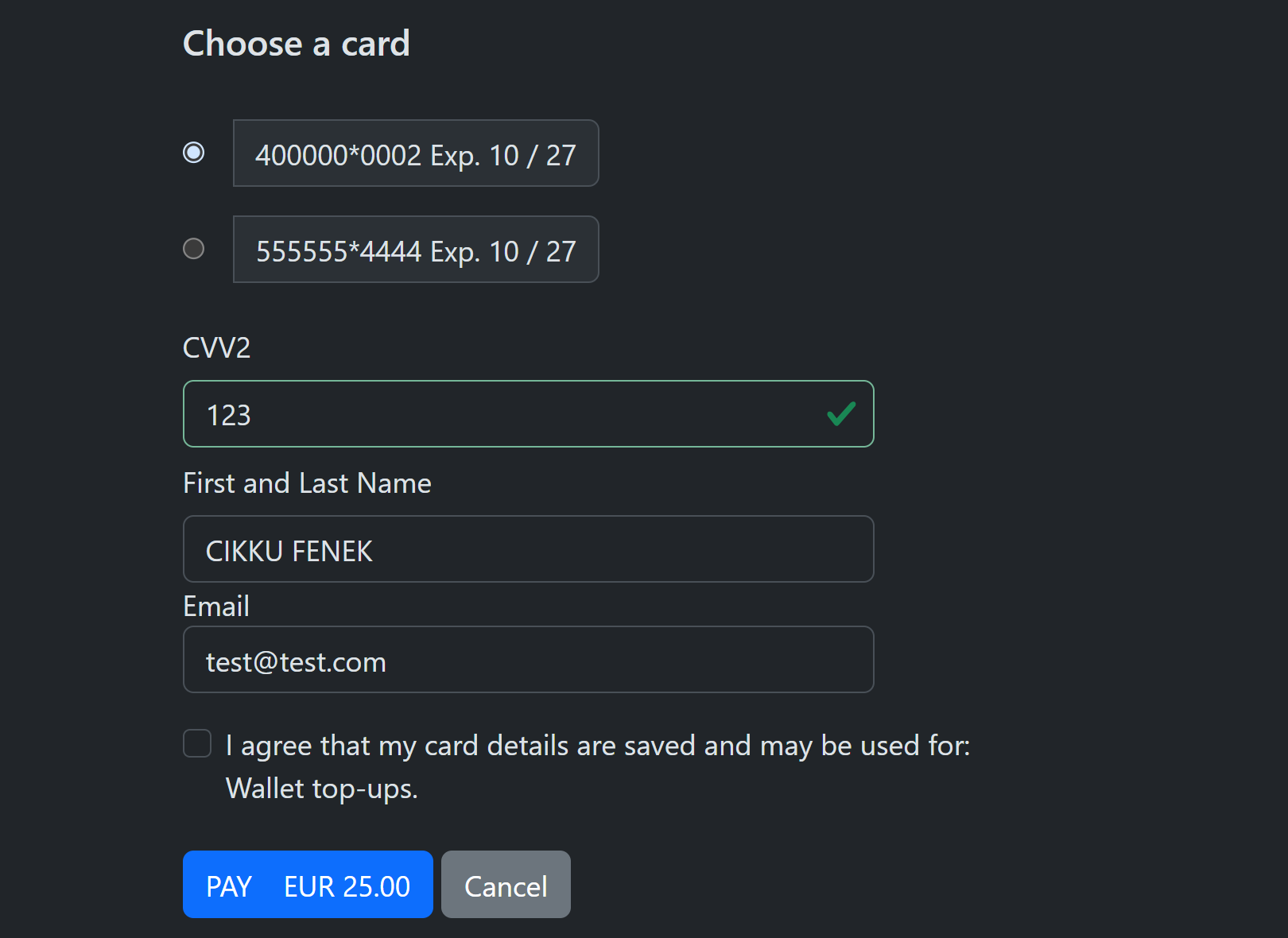
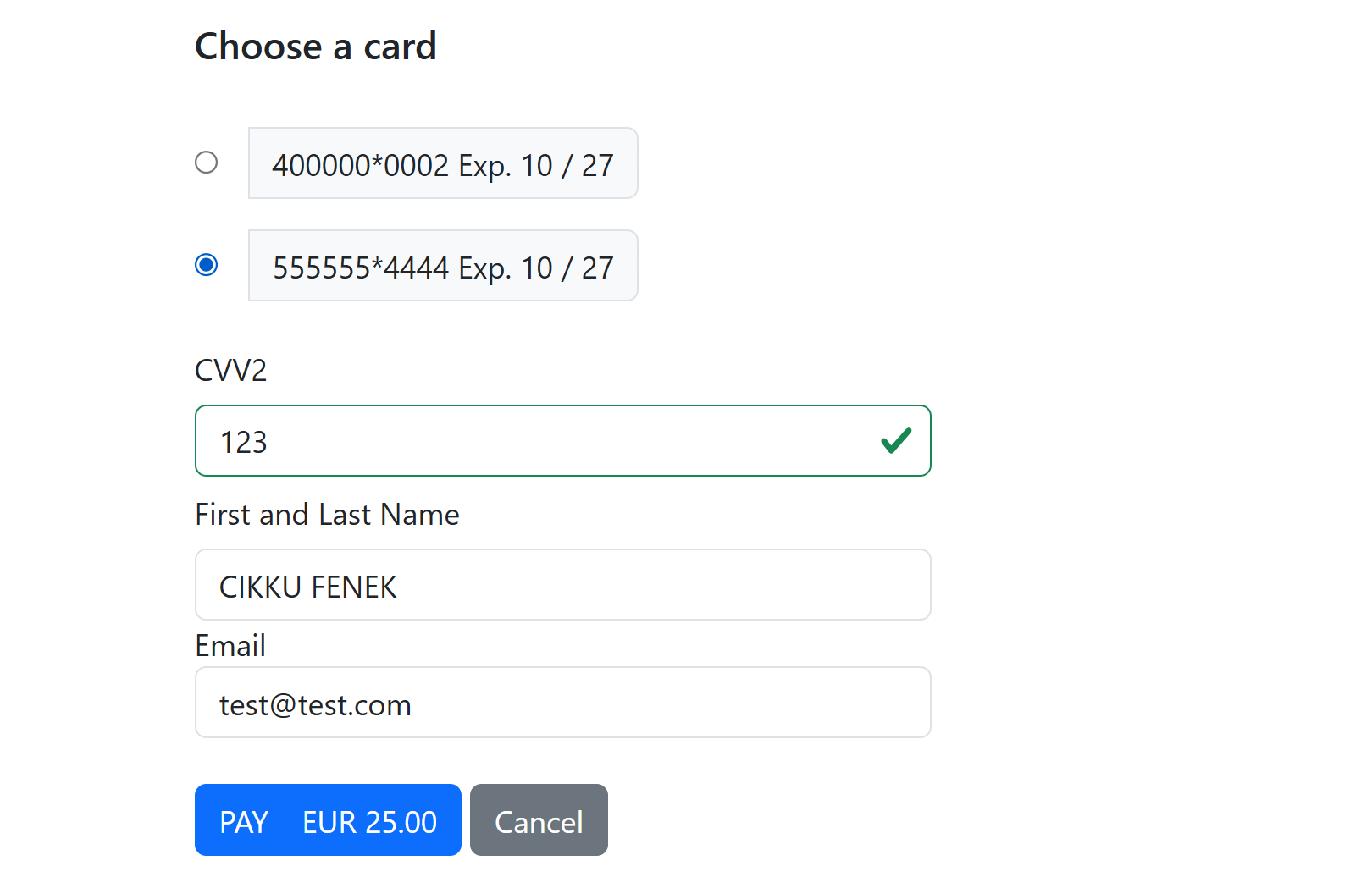
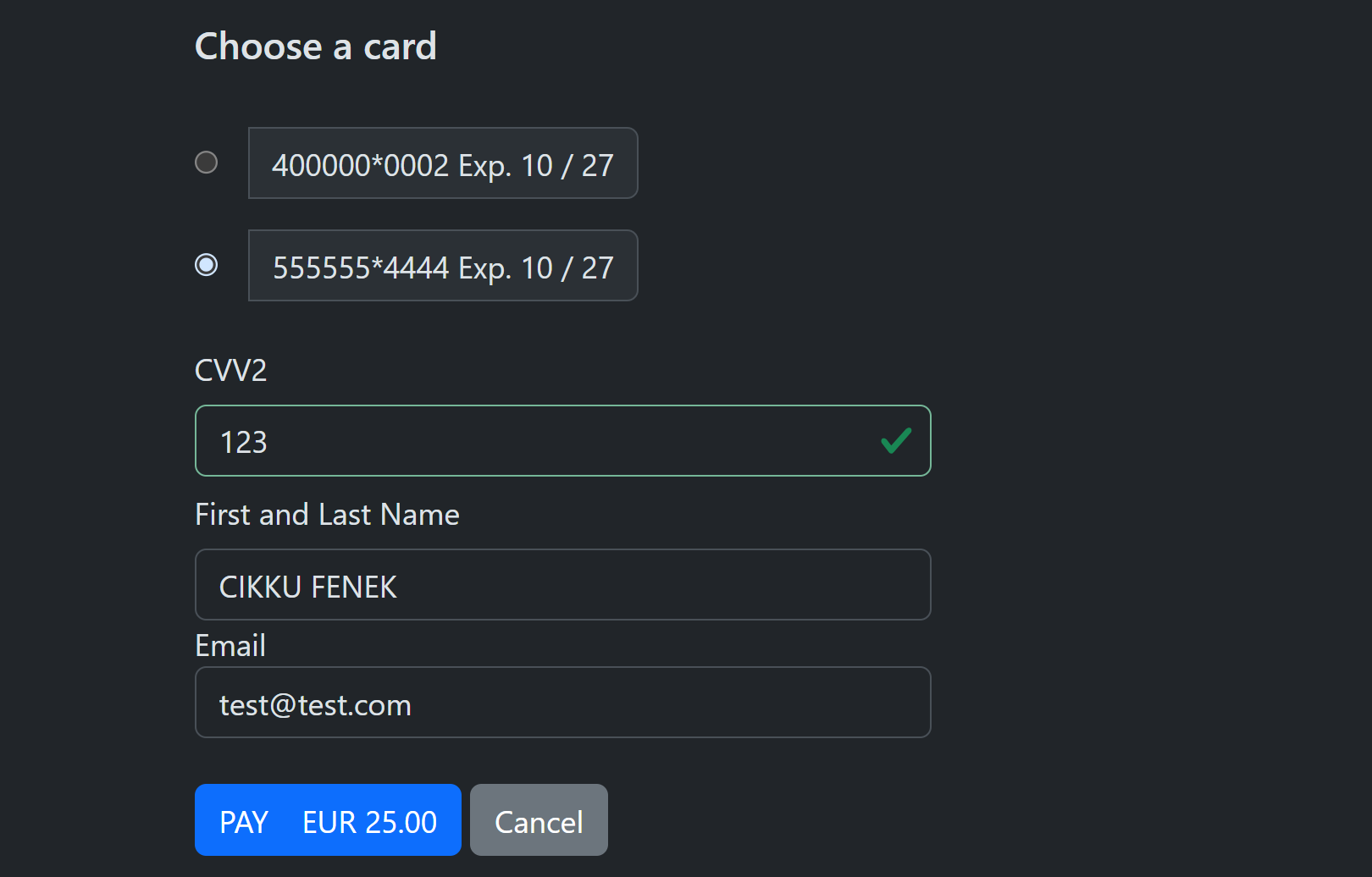
In a list of saved cards the checkbox follows the selected card: it appears for a card that needs consent and disappears for a card that already has it.
| Card needing consent (light) | Card needing consent (dark) |
|---|---|
 |
 |
| Card with consent (light) | Card with consent (dark) |
|---|---|
 |
 |
What PayLolly records
For each consent given on the page PayLolly keeps: that consent was recorded on the hosted page, a version of the exact text shown (hosted-v1: followed by a short hash of the sentence the cardholder saw - computed by PayLolly, never taken from the browser), the time and the IP address. The registration also keeps the scheme reference and processor references of the payment, and the identifiers (not the cryptogram) of the 3D Secure authentication.
How long an agreement lives
An agreement lives as long as its stored card. A card that has not been used for two years is deleted by PayLolly together with its agreements (and the consent evidence in them); any approved payment made with the card renews it. Cancelling an agreement (Agreement/Cancel) only flags it, it does not delete it. See Token service.
The result: the agreement block
The payment status response and the webhooks carry an agreement block when you sent the agreement object:
"agreement": {
  "agreementId": "0198ab5c-6f37-7a02-9d7e-3a5e2c1f4b10",
  "status": "Created",
  "agreementRef": "TOPUP-1",
  "consentStatus": "Recorded"
}
| Field | Values |
|---|---|
| agreementId | Quote it as agreementId on later payments made under this agreement |
| status | Created (new), Updated (the same customer, card and agreementRef again) or NotCreated |
| reason | Only when NotCreated: ConsentDeclined (optional consent not ticked), AlreadyRegistered (optional consent, and the saved card already has an agreement with these terms: the cardholder is not asked and the payment is made as you sent it), PaymentNotApproved, Disabled (agreements not enabled), Error (registration failed after approval and is retried automatically, 5 times over about 5 hours (the first retry about a minute after the payment is stored); the retries that run out are counted (Agreement.RetryExhausted) and the outcome stays Error; when a retry succeeds the payment is updated and your completed / approved webhooks are sent again with the final outcome) |
| consentStatus | Recorded, or LegacyUnrecorded (the agreement exists but no consent evidence is held, for example a saved card paid without the consent box) |
Note
A failure to register never fails the payment: the payment result stays as the processor returned it.
Agreement API: existing cards, and cancelling
Record consent for a card you already hold (a token created before agreements, or imported) without a payment, when the cardholder gave consent in your own journey. The consent is then attested by you. Customer reference, consent text version and consent time (may be in the past, never in the future) are mandatory.
curl -X 'POST' \
  'https://api.dev.paylolly.app/api/rest/v1.0/Agreement/RecordConsent' \
  -H 'accept: application/json' \
  -H 'MerchantKey: 35236fcf-12f4-4c94-b4ba-5d236457b68a' \
  -H 'Content-Type: application/json' \
  -d '{
  "token": "08524FF1F8BE79B7EA0CE19204E81BF2",
  "cardHolder": { "reference": "CUST-1" },
  "agreement": {
    "agreementRef": "TOPUP-1",
    "description": "Wallet top-ups",
    "consent": { "textVersion": "v3", "timestamp": "2026-09-01T09:00:00Z" }
  }
}'
{
  "agreementId": "0198ab5c-6f37-7a02-9d7e-3a5e2c1f4b10",
  "status": "Created",
  "agreementRef": "TOPUP-1",
  "consentStatus": "Recorded"
}
Calling it again with the same token, customer and agreementRef returns Updated with the same agreementId. The token must be yours (TOK07 otherwise).
Cancel an agreement. This only flags it: payments that quote it are counted but not blocked, and a cancelled agreement is no longer offered to the cardholder on the hosted page.
curl -X 'POST' \
  'https://api.dev.paylolly.app/api/rest/v1.0/Agreement/Cancel?agreementId=0198ab5c-6f37-7a02-9d7e-3a5e2c1f4b10' \
  -H 'MerchantKey: 35236fcf-12f4-4c94-b4ba-5d236457b68a'
{ "agreementId": "0198ab5c-6f37-7a02-9d7e-3a5e2c1f4b10", "status": "Cancelled" }
Later payments: on a sync or async payment with a token you may send agreementId. PayLolly then uses the trace id and processor references of that agreement instead of the token's. An unknown agreement, or one that belongs to another card or merchant, is rejected with AGR08.
Saved cards
Three ways to present saved cards:
| Mode | You send | The cardholder sees |
|---|---|---|
| PresetToken | tokenData |
One saved card, enters the CVV2 |
| PresetTokens | tokens (list) |
A list of saved cards, chooses one, enters the CVV2 |
| LookupTokensByReference | cardHolder.reference |
The cards PayLolly holds for that customer that have recorded consent |
Only cards with recorded consent are looked up. A card is offered again only when there is an active, unexpired agreement for your merchant, that card and that customer reference whose consent evidence is held. With an agreement object in the request only that agreement (by agreementRef) counts. Cards saved without consent, cancelled agreements and expired agreements are never offered by the lookup. For cards you saved before agreements existed, record consent with Agreement/RecordConsent to make them appear again.
PresetToken and PresetTokens show the cards you provide: they are your responsibility. When you also send an agreement object the consent checkbox covers a card whose agreement has no consent yet.
Warning
LookupTokensByEmail and LookupTokensByName are no longer supported: matching on an email address or a name allows one person to be offered another person's cards. They are rejected with VAL14. Use LookupTokensByReference with your own customer reference.
Themes: light, dark and automatic
The payment pages come in three themes:
| Theme | Behaviour |
|---|---|
Light |
The pages as they always were. This is the default: nothing changes until you choose another theme |
Dark |
Dark colours |
Auto |
Follows the cardholder's device (light or dark), including when the device changes setting while the page is open |
Where to set it (the request wins over the merchant setting, and either can set Light to switch back):
- Per merchant: the Page Theme setting of the hosted page configuration in the PayLolly portal (or ask PayLolly).
- Per payment:
cssSettings.themeinCreateHostedPayment.
{
  "mode": "New",
  "cssSettings": { "theme": "Dark" }
}
The theme is decided once per payment and used for the whole flow: the payment form, the "Processing" page, the pages that redirect to the 3D Secure method and back, and the redirect to your returnUrl all use the same theme, so there is no white flash in the middle of a dark payment. One limit: the 3D Secure challenge itself is the cardholder's bank page and is not ours to theme (it appears as a light panel inside the dark page).
| Light (default) | Dark |
|---|---|
|
|
All the pictures on this page exist in both themes.
Important
If you override Bootstrap variables for your branding (see CSS Customisation) the overrides on :root apply to both themes. A light body colour with the dark theme gives unreadable text. Keep your light overrides on :root and put the dark variants under the selector [data-bs-theme=dark], listed after :root in your css object: both selectors have the same weight, so the later one wins when the page is dark.
CSS Customisation
It is possible to customise the visual components of the payment page via CSS variables
The Hosted Payment page is using standard BootStrap 5.3, and all standard CSS variabels can be overridden.
Overrides can be static (advise PayLolly and they will set them up for you) or else dynamic, by specifying them in the CreateHostedPayment request in cssSettings->css object
Tip
Bootstrap css variables can be seen on https://getbootstrap.com/docs/5.3/customize/css-variables/
example
{
...
"cssSettings":{
"css":{
":root":{
"--bs-body-bg":"red",
"--bs-body-bg-rgb":"255,0,0"
}
}
}
}
example with a dark variant (the second selector is used only when the page is dark, and must come after :root)
{
"cssSettings":{
"theme":"Auto",
"css":{
":root":{
"--bs-primary":"#0a7d5a",
"--bs-body-bg":"#ffffff"
},
"[data-bs-theme=dark]":{
"--bs-primary":"#34c38f",
"--bs-body-bg":"#101418"
}
}
}
}
Errors
| Error | When |
|---|---|
VAL13 |
initiation is MIT or MOTO: hosted (and async) payments are always cardholder initiated |
VAL14 |
LookupTokensByEmail or LookupTokensByName in the mode (including from a merchant level mode) |
AGR01 |
agreement sent without cardHolder.reference, or longer than 64 characters |
AGR02 |
agreement with a recurrence other than OneClick (or OneTime with AskTokenize) |
AGR03 |
agreement.description missing on a hosted payment |
AGR05 |
agreement.consent sent on a hosted payment |
AGR06 |
maxAmount not positive (or too many decimals for the currency), or expiresAt not in the future |
AGR07 |
Invalid agreement field (agreementRef format or length, description longer than 200) |
AGR08 |
Unknown agreementId, or an agreement that belongs to another card or merchant |
AGR09 |
Agreements are not enabled for the merchant |
TOK07 |
Token missing, invalid or not yours |
HPS01 |
The payment link has expired (validUntil) |
HPS02 |
The payment was cancelled by the cardholder |
Every code, with a sample response, is in Errors.
Use Cases
Hosted Payment - Single one-shot payment
Use Payment/CreateHostedPayment call
- Populate merchantId
- Optionally populate accountid if you want to force a particular account
- Populate Currency ex EUR
- Populate amount ex 1.00
- Create a merchantRef - must be unique - suggest Guid
- Enter cardholder details if known
- If PCI D - and you know card details you can prepopulate them in cardData
- Populate AuthorisationType depending on your use case
- Preauth - Auth
- Preauth and Capture - AuthCapture
- Recurrence - OneTime
- WebHooks - suggest population of completed and approved webhooks to receive server-to-server call when payment completed
- Initiation - set to CIT
- ReturnUrl - enter a valid url to redirect cardholder at the end of the payment
- ThreeDSConfig - see ThreeDSConfig - default values apply if omitted
- validUntil - enter a valid until date/time - suggest 20 minutes
- mode - select New - see Modes
The above will create a single one-shot payment request
curl -X 'POST' \
  'https://api.dev.paylolly.app/api/rest/v1.0/Payment/CreateHostedPayment' \
  -H 'accept: application/json' \
  -H 'MerchantKey: 35236fcf-12f4-4c94-b4ba-5d236457b68a' \
  -H 'Content-Type: application/json' \
  -d '{
  "merchantId": "dbdab964-82ee-4b09-a26b-68403c31afa7",
  "currency": "EUR",
  "amount": 1,
  "merchantRef": "9e31818e-407b-48d8-8bbe-eb19fa565733",
  "cardHolder": {
    "email": "test@email.com",
    "name": "NAME SURNAME"
  },
  "authorisationType": "Auth",
  "recurrence": "OneTime",
  "initiation": "CIT",
  "returnUrl": "https://mywebsite.com/payment/return/abc123",
  "validUntil": "2022-11-04T09:36:54.749Z",
  "mode": "New"
}'
response:
{
  "redirectUrl": "https://api.dev.paylolly.app/payment/hosted/6d5f3349-40f2-4727-aac0-39eb0e21951f/Index",
  "paymentId": "6d5f3349-40f2-4727-aac0-39eb0e21951f",
  "merchantId": "dbdab964-82ee-4b09-a26b-68403c31afa7",
  "accountId": null,
  "currency": "EUR",
  "amount": 1,
  "cardData": null,
  "threeDSData": null,
  "result": null,
  "merchantRef": "9e31818e-407b-48d8-8bbe-eb19fa565733"
}
The page the cardholder sees:
| Light | Dark |
|---|---|
|
|
Hosted Payment - one-shot payment with previous details (fixed) - repeated payment CIT
Use Payment/CreateHostedPayment call
Populate merchantId
Optionally populate accountid if you want to force a particular account
Populate Currency ex EUR
Populate amount ex 1.00
Create a merchantRef - must be unique - suggest Guid
Enter cardholder details if known
populate tokenData with previous payment Token
Populate AuthorisationType depending on your use case
- Preauth - Auth
- Preauth and Capture - AuthCapture
Recurrence - OneTime
WebHooks - suggest population of completed and approved webhooks to receive server-to-server call when payment completed
Initiation - set to CIT
ReturnUrl - enter a valid url to redirect cardholder at the end of the payment
ThreeDSConfig - see ThreeDSConfig - default values apply if omitted
validUntil - enter a valid until date/time - suggest 20 minutes
mode - select PresetToken - see Modes
The above will create a single one-shot payment request
The page the cardholder sees:
| Light | Dark |
|---|---|
|
|
Hosted Payment - save the card with mandatory consent (subscription style)
Use Payment/CreateHostedPayment as for a one-shot payment, but:
recurrence: OneClickcardHolder.reference: your id for the customer (mandatory)agreement:description(mandatory), optionallyagreementRef,maxAmount,expiresAtmode: New (noAskTokenize: the consent is mandatory)
{
  "merchantId": "dbdab964-82ee-4b09-a26b-68403c31afa7",
  "currency": "EUR",
  "amount": 25,
  "merchantRef": "2f7c1b6a-5b57-4b29-8f57-3a0f1b0a9c11",
  "cardHolder": { "reference": "CUST-1", "email": "test@email.com", "name": "NAME SURNAME" },
  "authorisationType": "AuthCapture",
  "recurrence": "OneClick",
  "initiation": "CIT",
  "returnUrl": "https://mywebsite.com/payment/return/abc123",
  "validUntil": "2026-11-04T09:36:54.749Z",
  "mode": "New",
  "agreement": { "agreementRef": "TOPUP-1", "description": "Wallet top-ups", "maxAmount": 100 }
}
The cardholder must tick the consent box (see the pictures above). After approval GetPaymentStatus and the webhook carry the card token (store it) and the agreement:
{
  "result": { "status": "Approved" },
  "cardData": { "token": "08524FF1F8BE79B7EA0CE19204E81BF2", "maskedPAN": "400000*0002" },
  "agreement": { "agreementId": "0198ab5c-6f37-7a02-9d7e-3a5e2c1f4b10", "status": "Created", "agreementRef": "TOPUP-1", "consentStatus": "Recorded" }
}
Store the agreementId and the token for the customer; later merchant initiated payments quote them (see the sync and async documentation).
Hosted Payment - subscription or instalments (scheduled agreement)
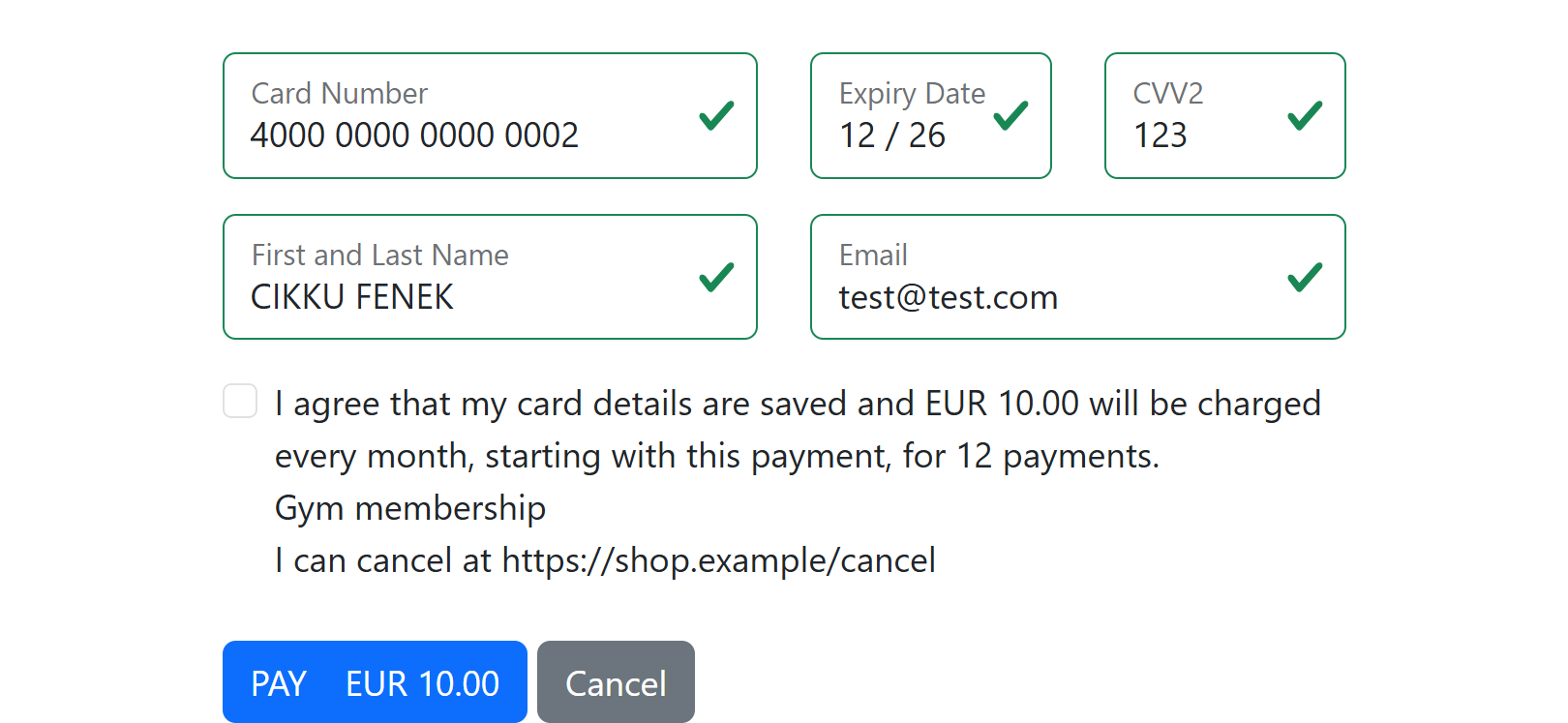
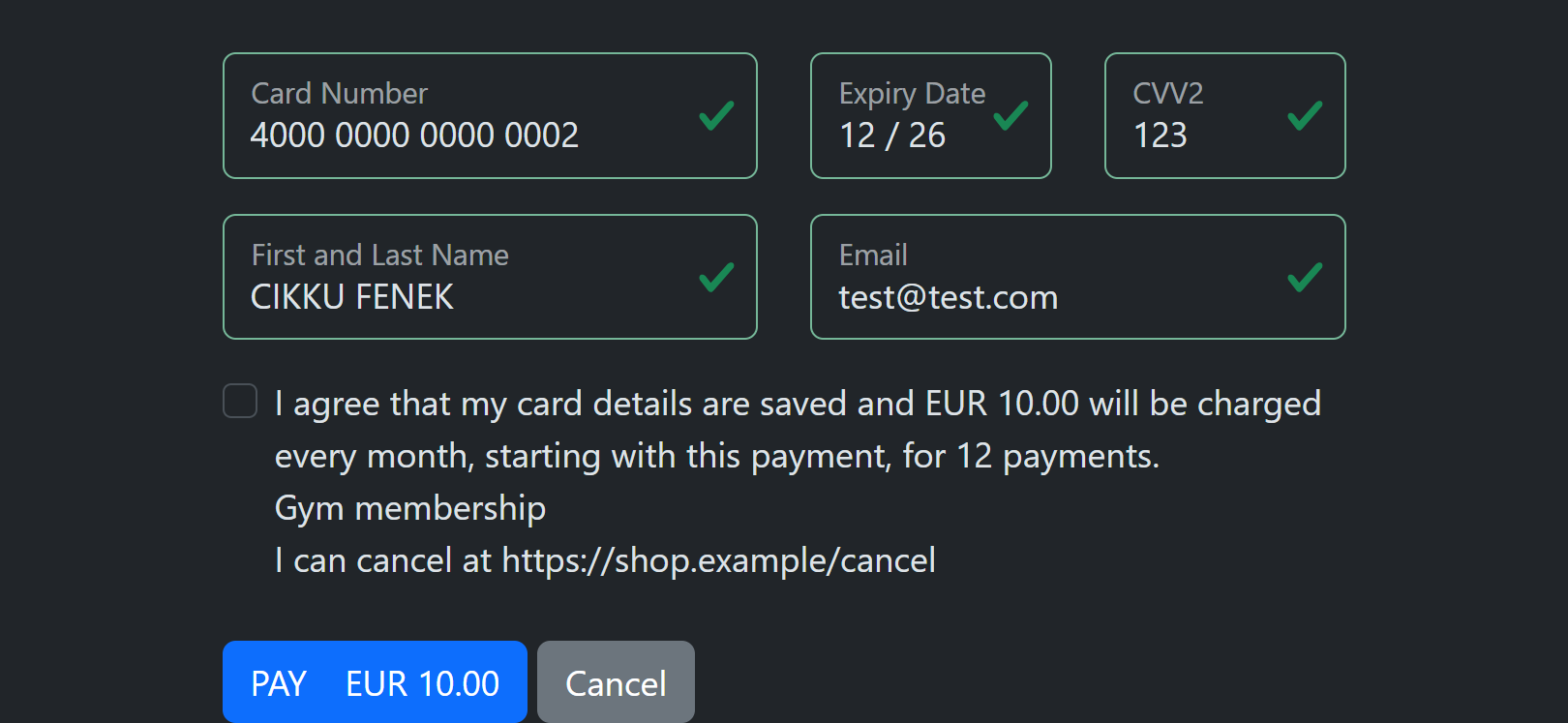
As for mandatory consent, but send recurrence Scheduled and an agreement.schedule (amount, interval, firstPaymentDate, instalments, cancellationUrl; see Agreements). The consent checkbox is always mandatory (the AskTokenize mode is rejected with AGR15) and is asked again for a saved card when the schedule differs from the one its agreement holds (the same rule as for every agreement). The sentence next to the box is generated from your fields:
I agree that my card details are saved and EUR 10.00 will be charged every month, starting with this payment, for 12 payments. Gym membership I can cancel at https://shop.example/cancel
| Light | Dark |
|---|---|
 |
 |
{
  "currency": "EUR",
  "amount": 10,
  "merchantRef": "2f7c1b6a-5b57-4b29-8f57-3a0f1b0a9c12",
  "cardHolder": { "reference": "CUST-1", "email": "test@email.com", "name": "NAME SURNAME" },
  "authorisationType": "AuthCapture",
  "recurrence": "Scheduled",
  "initiation": "CIT",
  "returnUrl": "https://mywebsite.com/payment/return/abc123",
  "mode": "New",
  "agreement": {
    "agreementRef": "GYM-1",
    "description": "Gym membership",
    "schedule": { "amount": 10, "interval": { "unit": "Month", "count": 1 }, "instalments": 12, "cancellationUrl": "https://shop.example/cancel" }
  }
}
Without firstPaymentDate the registering payment is the first payment, so amount must equal schedule.amount; an amount of 0 (card check, free trial) needs schedule.firstPaymentDate (AGR18). You collect the later payments yourself with merchant initiated Recurring payments that quote the agreementId.
Hosted Payment - save the card only if the cardholder agrees (optional consent)
As above, but send recurrence OneTime and mode New,AskTokenize. The consent box is shown unticked:
- ticked: the payment registers the card (
agreement.statusCreated, token returned) - not ticked: a normal one-time payment is made, no token is returned, and the response says
"agreement": { "status": "NotCreated", "reason": "ConsentDeclined" }
Hosted Payment - returning customer: saved card, consent only the first time
mode: PresetToken (one card) or PresetTokens (several) or New,PresetToken (saved card or new card)tokenData/tokens: the stored card(s)cardHolder.referenceand the sameagreementas when the card was registered
If the agreement of that card already has recorded consent the customer is only asked for the CVV2. If not (for example the card was saved before agreements existed) the consent box is shown once; ticking it records the consent on that payment. Unticked: with a mandatory consent the page asks again, with AskTokenize the payment proceeds as a one-time payment.
Hosted Payment - offer the customer's earlier cards (lookup by reference)
mode: Auto or PresetTokens together with LookupTokensByReferencecardHolder.reference: your customer id
The page offers the customer's cards that have recorded consent, next to the new card form when New is in the mode. A customer with no consented card simply sees the new card form. To make cards you saved earlier appear, record their consent with Agreement/RecordConsent.
Hosted Payment - dark or automatic theme
Add "cssSettings": { "theme": "Dark" } (or "Auto") to the request, or have the theme set for your merchant in the portal, see Themes.
Create a payment Link to send by email
Follow Hosted Payment - Single one-shot payment above but
- Modify validUntil to a suitable time example (1 week / 30 days)
- Make sure you use a webhook and appropriate return url which cannot make use of any session data as session validity is typically minutes
- Send link by email (link=return.redirectUrl)
curl -X 'POST' \
  'https://api.dev.paylolly.app/api/rest/v1.0/Payment/CreateHostedPayment' \
  -H 'accept: application/json' \
  -H 'MerchantKey: 35236fcf-12f4-4c94-b4ba-5d236457b68a' \
  -H 'Content-Type: application/json' \
  -d '{
  "merchantId": "dbdab964-82ee-4b09-a26b-68403c31afa7",
  "currency": "EUR",
  "amount": 1,
  "merchantRef": "9e31818e-407b-48d8-8bbe-eb19fa565733",
  "cardHolder": {
    "email": "test@email.com",
    "name": "NAME SURNAME"
  },
  "authorisationType": "Auth",
  "recurrence": "OneTime",
  "initiation": "CIT",
  "returnUrl": "https://mywebsite.com/payment/return/abc123",
  "validUntil": "2022-12-04T09:36:54.749Z",
  "mode": "New,FixedCardHolderEmail,FixedCardHolderName"
}'
response:
{
  "redirectUrl": "https://api.dev.paylolly.app/payment/hosted/6d5f3349-40f2-4727-aac0-39eb0e21951f/Index",
  "paymentId": "6d5f3349-40f2-4727-aac0-39eb0e21951f",
  "merchantId": "dbdab964-82ee-4b09-a26b-68403c31afa7",
  "accountId": null,
  "currency": "EUR",
  "amount": 1,
  "cardData": null,
  "threeDSData": null,
  "result": null,
  "merchantRef": "9e31818e-407b-48d8-8bbe-eb19fa565733"
}
Prepare and send email to cardholder with the link returned in redirectUrl https://api.dev.paylolly.app/payment/hosted/6d5f3349-40f2-4727-aac0-39eb0e21951f/Index
Tip
See Payment Actions for further actions possible on completed hosted payment